What it is
Settings › Plan and billing holds everything about your Fidly subscription: which plan you have, whether it's active, until when or when it renews, and for how much.
Below that you see your limits (brands, branches per brand and admins) and, under Includes, your plan's features. In Plans you compare Business, Professional and Enterprise, monthly or annual, and subscribe or upgrade; for a custom plan, you talk to Fidly. Every charge leaves its invoice in Invoices.
If you change plans while your paid period is still running, the new plan and its first charge start when that period ends.
If the license expires or the trial ends, the dashboard only shows this screen with the “Your license expired” notice and the Renew plan button. Your data, customers and cards are kept and everything comes back when you pay.
Step by step
Open Plan and billing
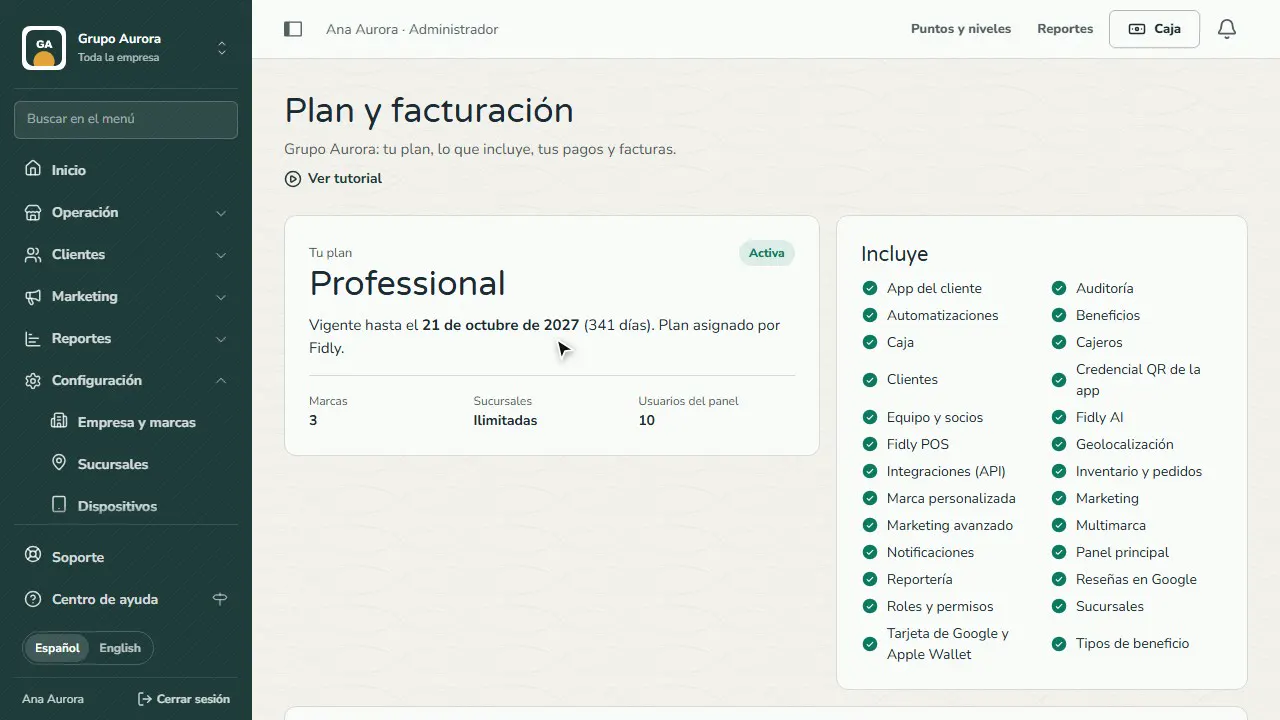
In Settings › Plan and billing you see your plan, whether it's active and until when, or when it renews.
Check your limits
How many brands, branches and dashboard users your plan allows.
What your plan includes
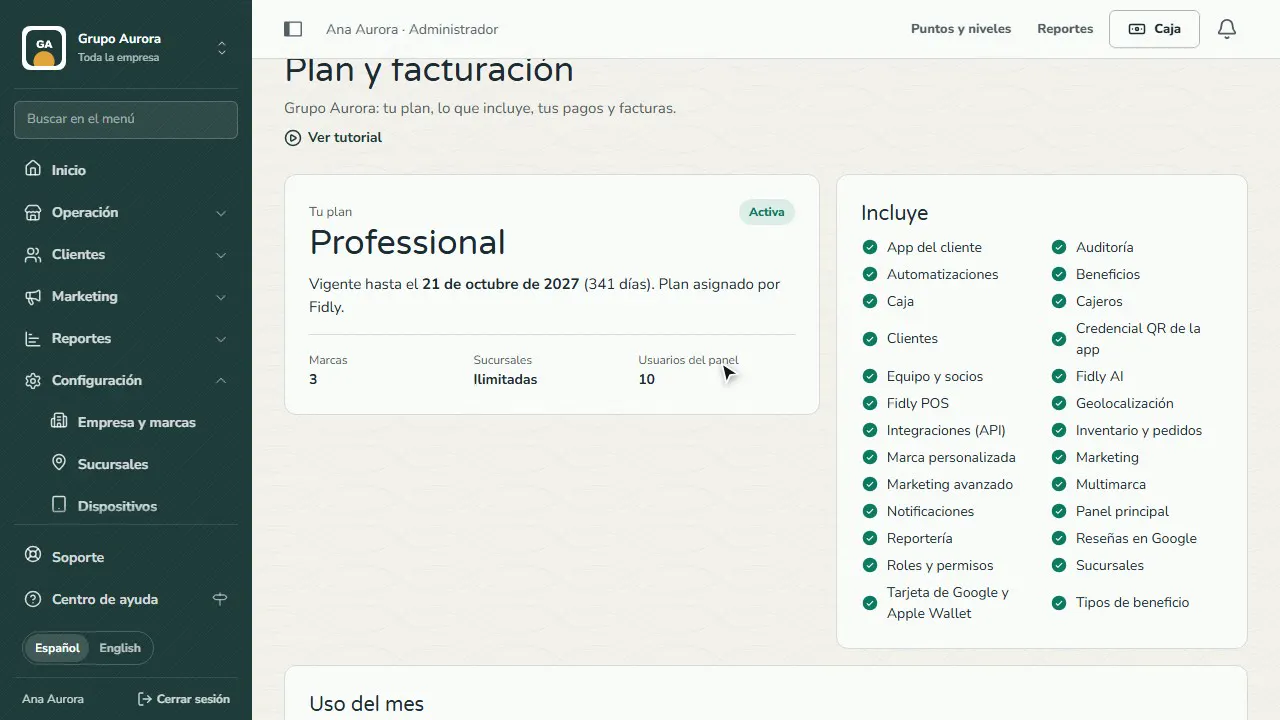
Under Includes you'll find your plan's features: Register, campaigns, inventory and orders, Fidly AI, Integrations…
Usage this month
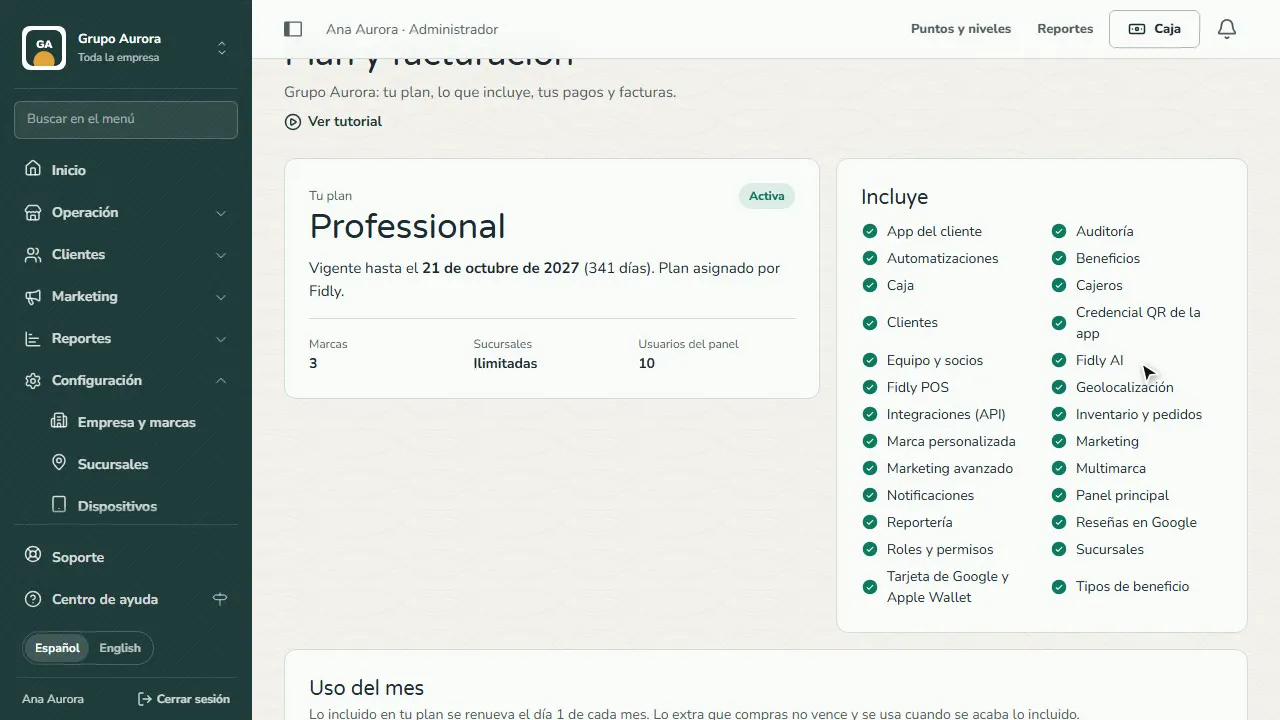
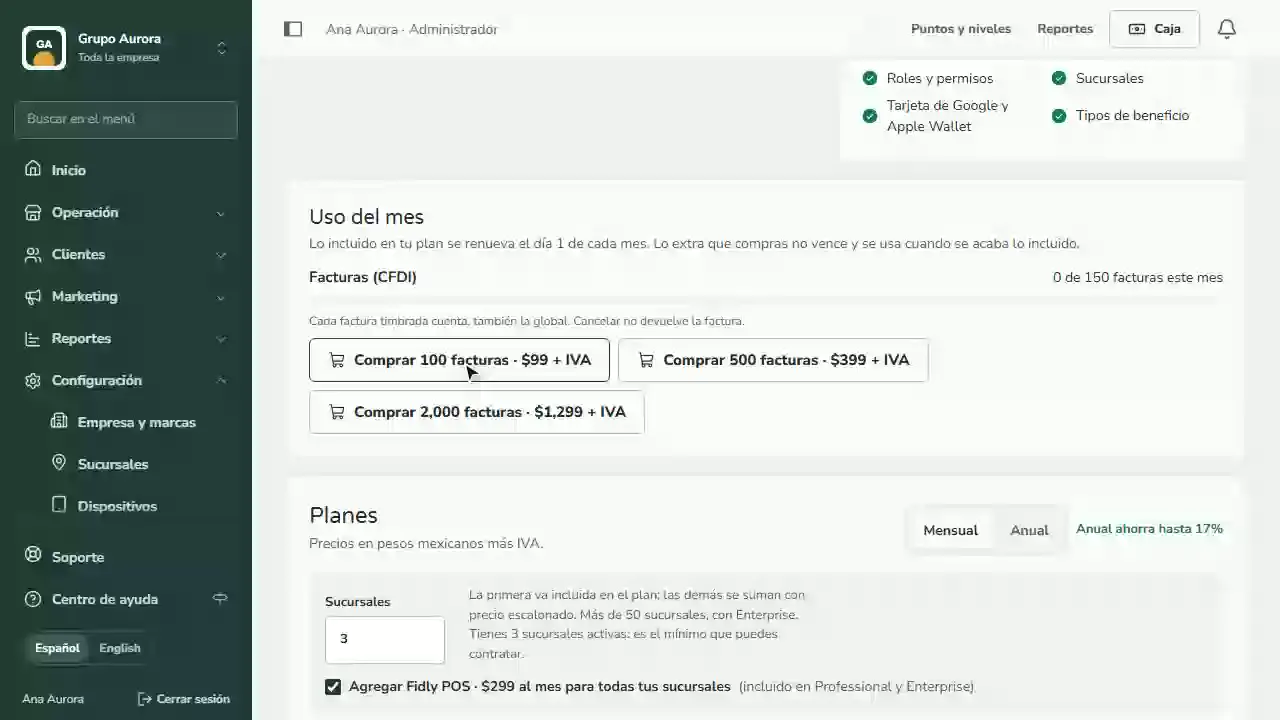
In Usage this month you see how many invoices, Fidly AI questions and WhatsApp assistant replies your plan includes and how many you have used. If you run out, buy an extra pack: it never expires.
Compare the plans
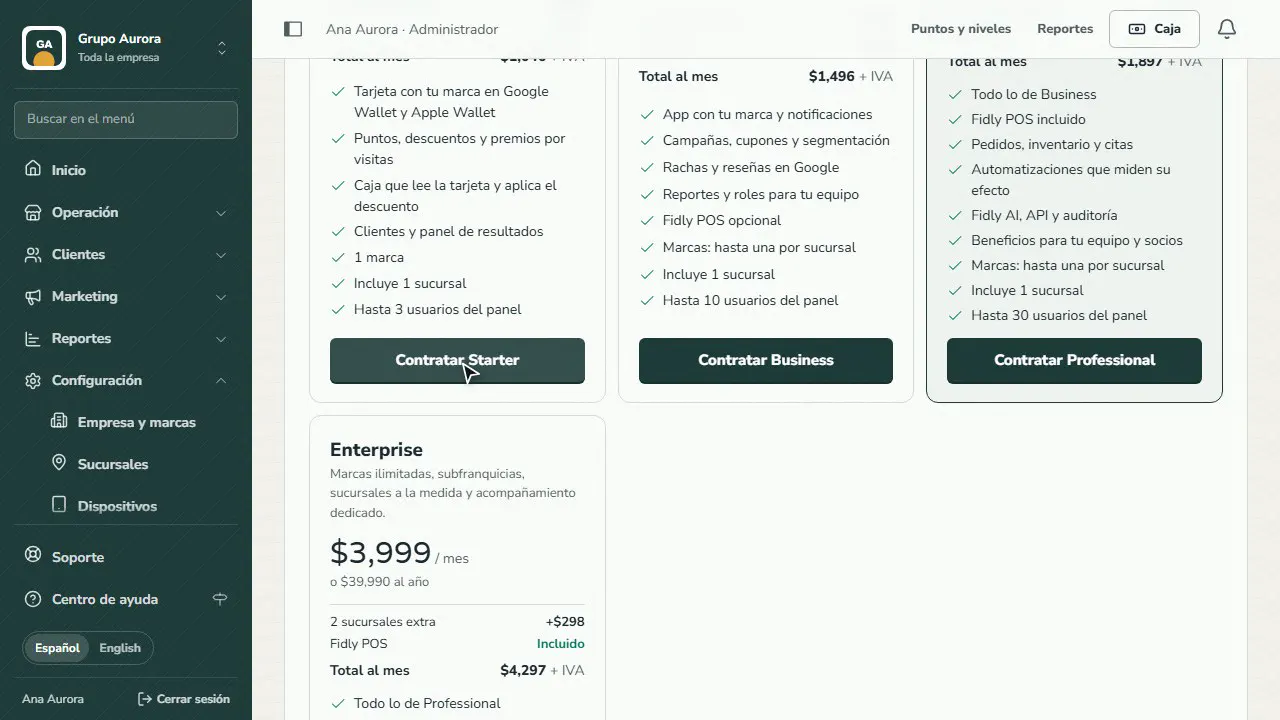
Compare the plans Monthly or Annual: annual costs the same as 10 months.
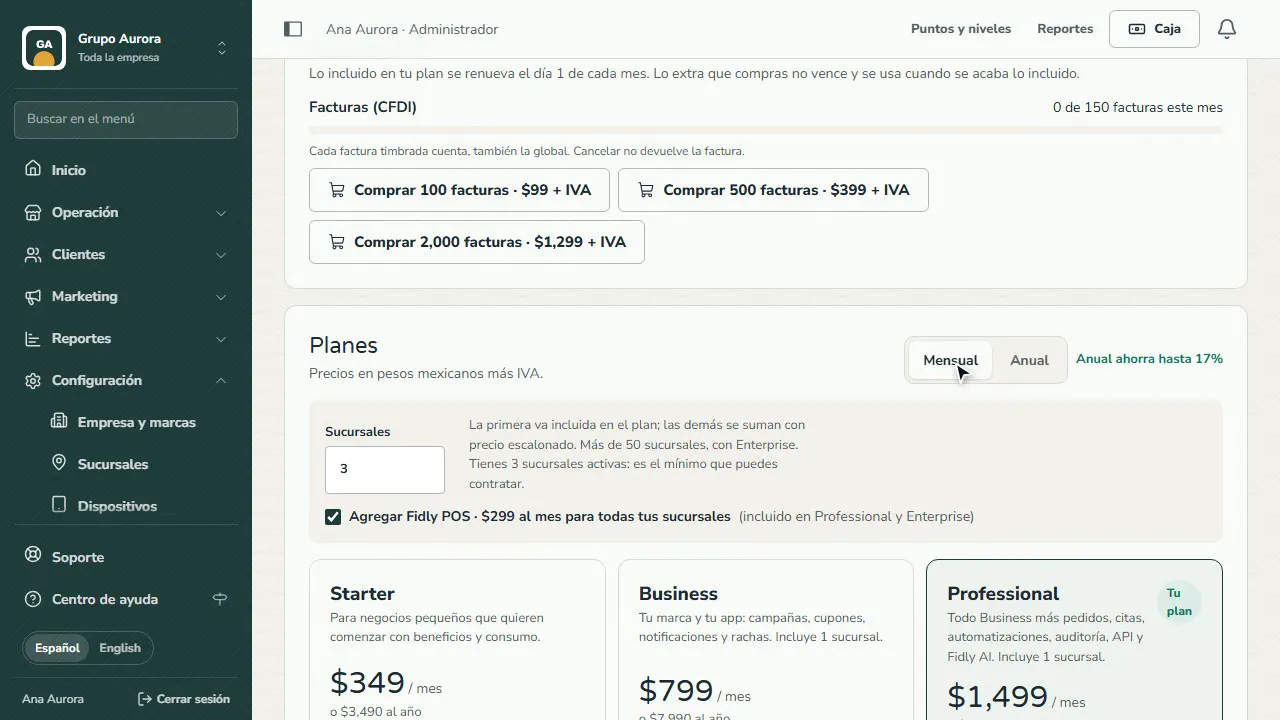
Add branches
Enter how many branches you need: the first one is included and the rest are added with tiered pricing. You see the Total before you pay.
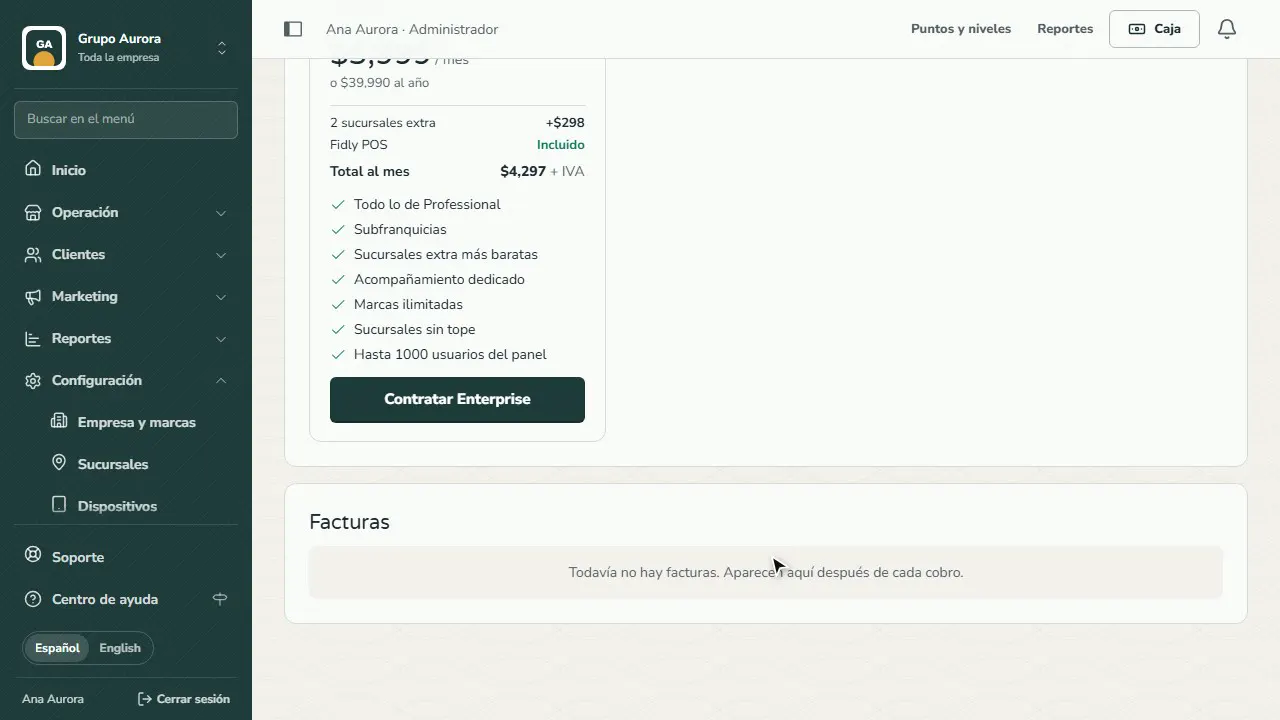
Your invoices
Every charge for your plan leaves its invoice in Invoices, ready to view or download.
Usage this month: invoices, Fidly AI and WhatsApp
Usage this month shows what your plan includes each month for usage-based items: stamped invoices (CFDI), questions to Fidly AI and WhatsApp assistant replies. Only what your company has turned on appears.
- The included amount resets on the 1st of each month (Mexico City time). Starter includes 25 invoices, 40 questions and 500 replies; Business, 80, 120 and 1,000; Professional, 150, 250 and 3,000; Enterprise, 500, 800 and 10,000.
- When the included amount runs out, your extra balance is used: packs you buy right here (one-time payment, plus VAT) that never expire. There are packs of 100, 500 and 2,000 invoices, 100 questions and 1,000 replies.
- At 80% you'll see a warning, and another one in the panel's bell if everything runs out. With no balance, new invoices stay pending (you stamp them after buying), Fidly AI stops answering and the WhatsApp assistant goes quiet: messages stay in the inbox for your team.
- Every stamped invoice counts, including the global one; cancelling doesn't give it back, because the stamp already happened. Invoices that fail to stamp don't count.
- Only someone who manages the whole company can buy packs; everyone else sees the counters.
Common mistakes
- Looking here for your customers' invoices. This is where your Fidly plan invoices live; your customers' invoices (CFDI) have their own section in the dashboard.
- Hitting a limit without noticing. If you already have all your brands or admins, check your limits before adding another.
Tips
- Paying annually saves you money compared with monthly.
- Only admins with permission to manage the company can see this screen.