What it is
If your business offers services (a tasting, a haircut, a massage, a class), your customers book them in your brand's app: in Orders they choose Appointment, the service, the day and a free time slot. The appointment is confirmed and they pay at the branch when it's done.
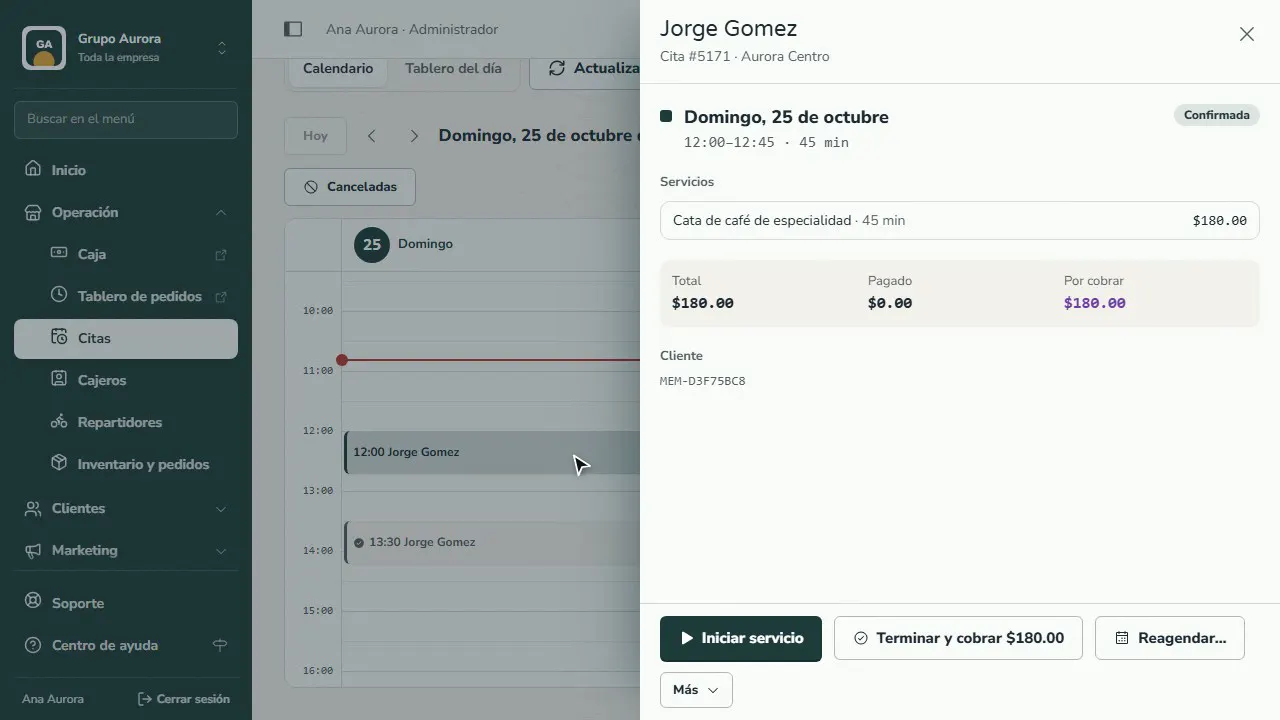
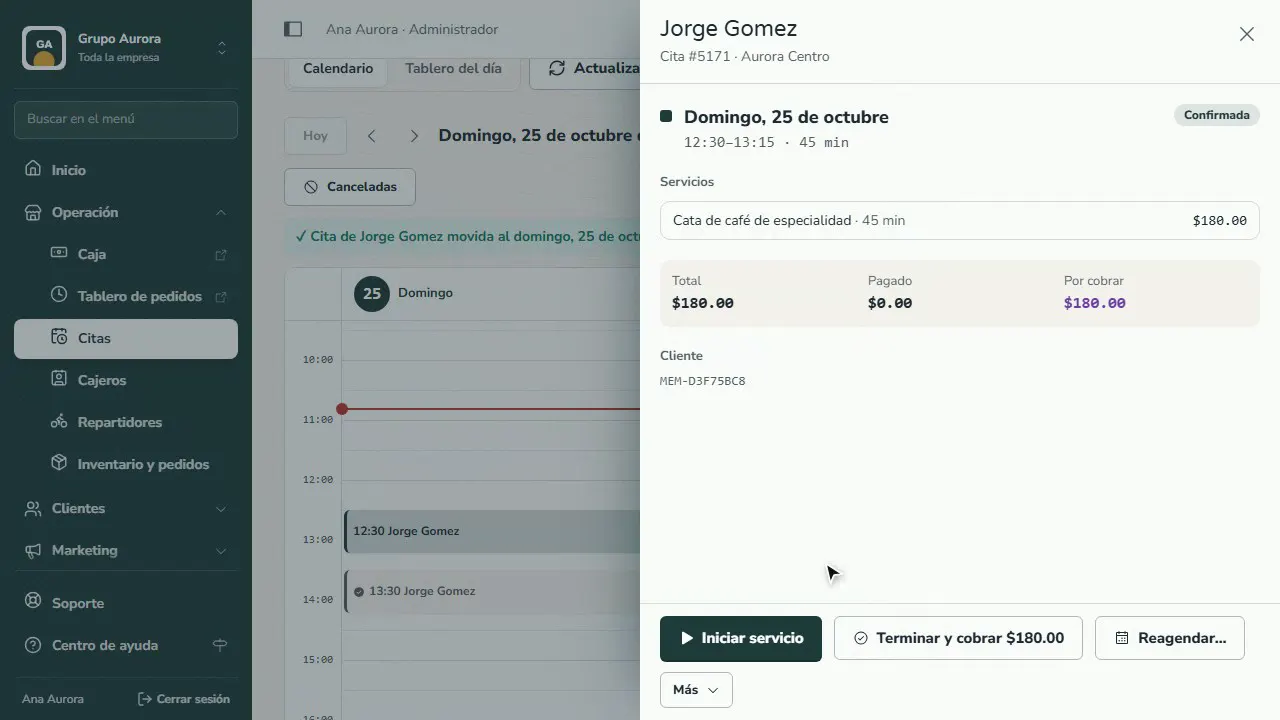
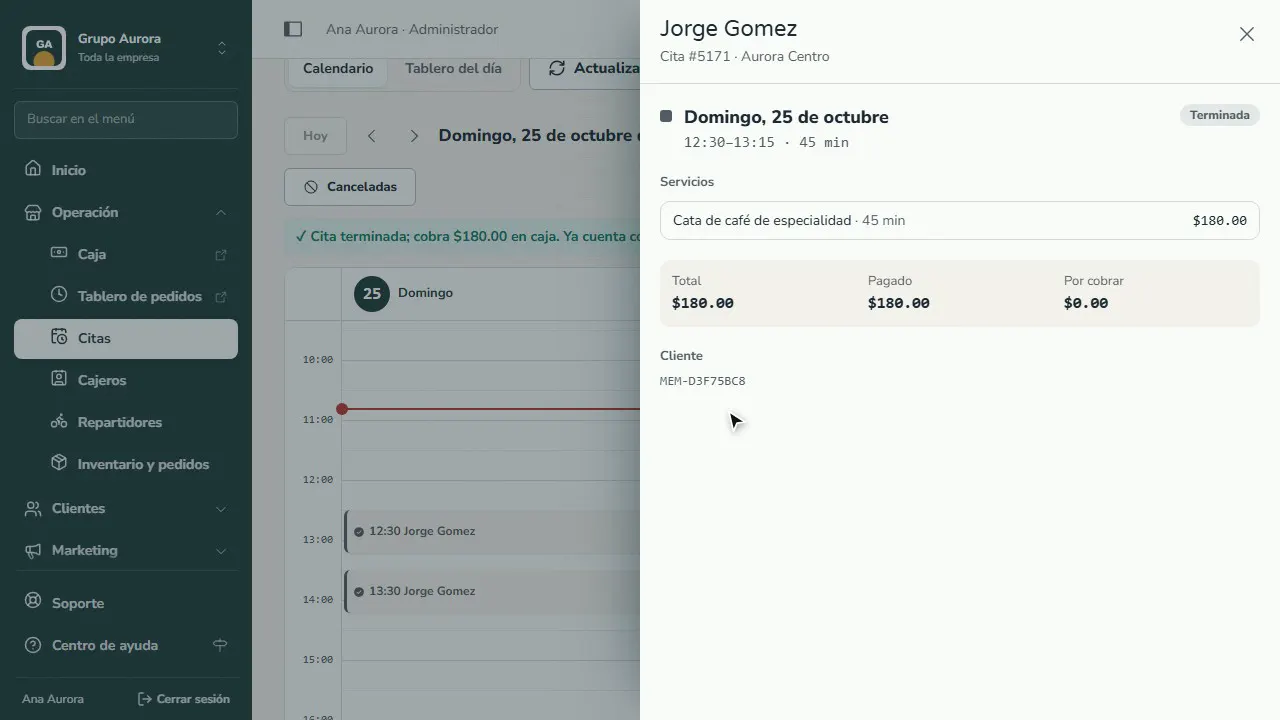
In Operation › Appointments you see the calendar by day or by week, and by branch. Tap an appointment to see the service, the total and what's left to charge. With Reschedule… you move it to another free slot (or drag it on the calendar), and the customer gets a notification. On the day, you start the appointment and finish it by charging: it counts as a visit.
To take appointments, turn on In-store appointment in Inventory and orders › Times and delivery › Delivery and appointments, and add your services (type “Service with appointment”, with its duration).
Step by step
The customer chooses Appointment
In Orders in their app, the customer taps Appointment: they see your services and that they pay when it's done.
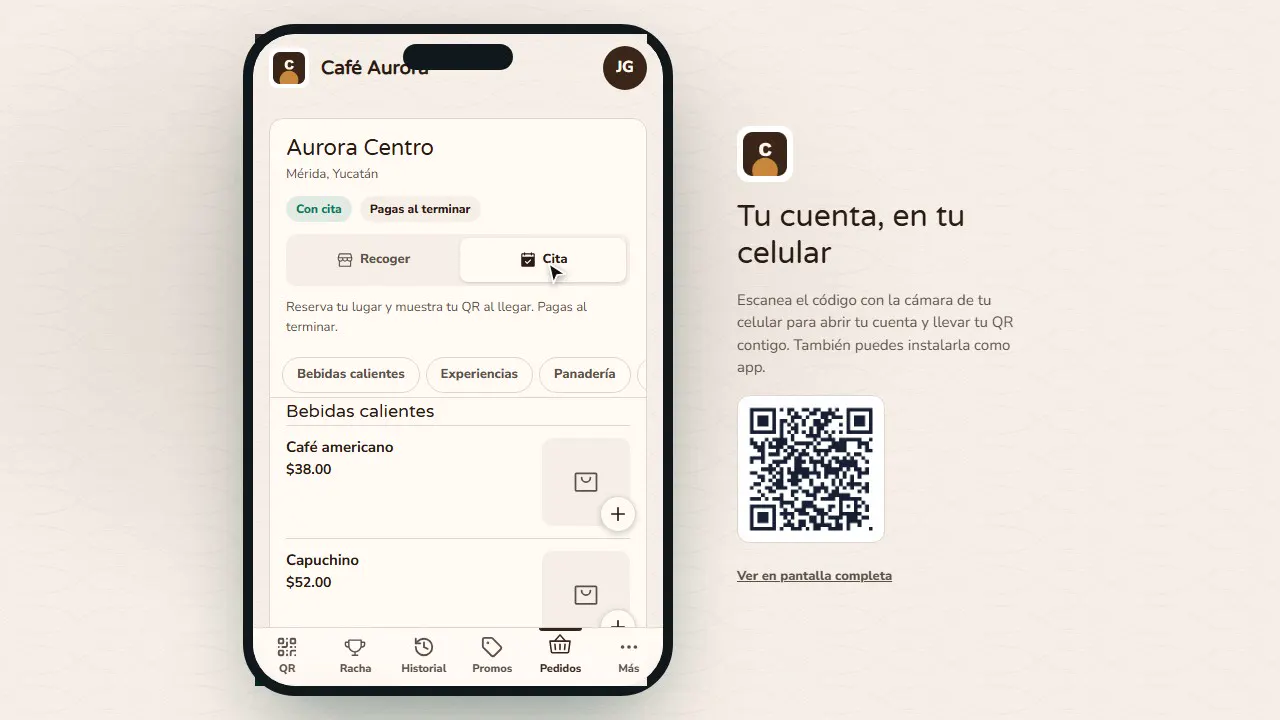
Choose the service
Tap + on the service (here, a 45-min tasting) and then View order.
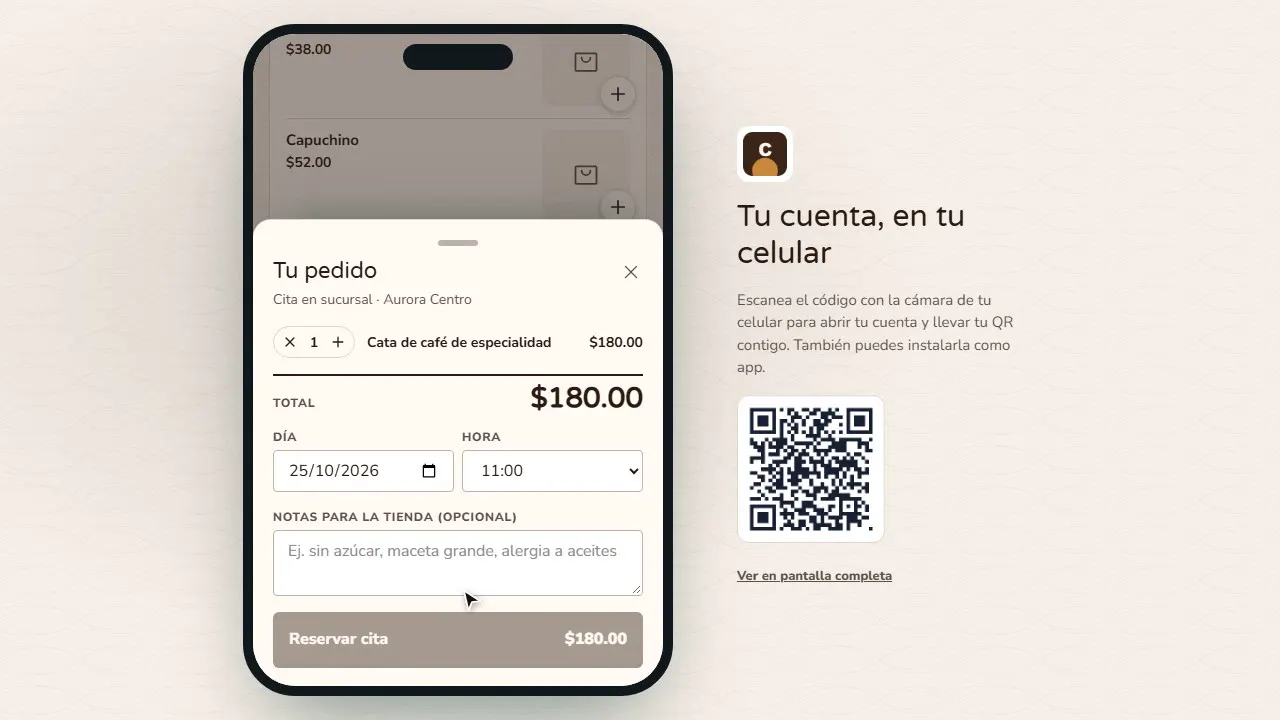
Day and time
Choose the Day and the Time: only the branch's free slots show up.
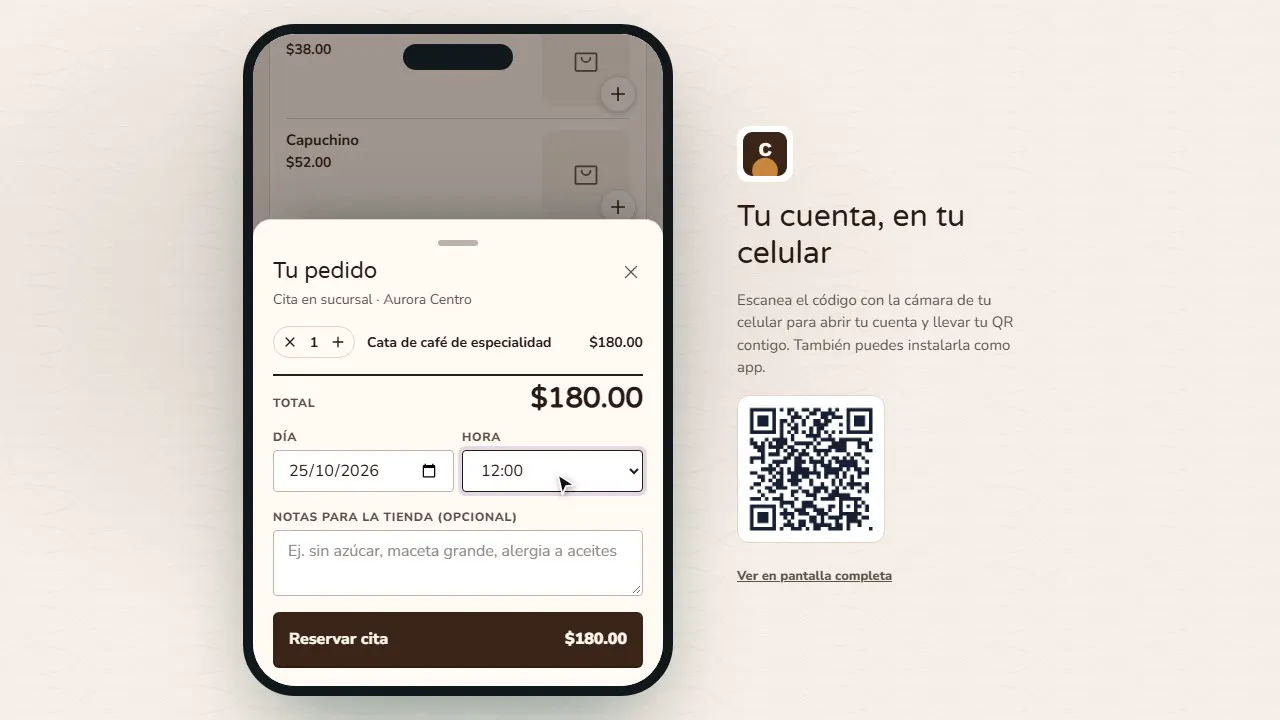
Book the appointment
Tap Book appointment: it's confirmed, and the app shows the day, the time and the appointment number.
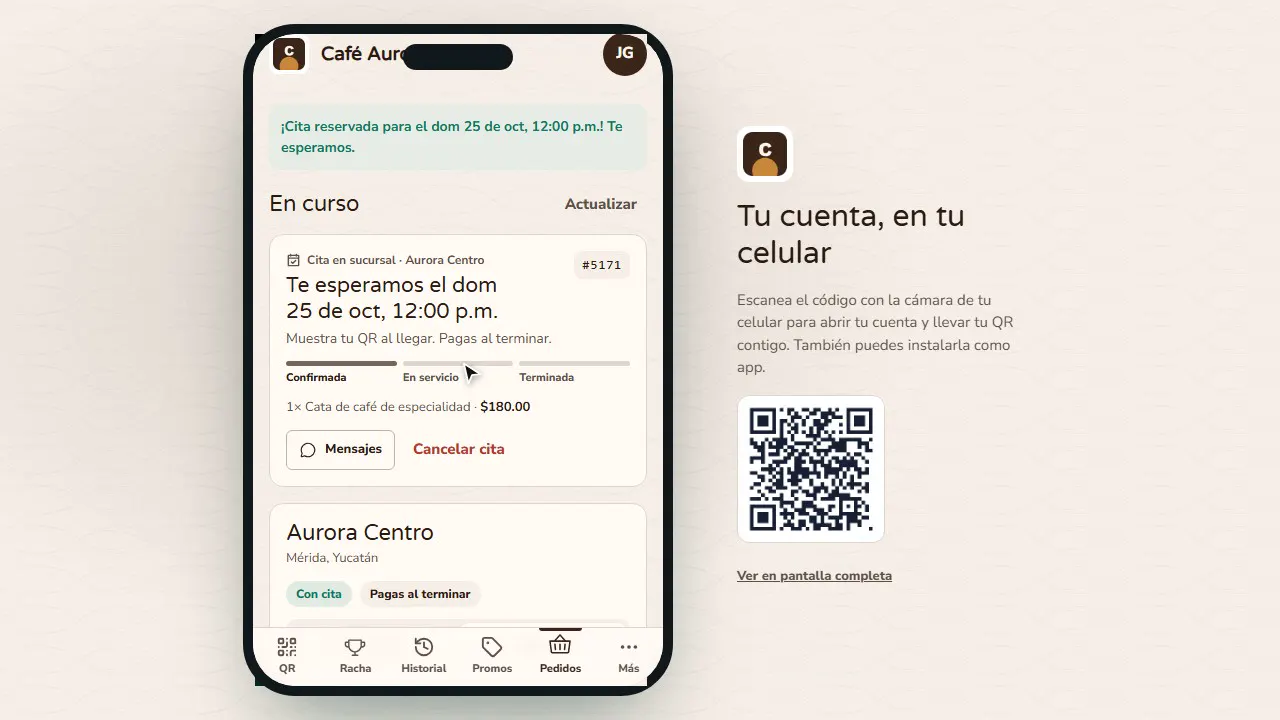
You see it in Appointments
In Operation › Appointments the appointment shows up on the branch calendar. Tap it to see the service, the total and what's left to charge.
Reschedule if needed
With Reschedule… you pick another free slot (or drag the appointment on the calendar): the customer gets a notification and a message in their appointment.
Start and finish the service
On the day, tap Start service and, when you're done, Finish and charge: it's paid at the branch and counts as a visit.
Common mistakes
- A service with no duration. The duration sets how much time the appointment takes up on the calendar.
- No branch hours. Free slots come from the branch hours and from Time slots every (for example, every 30 min).
- More appointments at once than you can handle. Set Appointments at once to match your rooms, chairs or staff.
Tips
- Use the Day board view to see who's up next, in service and done.
- If someone doesn't show up, open the appointment and tap More › Cancel or mark as no-show…: the slot opens up again.
- Ask your customers to show their QR when they arrive so you can find them quickly.