What it is
In Operation › Inventory and orders › Stock you pick a branch and see which products are sold there, how many units you have and at what price. If you leave Quantity empty, the product is sold without stock tracking. If you enter a number, every sale at the Register and every app order subtracts from it automatically.
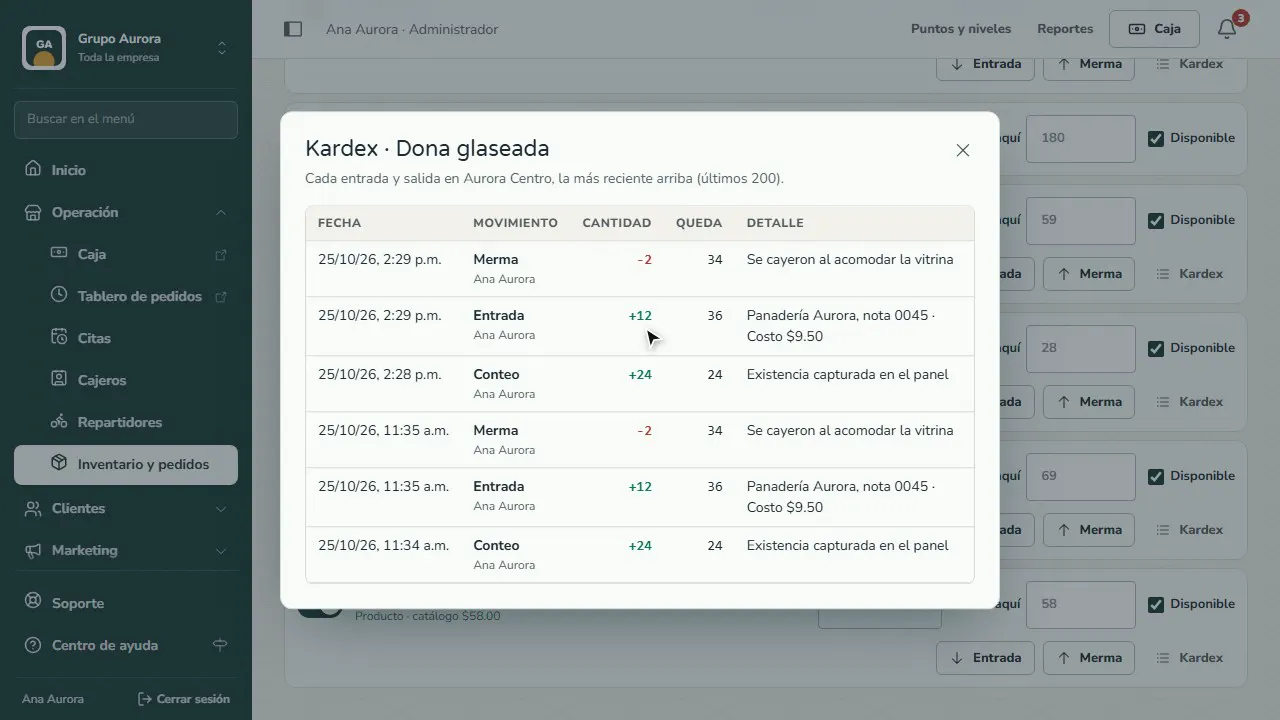
What comes in and what gets lost is recorded with a reason: In (stock that arrived, with its cost per unit and a note with the supplier or invoice) and Waste (what expired, broke or got lost). The Stock ledger shows each product's history at the branch: who made each movement, how much, and how much is left.
Before you track stock, add your products (see Add your products).
Step by step
Open Stock
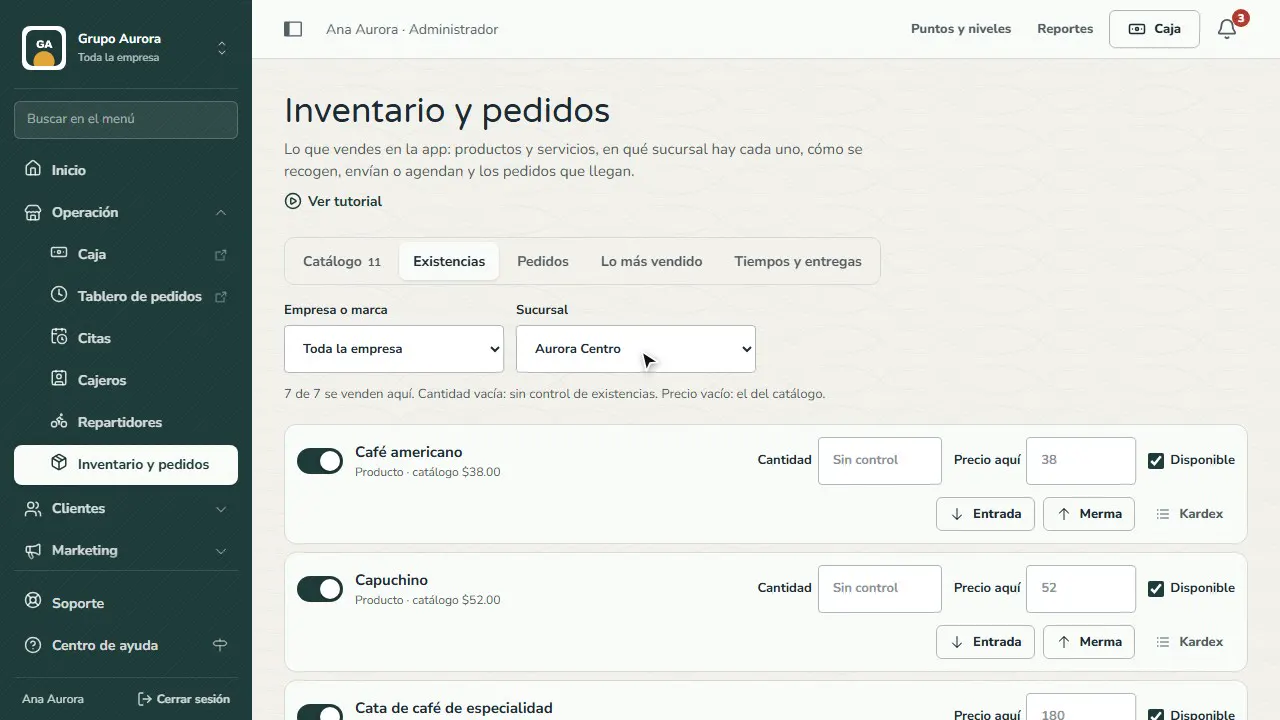
In Operation › Inventory and orders, Stock tab: pick the branch and see what's sold there, how many units you have and at what price.
Track your units
Enter how many units you have today in Quantity and tap Save. Empty = not tracked; with a number, every sale subtracts from it.
Record incoming stock
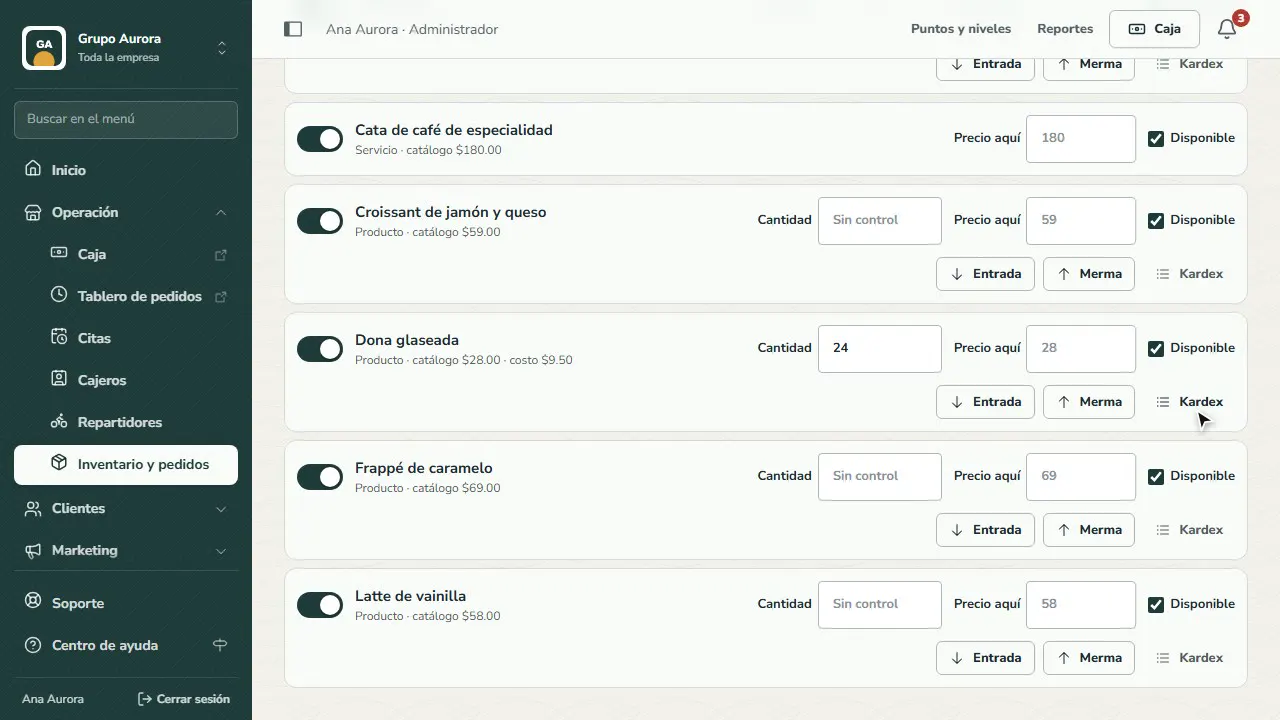
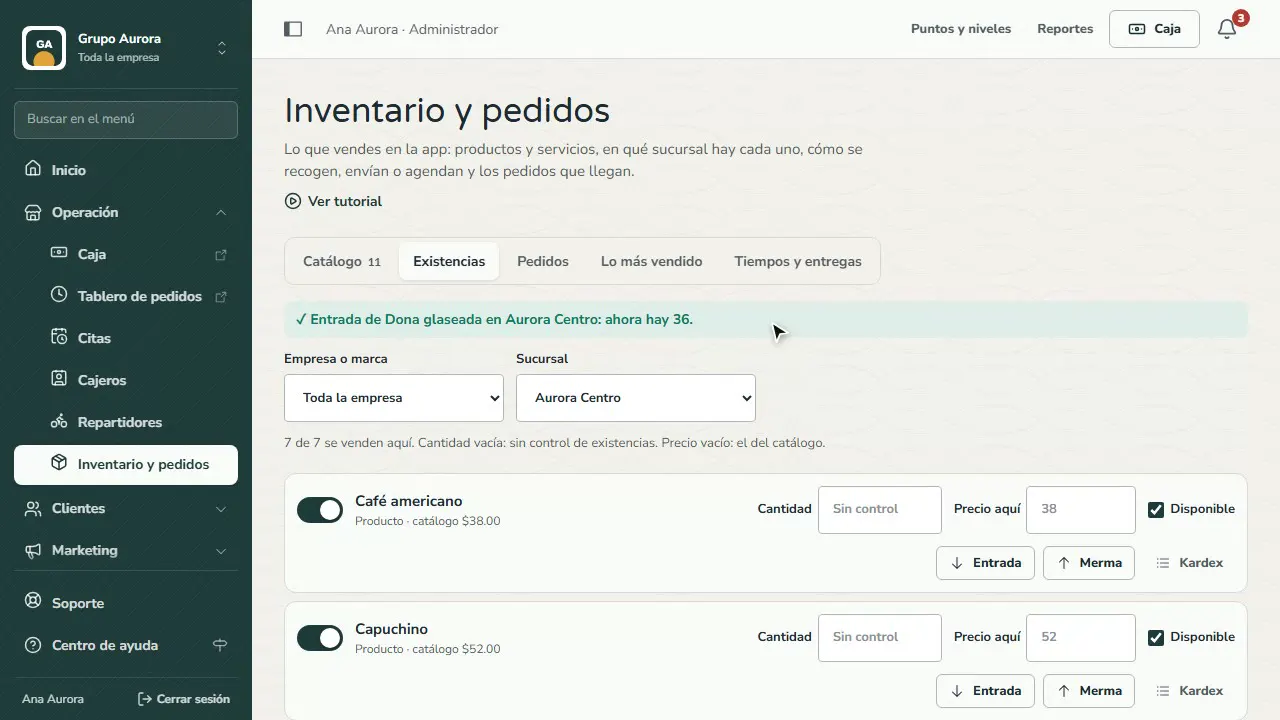
When stock arrives, tap In: quantity, cost per unit (optional) and a note with the supplier or invoice.
Record waste
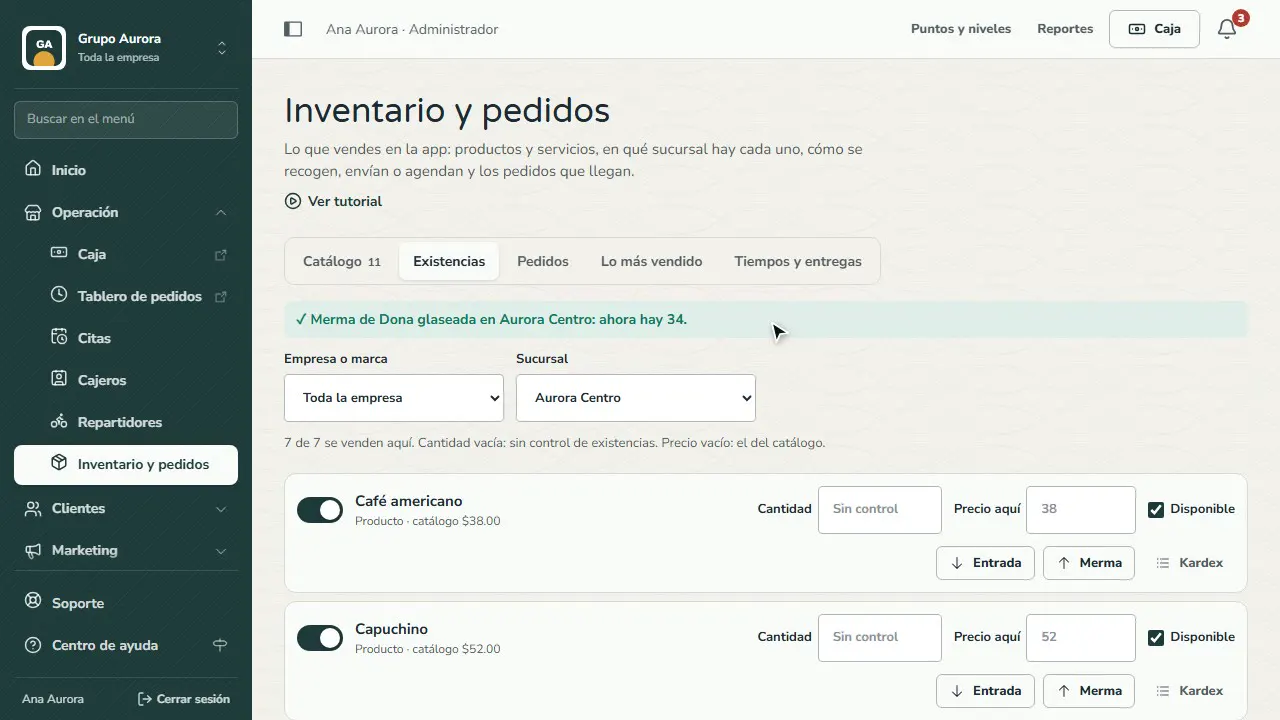
What gets lost, expires or breaks goes out with Waste and its reason: that way your numbers add up.
Check the Stock ledger
The Stock ledger shows every movement of the product at the branch: who, how much, how much is left and the details.
See your best sellers
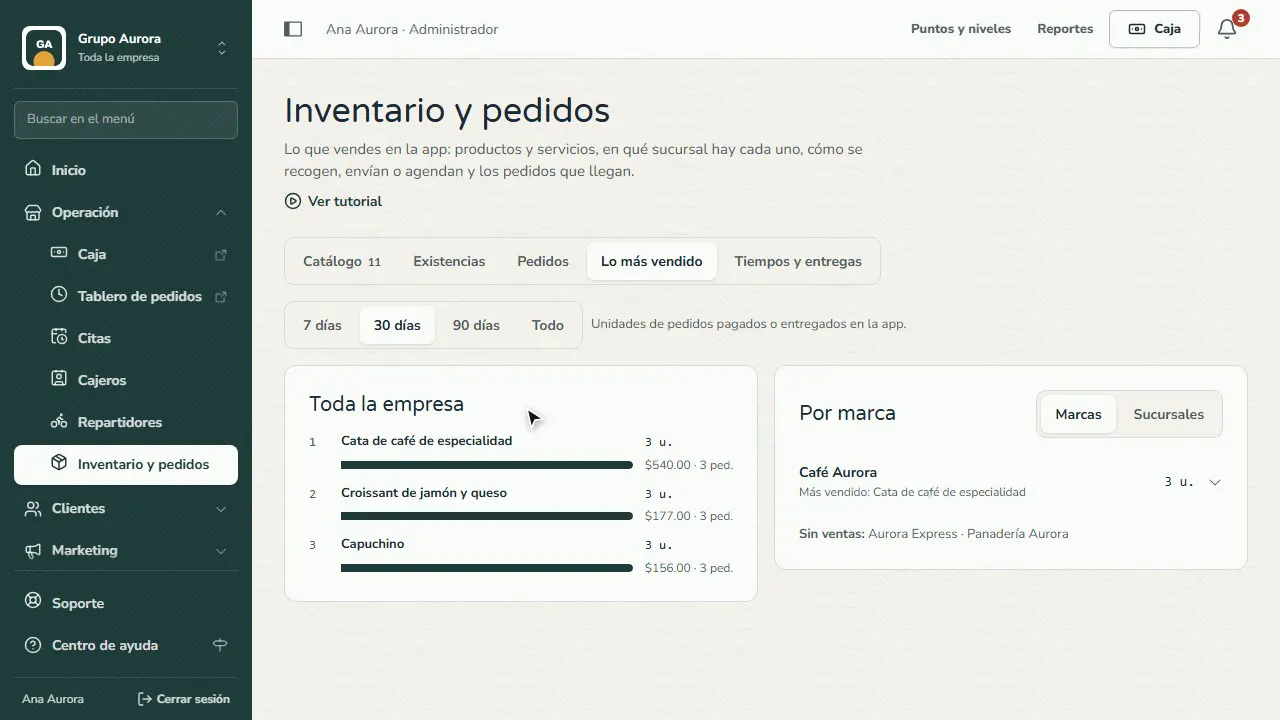
In Best sellers you see what your customers order most in the app, by company, brand or branch.
Common mistakes
- Sending to the kitchen what isn't prepared. Cards, games or counter items have “Prepared in the kitchen or bar” turned off, so they stay off the kitchen ticket and the order is ready right away.
- Fixing the quantity by hand every day. Use In and Waste: the reason gets saved and the stock ledger adds up.
- Tracking stock for things you make to order. A drink doesn't need counting. Leave it as “Not tracked” and track what you buy ready-made or packaged.
- Forgetting the branch. Stock is per branch: check that you have the right one selected before you record anything.
Tips
- Enter the cost on every incoming stock entry: it becomes the product's cost and helps you with your margins.
- If a branch runs out of something, uncheck Available: it stops showing in the app without losing the quantity.
- Check Best sellers every week to decide what to order from your supplier.