What it is
Your catalog is what you charge for at the Register and what your customers order from the app: products for pickup, reservation or delivery, and services with an appointment. Each one has its price, its branch and its stock.
Step by step
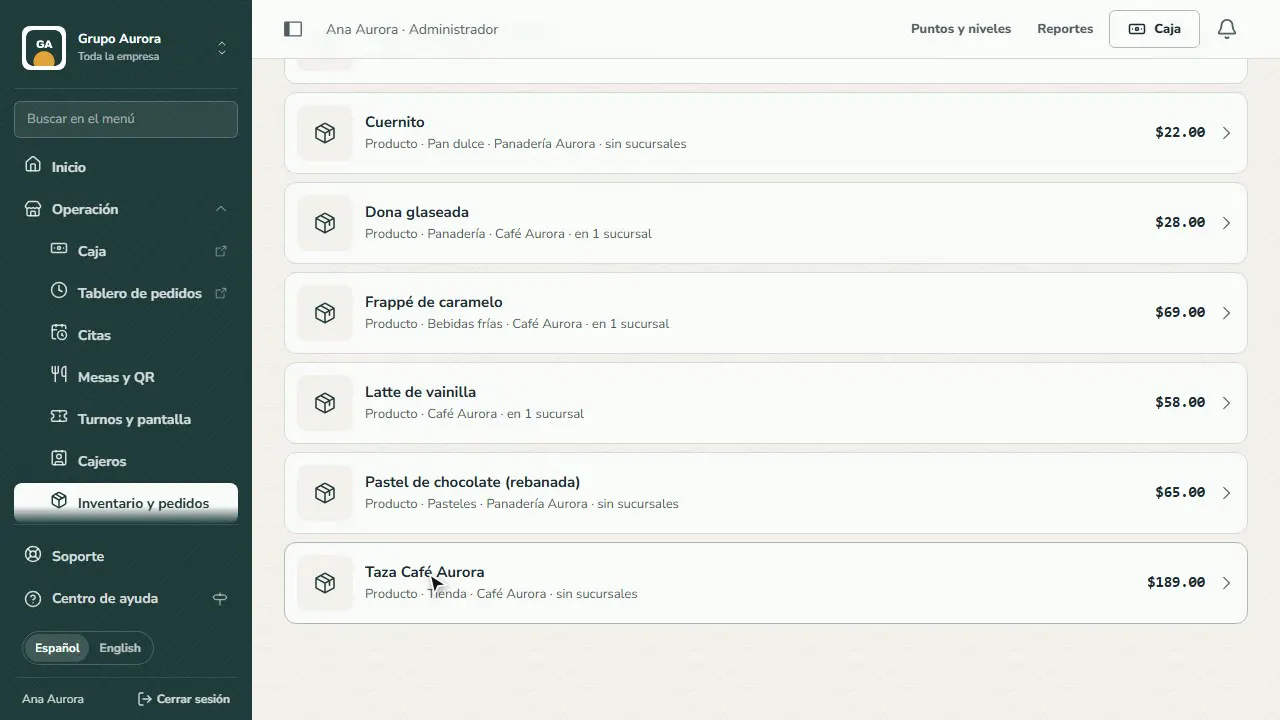
Open Inventory and orders
Your catalog lives in Operation › Inventory and orders: what you charge for at the Register and what your customers order in the app.
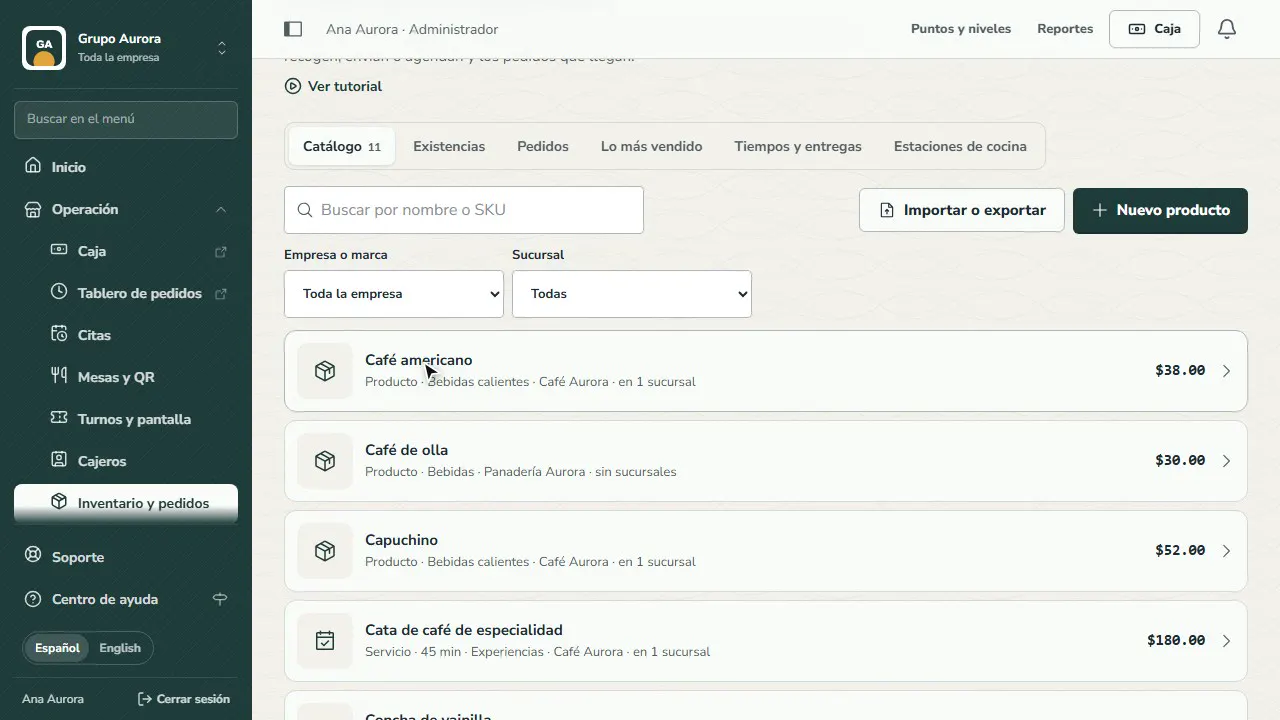
New product
Tap New product. If you offer services by appointment, choose Service with appointment.
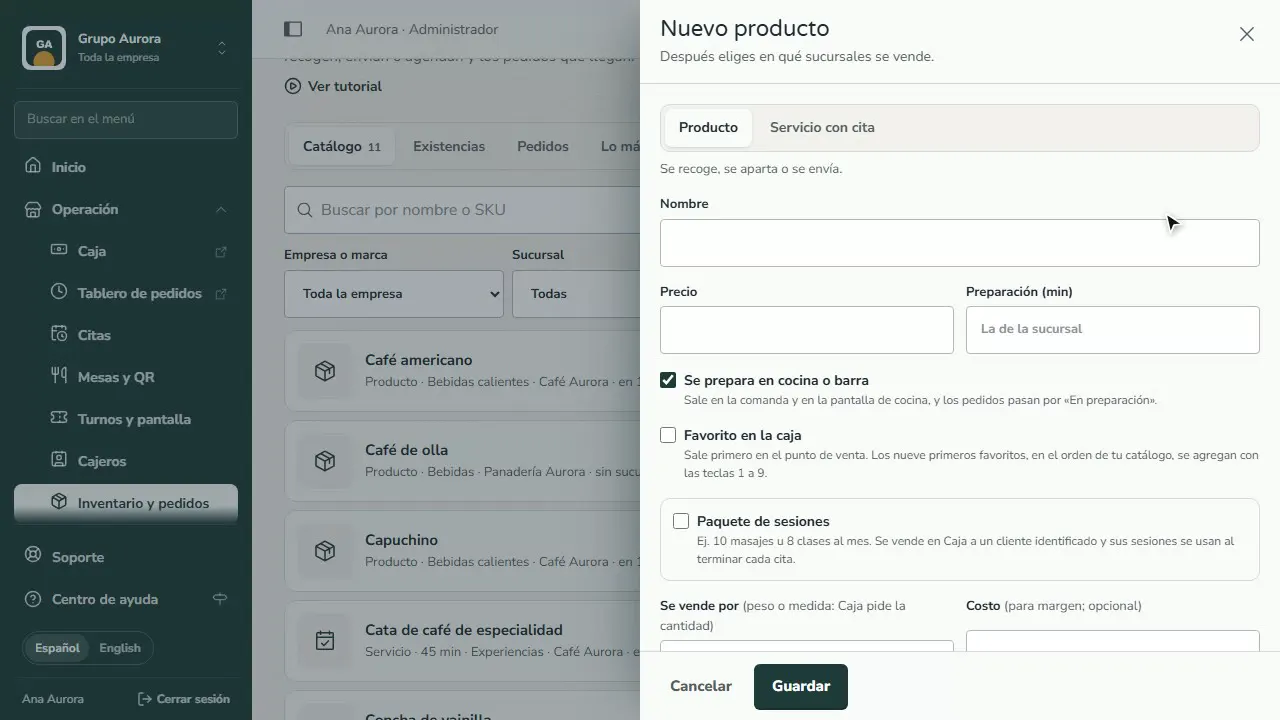
Name, price and category
Enter the name the way your customer will see it, its price with taxes included and its category: the Register and the app group your catalog by category.
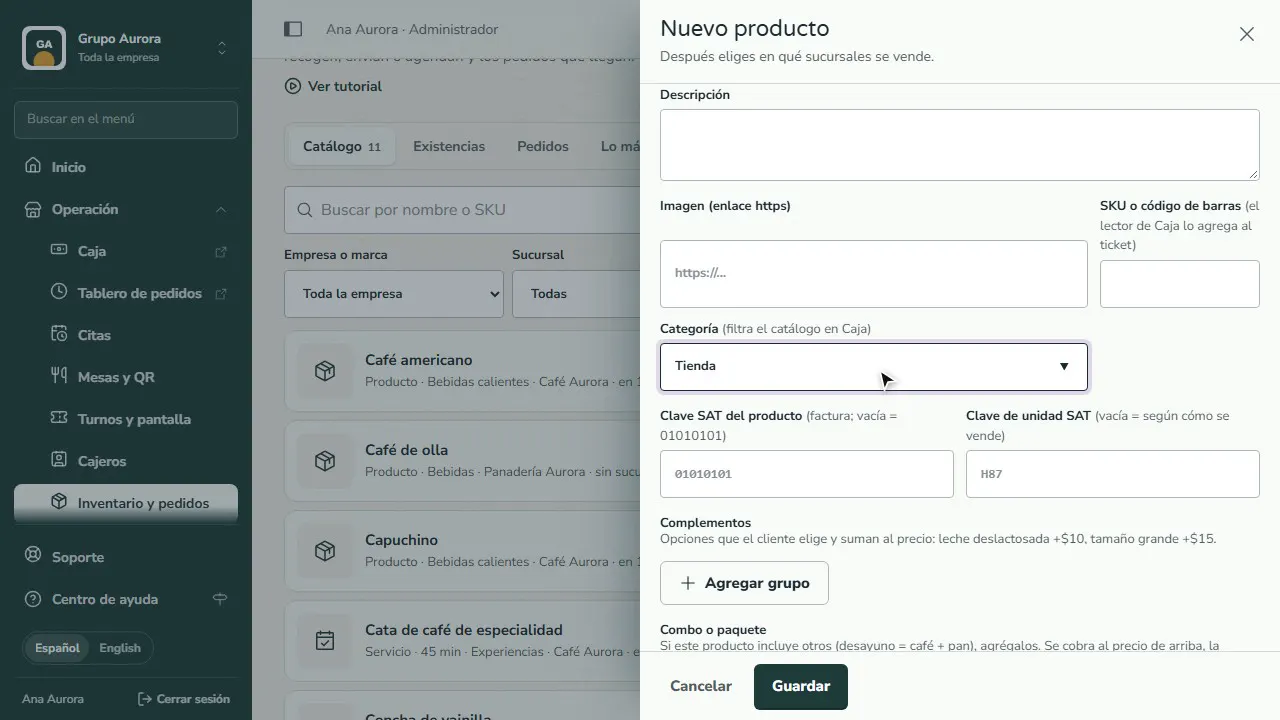
Is it prepared?
Turn off Prepared in the kitchen or bar for items handed over as they are (mugs, cards, games, packaged goods): they skip the kitchen ticket and screen, and the order is ready right away.
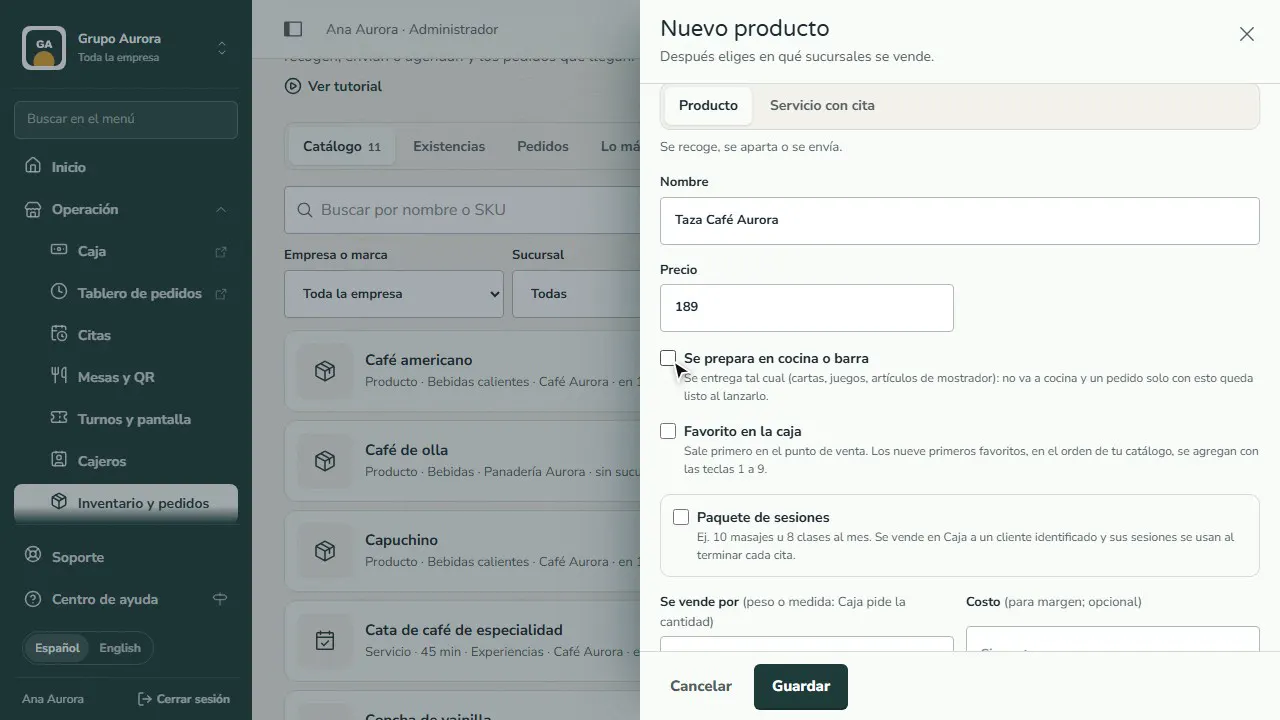
Where it's sold, then save
Choose whether it's sold across the whole company or in just one brand, add a short description and tap Save. In Stock you choose which branches sell it.
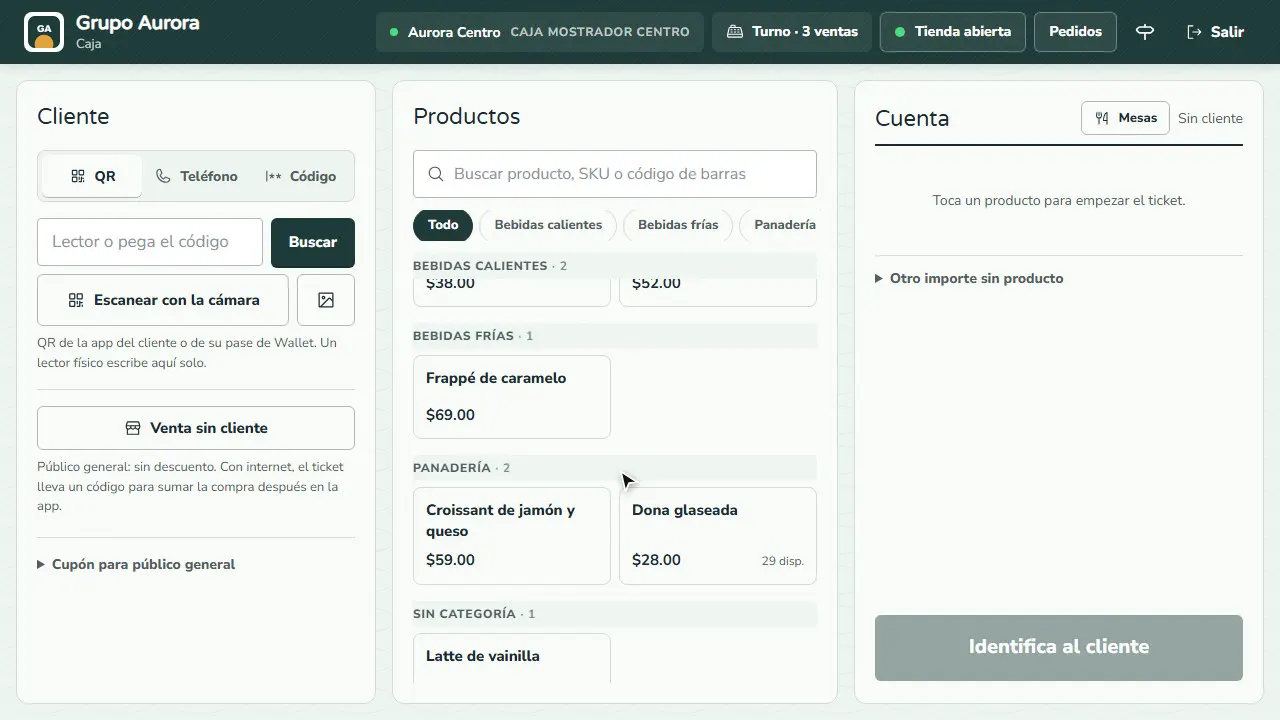
At the Register, by category
At the Register, All shows your catalog grouped by category with a header for each; tap a category to see only that one.
Common mistakes
- Not choosing where it's sold. After you save, go to Stock and check the branches where it's available.
- Prices without taxes. Enter the price the way your customer will see it, taxes included.
- Skipping the cost. It's optional, but without it Reports can't show you the margin.
Tips
- Use categories: they organize the catalog at the Register and the menu in the app.
- Add the SKU or barcode so you can charge with a scanner.
- Build combos (coffee + pastry) and set special prices by customer type or for bulk orders.