What it is
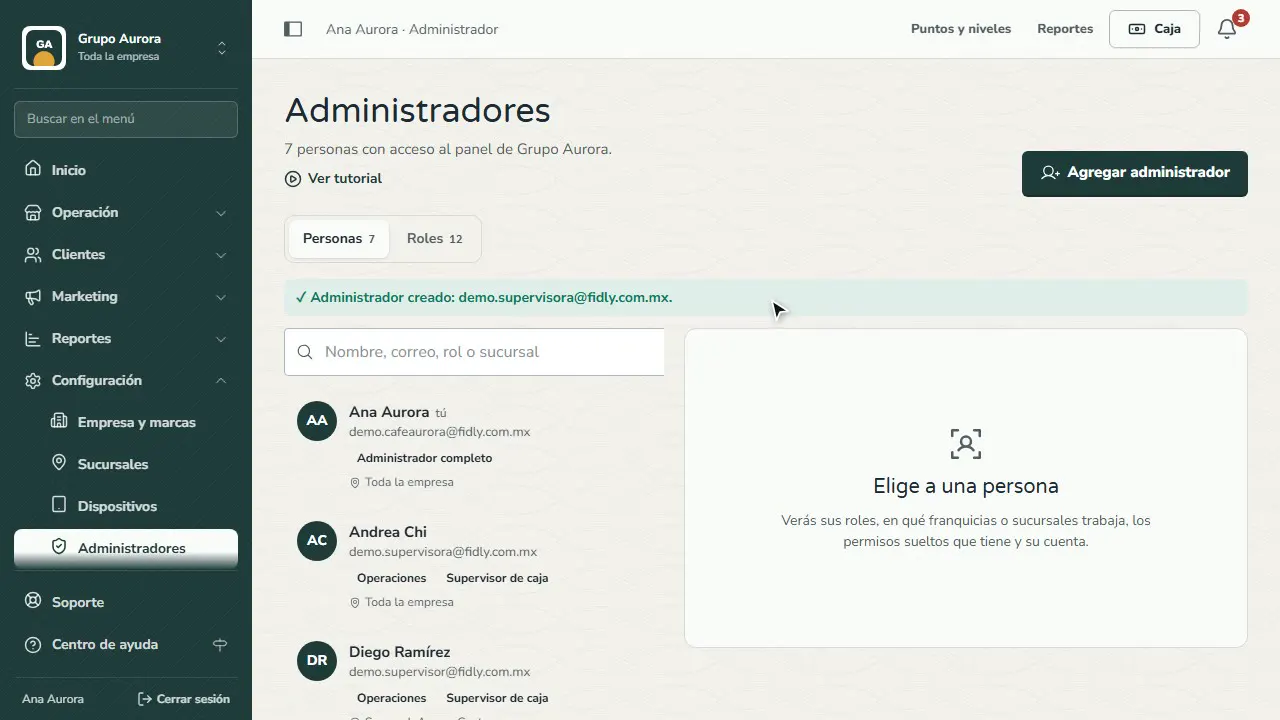
Settings › Admins lists everyone with access to the dashboard. Each person has one or more roles (each role adds its permissions), a scope (the whole company, a franchise, sub-franchises or only certain branches) and, when needed, individual permissions on top of their roles.
When you add someone, Fidly sends them an email invitation to create their password; if you check Set the password now, they can sign in as soon as you share it with them. Changes to roles and scope apply the next time their dashboard loads.
Cashiers don't need an account: you create them in Operation › Cashiers with a code (see Cashiers).
Step by step
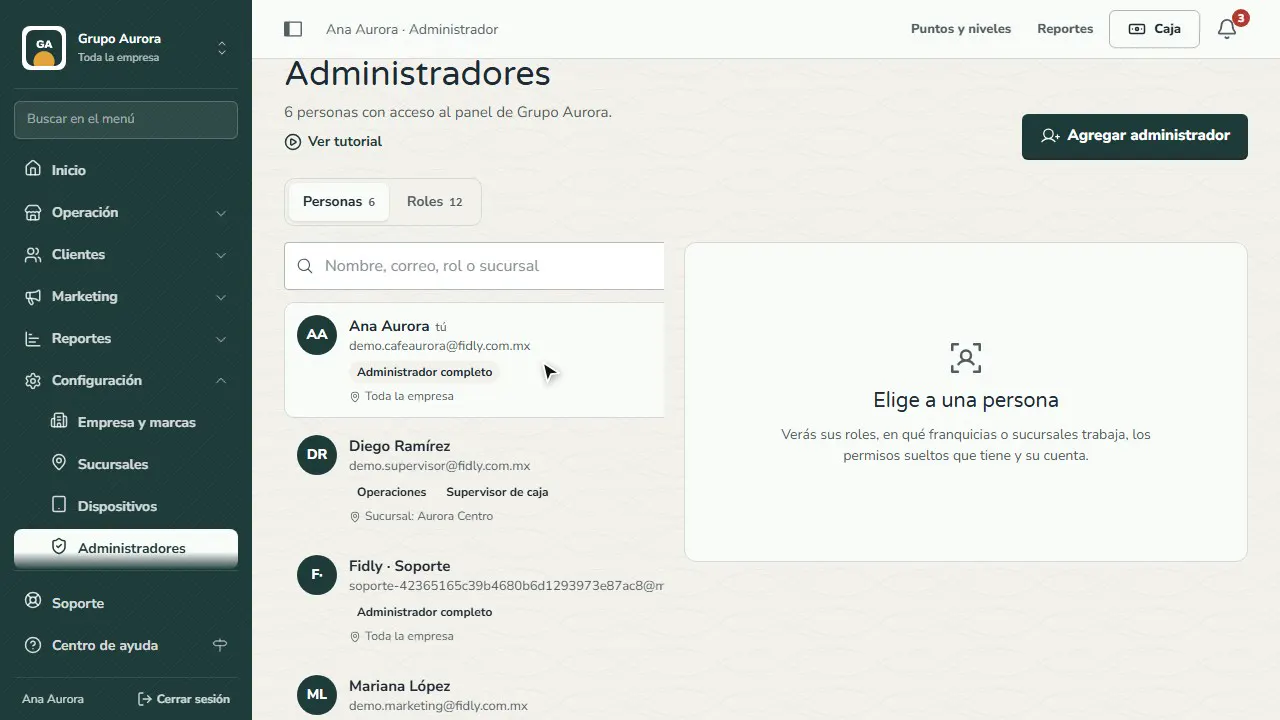
Open Admins
In Settings › Admins you see everyone with access to the dashboard, their roles and where they work.
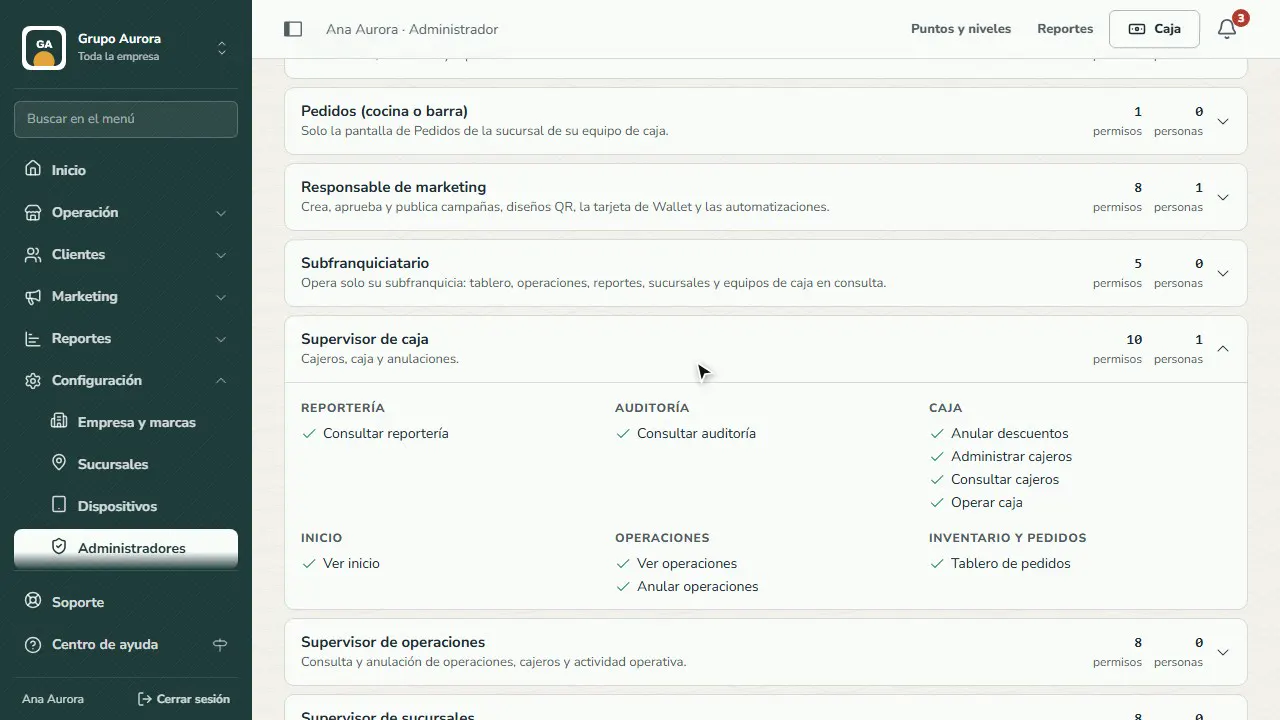
Get to know the roles
In Roles, open any role to see which permissions it includes: Register supervisor, Operations, Marketing, Auditor…
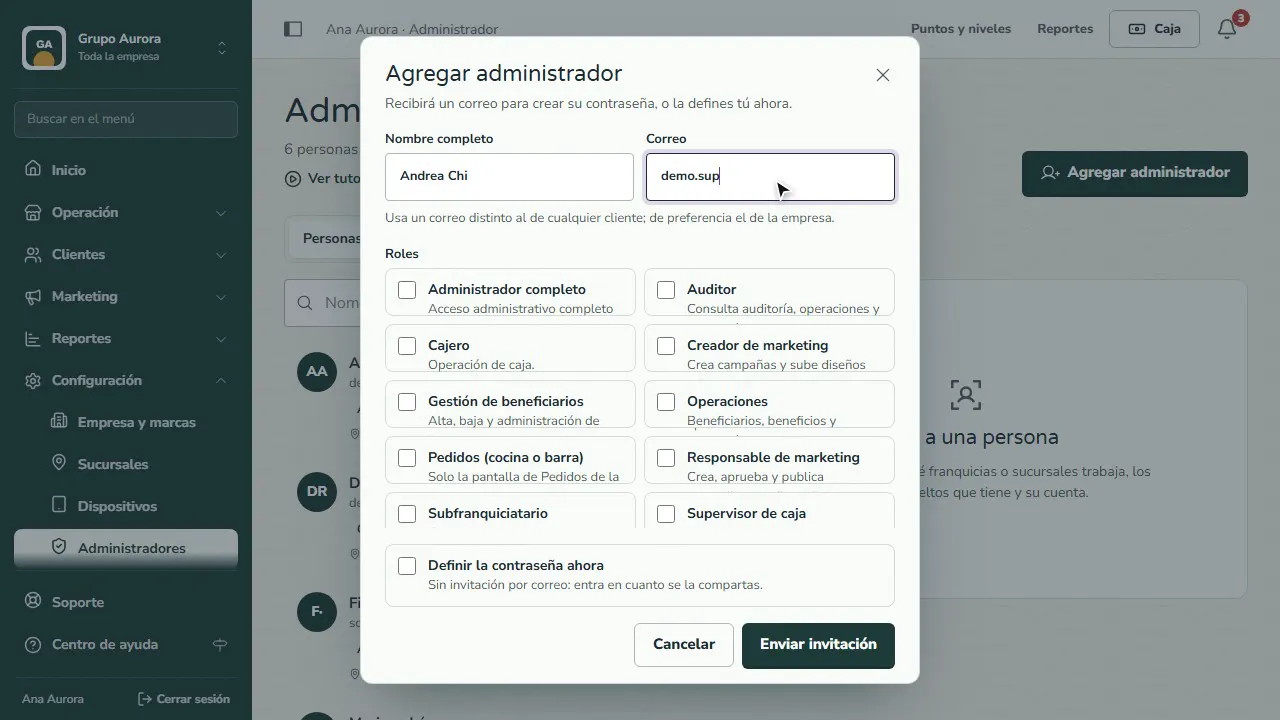
Add the person
Tap Add admin and enter their name and their own email (ideally a company one).
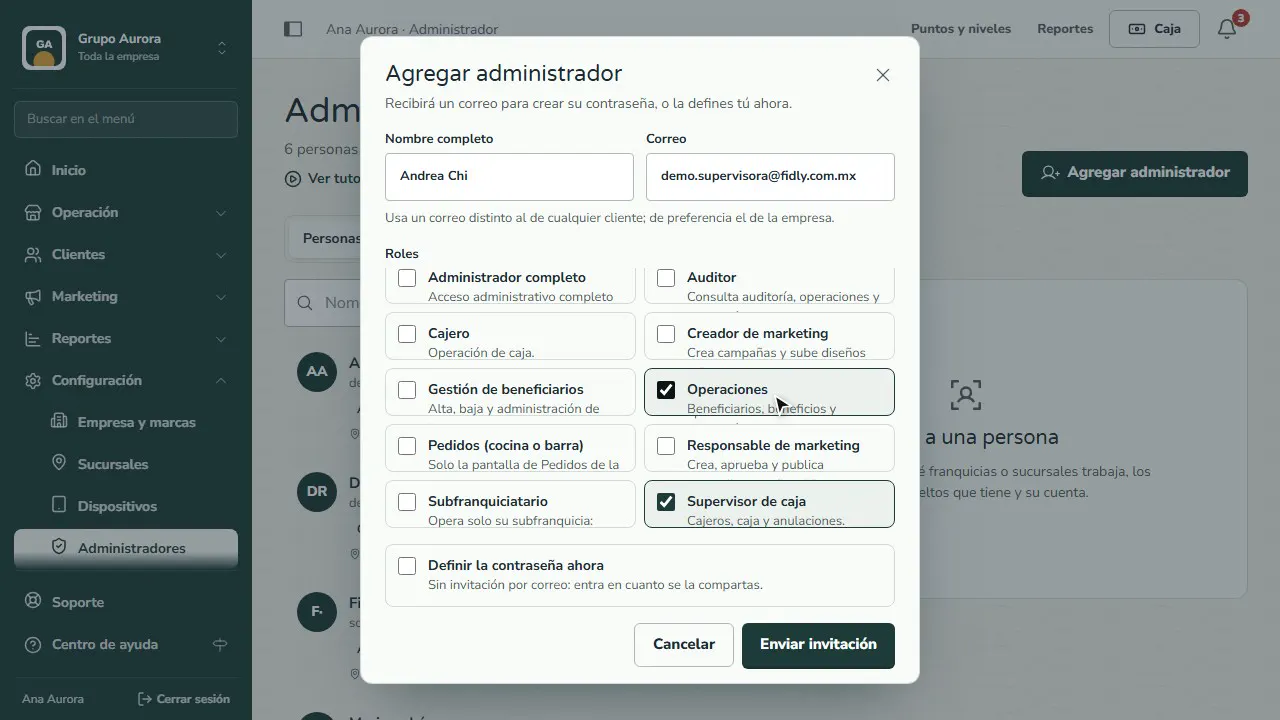
Choose their roles
Check one or more roles: each role adds its permissions. Here, Register supervisor and Operations.
Create their access
If you leave everything unchecked, they get an email invitation. With Set the password now, they can sign in as soon as you share it.
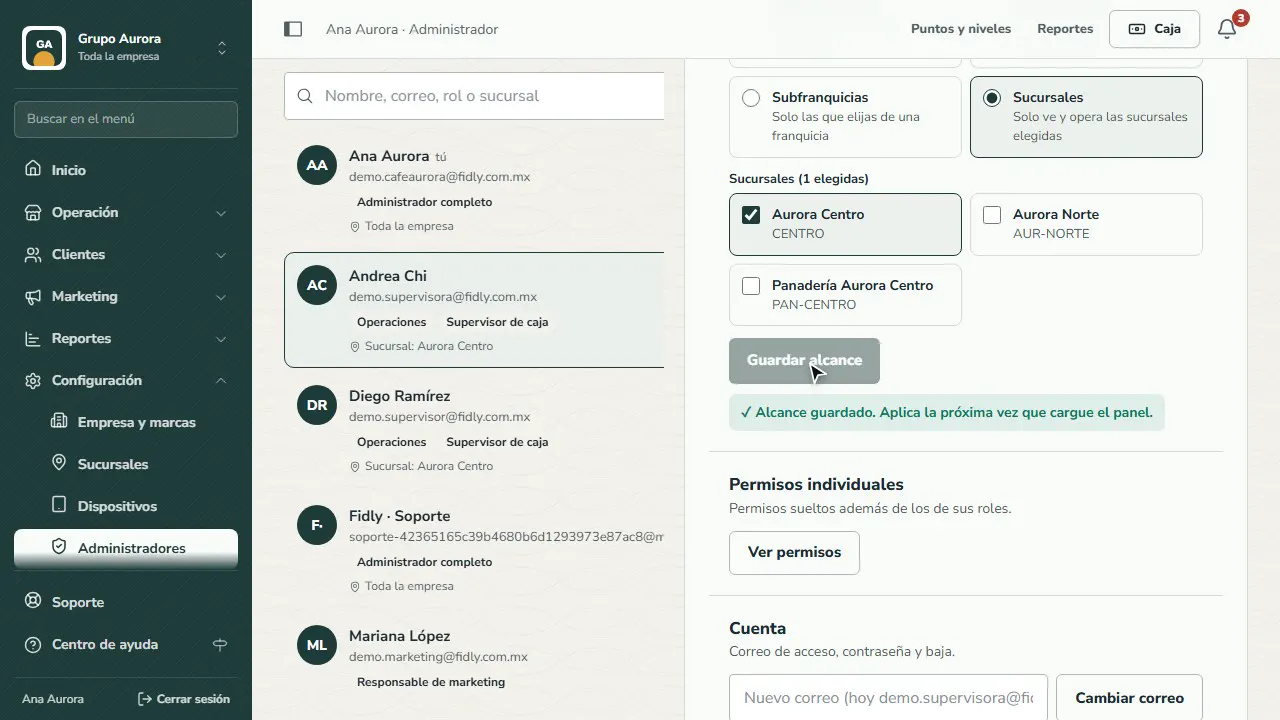
Where they work
Open their profile and, in Where they work, limit them to a brand, sub-franchises or branches: they only see and operate those.
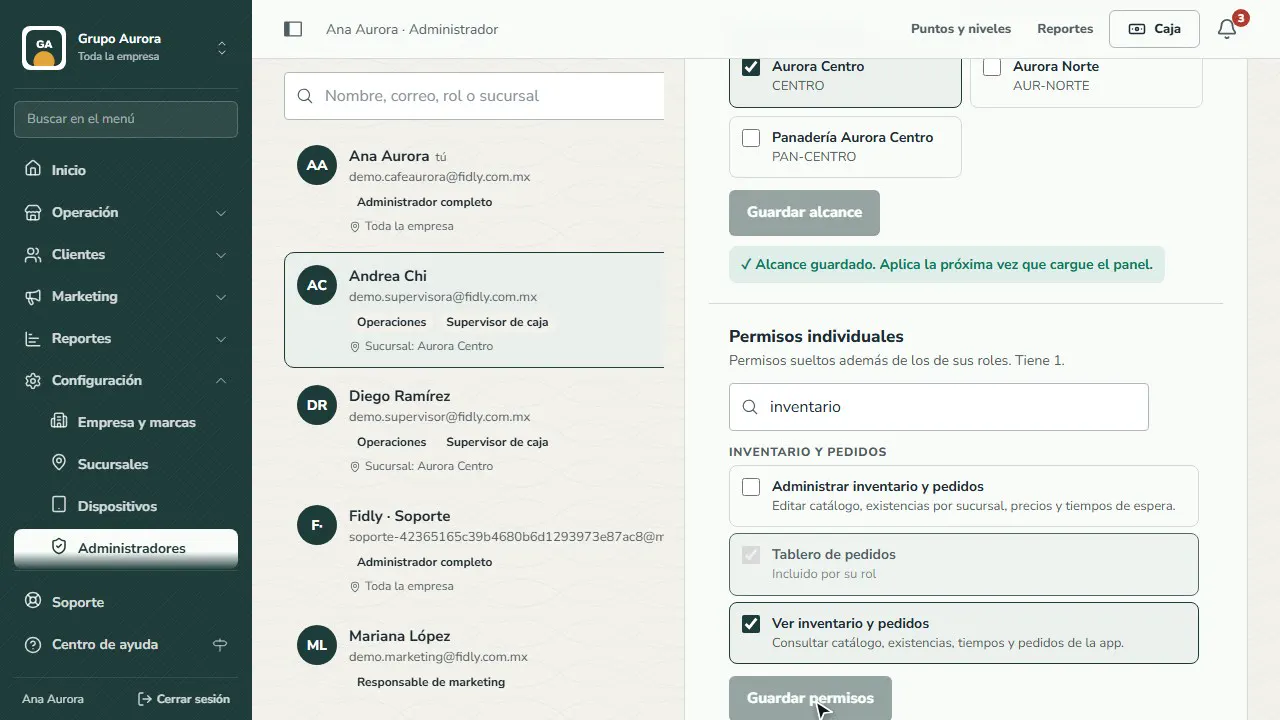
Add an individual permission
In Individual permissions, add what their role doesn't include (here, viewing inventory) without giving them a whole role.
Common mistakes
- Giving everyone “Full administrator”. Use smaller roles (Register supervisor, Operations) and keep the full role for whoever manages the account.
- Sharing a single account. Give each person their own email: that way the Audit log shows who made each change.
- Not limiting the scope. A branch manager should only see and operate their own branch.
Tips
- Open the Roles tab to see what each role includes before you assign it.
- Use a company email, different from any customer's.
- When someone leaves the team, deactivate them from their profile (Account › Deactivate): they lose access right away and their history is kept.