What it is
A coupon is the code of a Promotion campaign (for example, AURORA20 = 20% off). The cashier applies it at the Register: if the customer has it, it appears under Customer coupons; it can also be typed into the Coupon field or validated with Walk-in customer coupon.
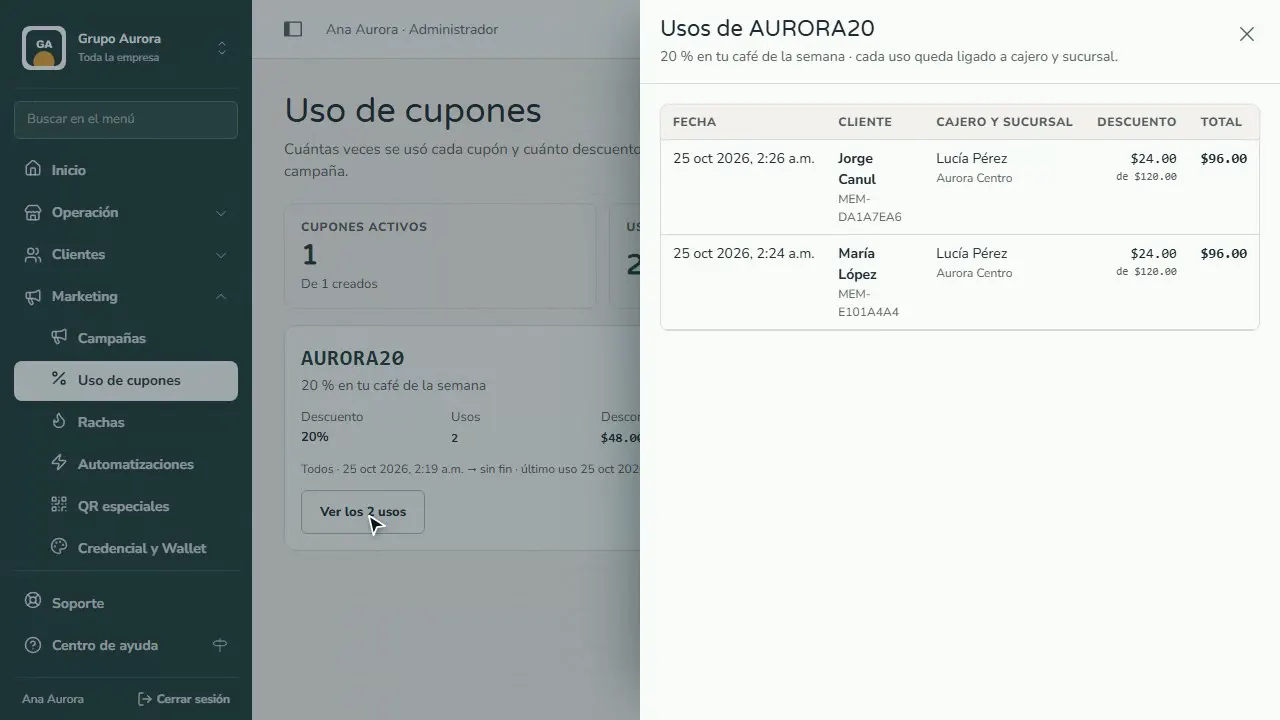
Coupon usage (Marketing › Coupon usage) tells you how many times each coupon was used and how much discount it gave: active coupons, total uses and discount given; for each coupon, its uses against the maximum, its date range, whether it stacks with the customer's benefit, and the details of each use.
Step by step
Identify the customer
At the Register, look up the customer by their QR or their Phone.
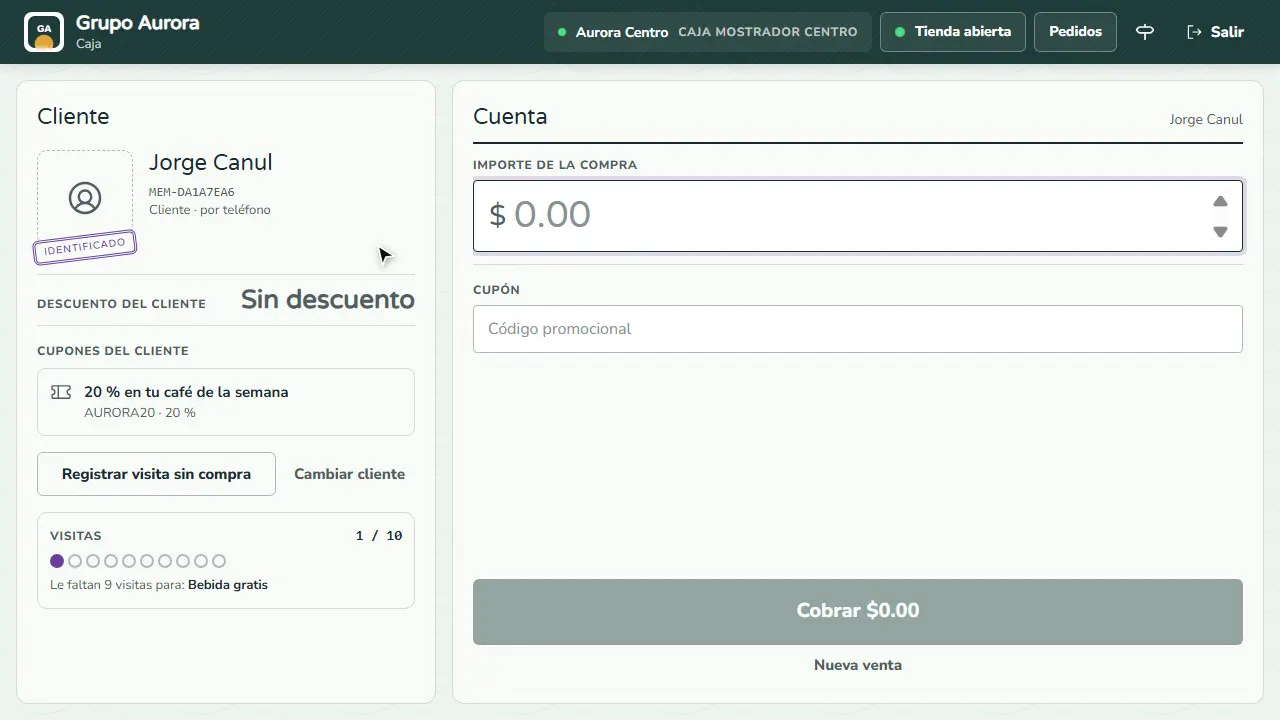
Pick their coupon
Their coupons appear under Customer coupons: tap one to apply it, or type the code into Coupon.
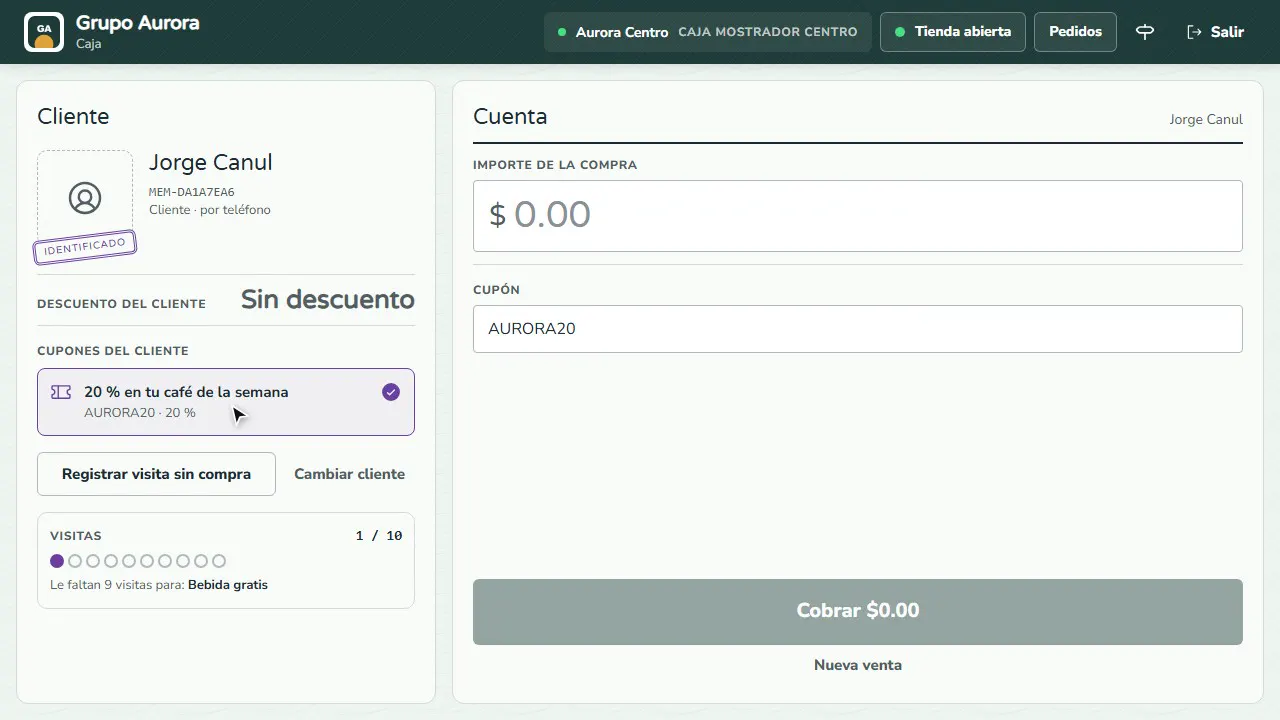
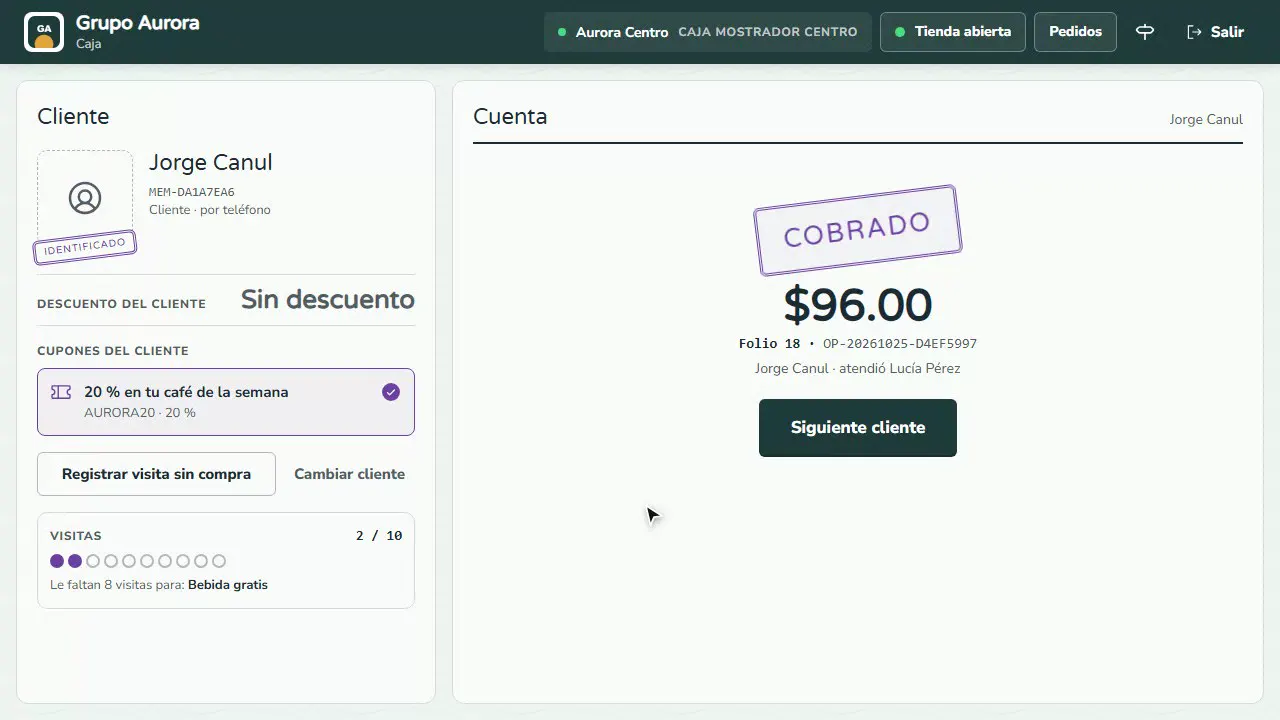
Charge with the discount
Enter the amount: the total already subtracts the coupon. Tap Charge and enter your cashier code.
Open Coupon usage
In Marketing › Coupon usage you see the active coupons, how many times they were used and how much discount they gave.
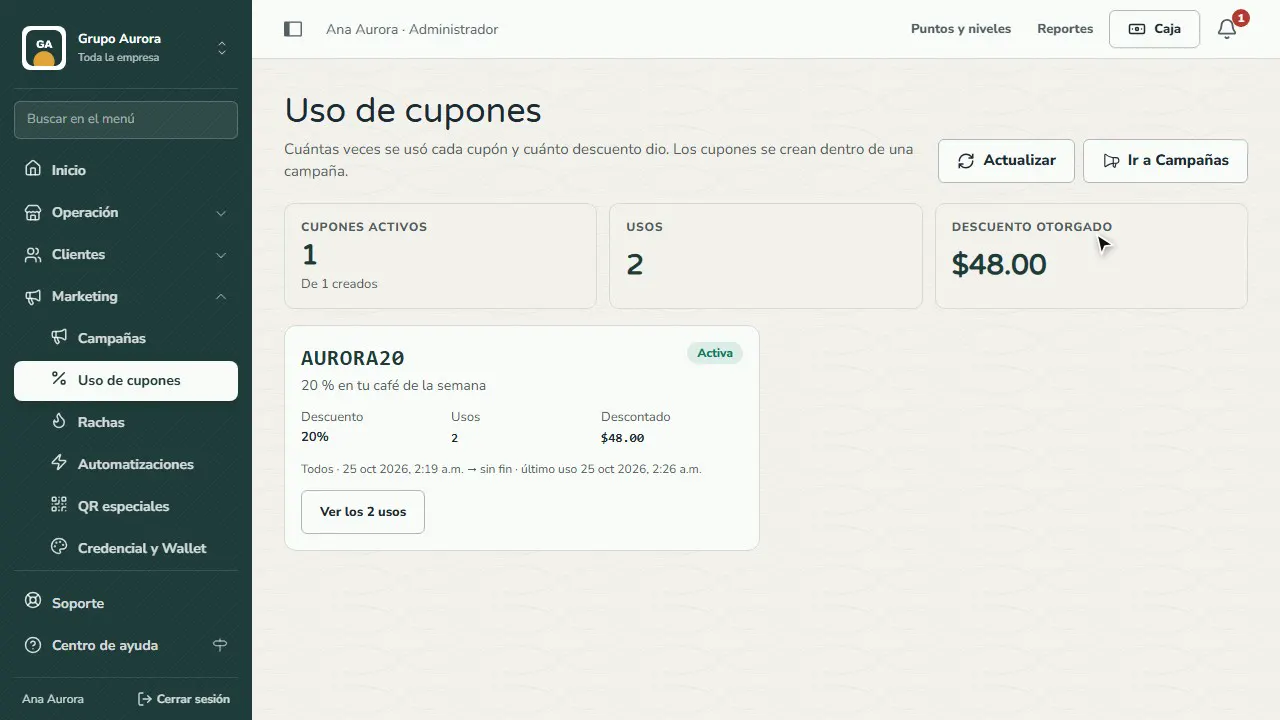
Review each use
Each coupon shows its uses, its date range and the amount discounted; in the details you see the customer, cashier, branch and total for each use.
Common mistakes
- Looking for where to create the coupon here. Coupons are created inside a campaign (Marketing › Campaigns › Create campaign › Coupon).
- Unpublished campaign. A coupon from a campaign that's still a draft or pending approval can't be used at the Register yet.
- Forgetting the per-customer limit. If the coupon allows one use per customer, the same customer can't use it again.
Tips
- Pick a short code that's easy to say out loud (for example, AURORA20).
- Compare the discount given with sales in Reports to see whether the promotion pays off.
- Check the usage details: each use is tied to a cashier and a branch.