What it is
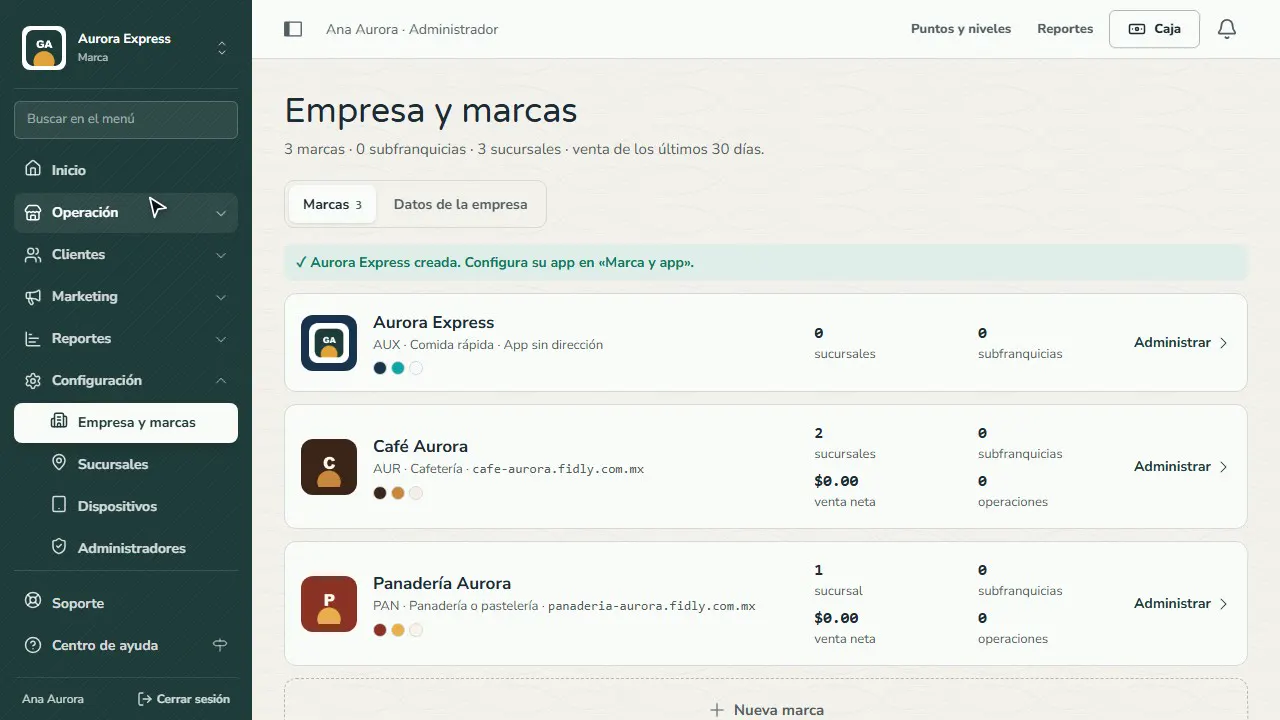
Company and brands is the structure of your business: the company on top and, below it, each brand with its branches and sub-franchises. Each brand has its own logo, colors, app address and what the customer sees.
If your account can see more than one brand, the name above the menu switches between the company and each brand. With a brand selected, every section shows and creates only that brand's items, plus whatever belongs to the whole company.
The dashboard can have its own colors, different from the app's: in Panel colors turn off “Use the same colors as the app”, choose the menu, text, highlights and background, or tap “Copy the app colors” to start from them. It works for the company and for each brand.
Step by step
Open Company and brands
In Settings › Company and brands you see each brand with its branches, its sales and its app address.
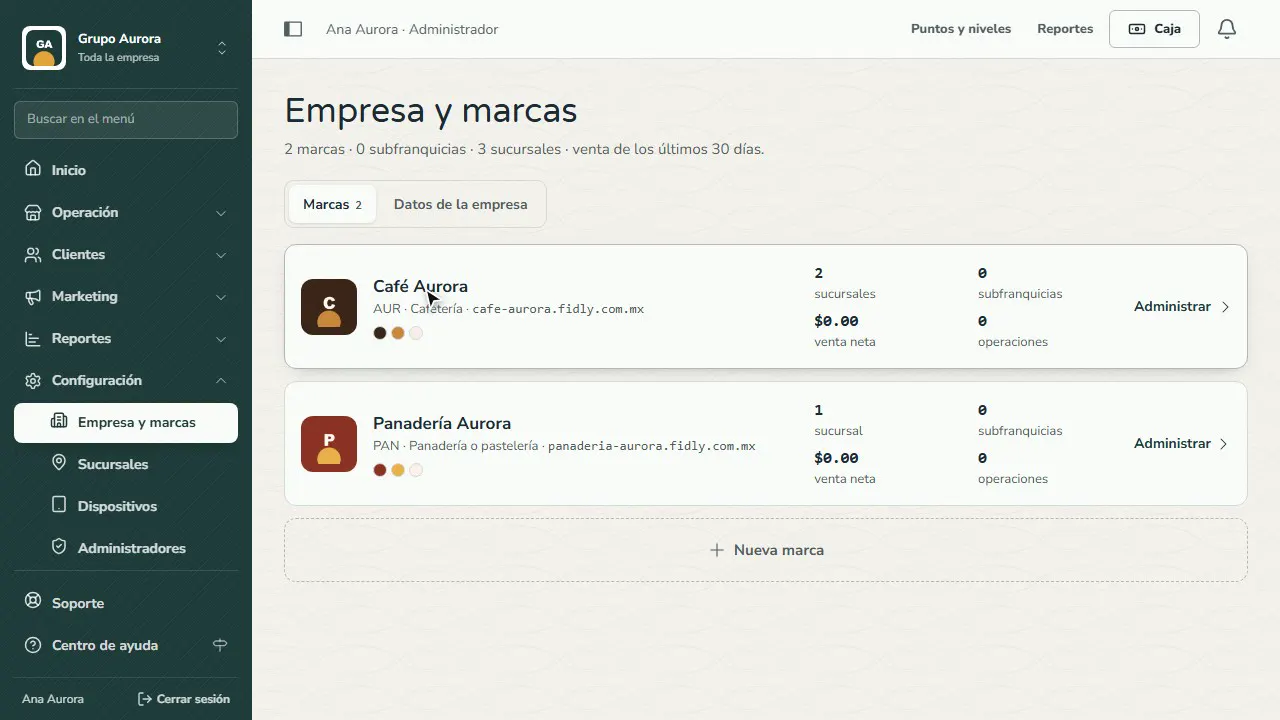
New brand
Tap New brand. You can have as many brands as branches in your plan.
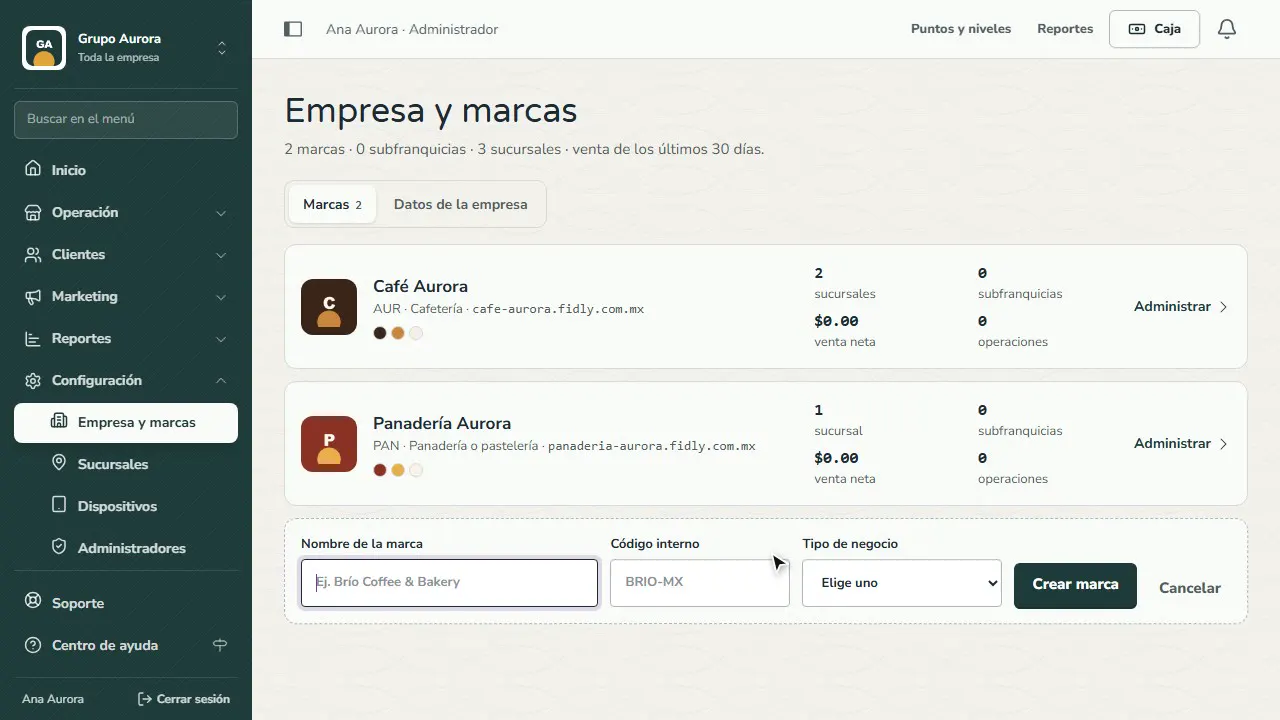
Name, code and business type
Enter the name, a short internal code and its business type: we use it to suggest rewards for that kind of business.
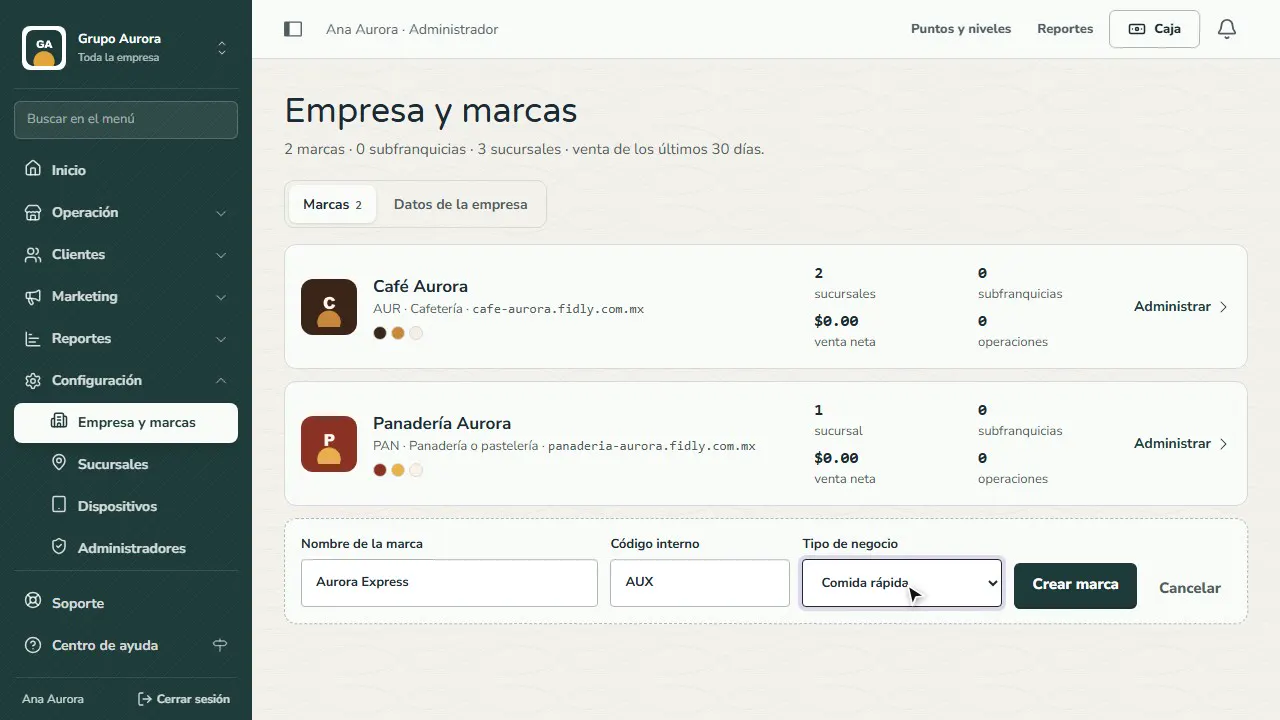
Create the brand
Tap Create brand. Then, in Manage › Brand and app, give it its logo, colors and address.
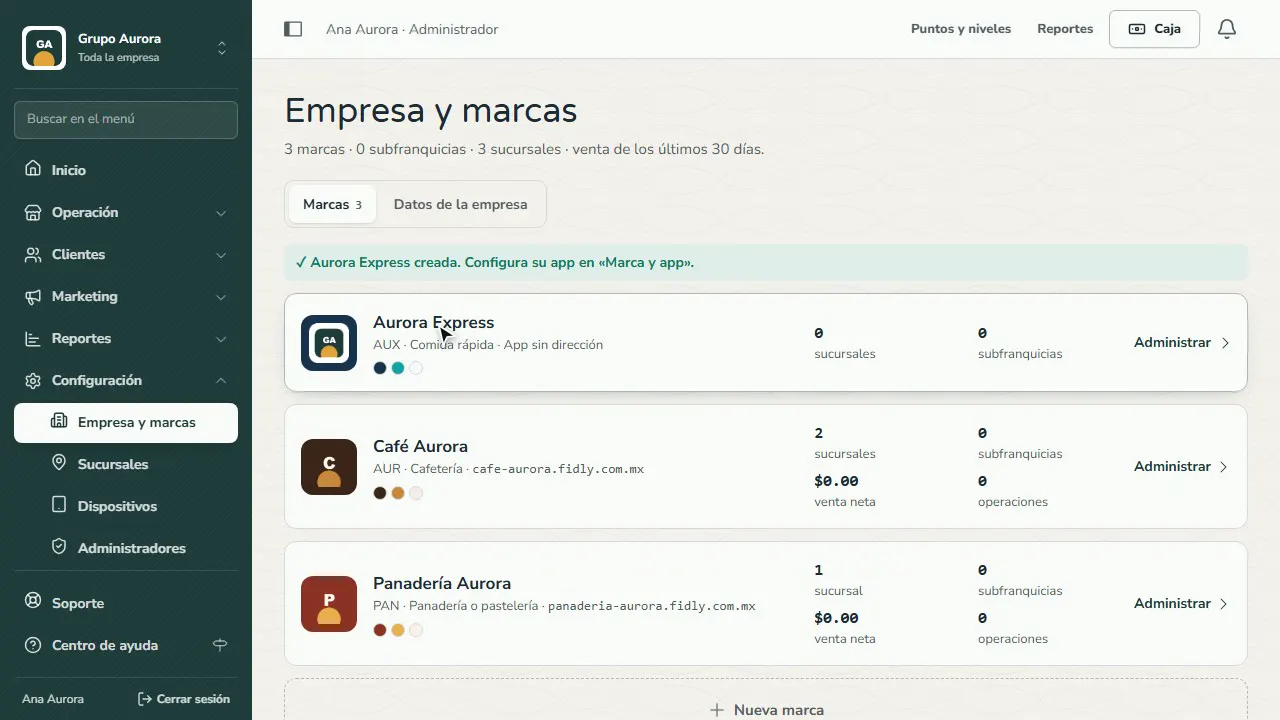
Switch to the brand
Tap the name above the menu and pick the brand: the dashboard takes on its colors and shows only its own items and the company-wide ones.
App modules: the company decides
Modules (Streak, Points, Orders, Wallet…) are turned on or off in Company details and every brand inherits them. What the company turns off is off in every brand; a brand can only turn off what the company has on, never turn on what the company turned off.
In each brand's Brand and app, every module has three options: Same as the company (the default: it follows the company), On and Off. If the company turned it off, “On” is disabled and tells you why.
Bulk changes: Modules by brand
In Company and brands › Modules by brand you see a table with every module and every brand: whether it's on or off and whether it's inherited or the brand's own setting.
- Check the brands (top) and modules (left) you want to change.
- Write the reason: it's saved in the Audit log.
- Tap Turn off in the selected brands or Inherit from the company again. Before applying you'll see which brands change, which are skipped and why.
- It's all or nothing. If you made a mistake, Undo reverts the last bulk change, except modules someone changed afterwards.
Common mistakes
- Creating something company-wide with a brand selected. Whatever you create stays with that brand. To apply it to all of them, first pick the company in the selector.
- Using the same internal code for two brands. The code identifies the brand in reports and imports; keep it short and unique.
- Leaving brands without a logo. If a brand has no logo or colors, it inherits the company's and your customers can't tell it apart.
Tips
- You can have as many brands as branches in your plan.
- Give each manager access to their brand only: they won't see the selector or the other brands.
- Check each brand's sales on this same screen: it shows the last 30 days.
- If your team manages several brands, give each one different dashboard colors so nobody mixes up which brand they're working on.