What it is
The register device is where you charge: a tablet, phone, laptop, computer or Windows POS. All it needs is a browser.
The branch belongs to the device, not to the person: each sale is recorded at the branch of the device where it was charged.
Step by step
On the device, open Devices
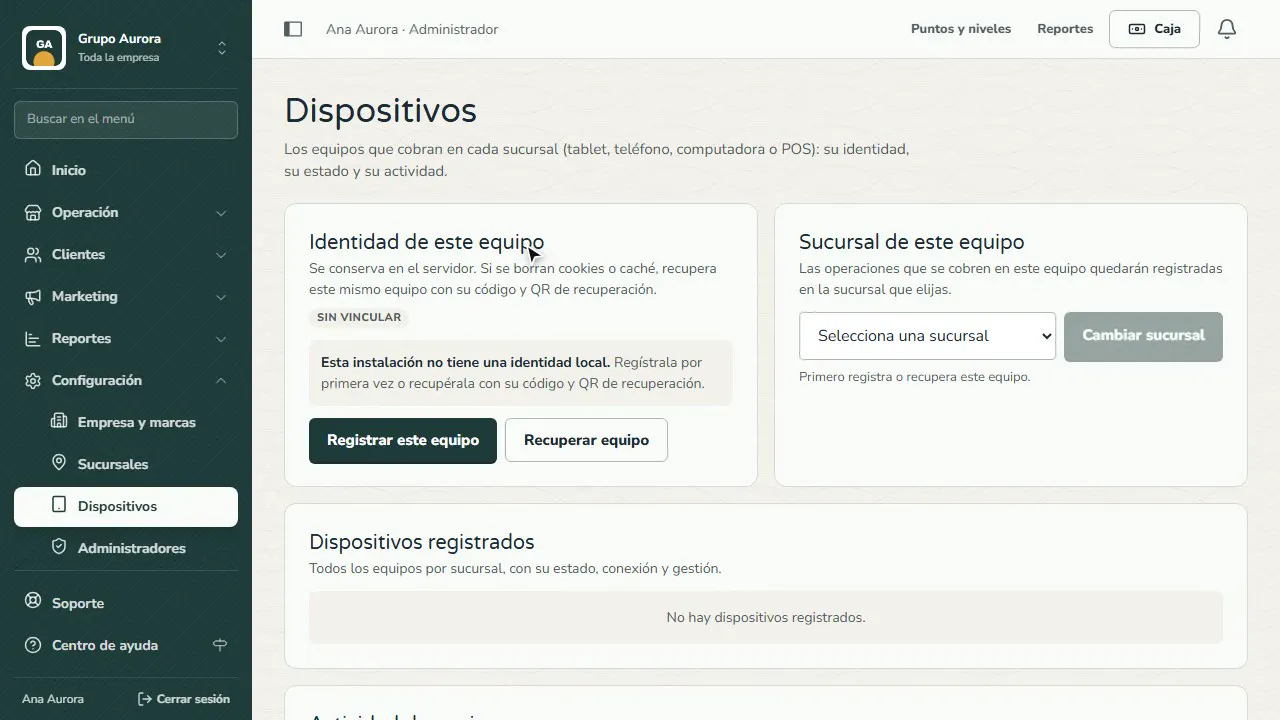
From the device you'll use to charge (tablet, phone, laptop, computer or Windows POS), sign in to your dashboard and open Settings › Devices.
Register it
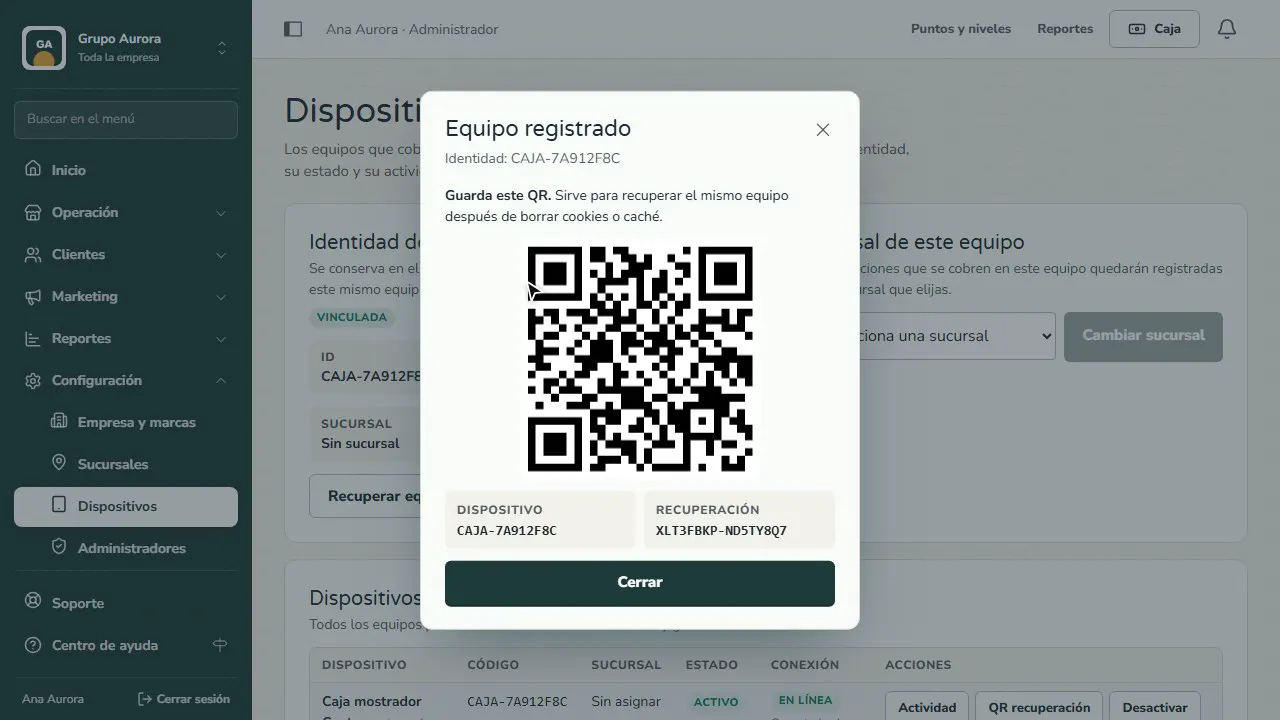
Tap Register this device and give it a name. It's saved on the server; if the cache is cleared, you recover it with its code.
Choose its branch
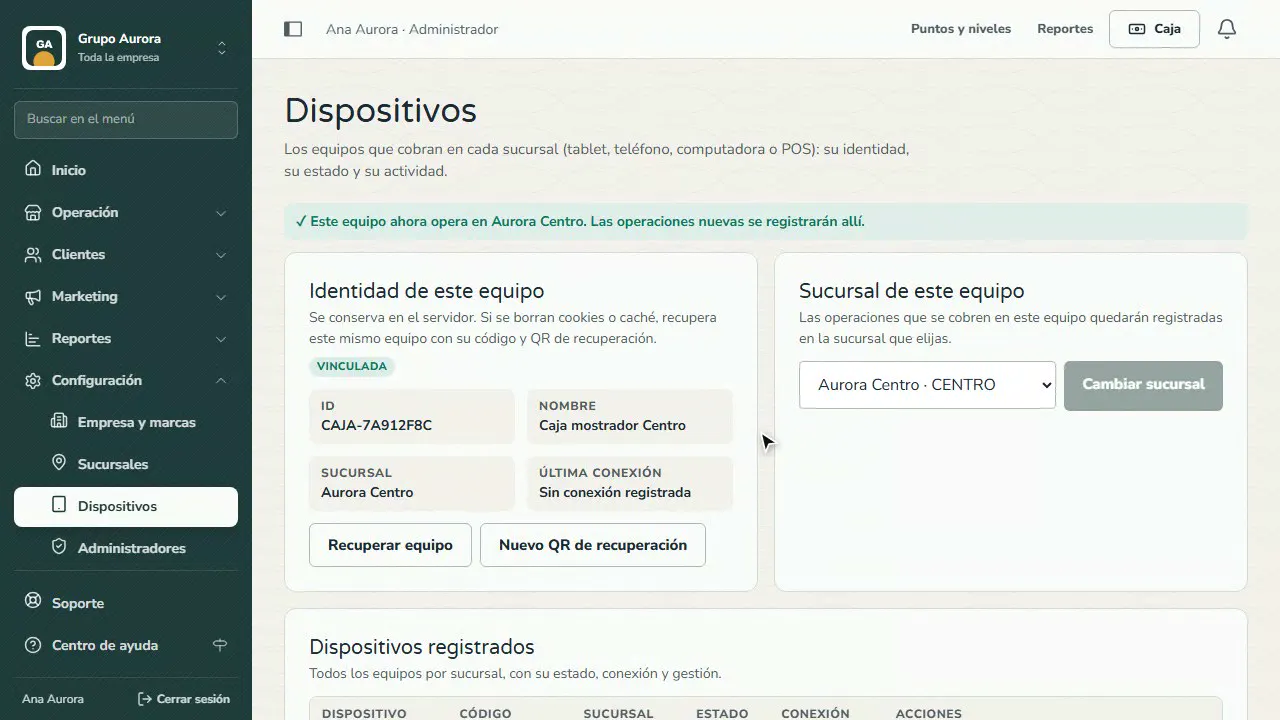
Choose which branch it's in and confirm with Change branch: everything it charges will be recorded there.
Open the Register
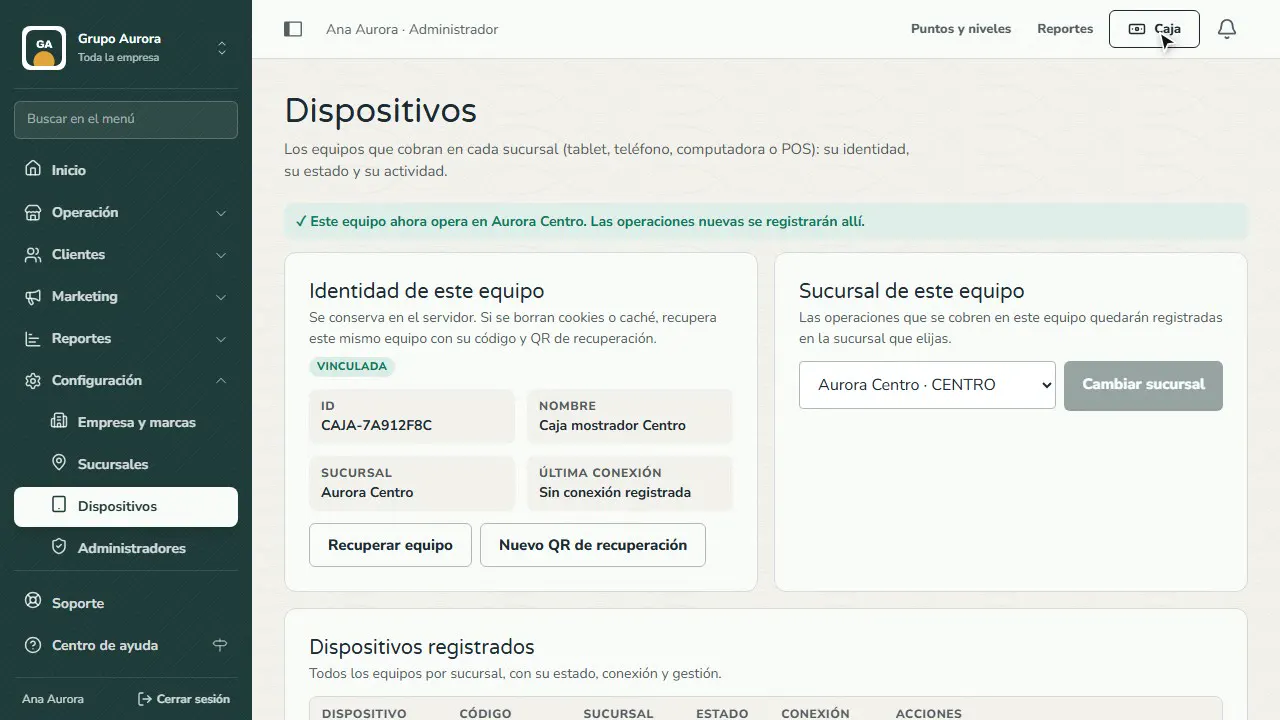
Tap Register: the device is ready to charge, record visits and apply benefits.
Common mistakes
- Registering the device from another computer. Open Settings › Devices on the same device that will be the register.
- Not saving the recovery QR. If the browser cache is cleared, that QR lets you recover the same device and its history.
- Using an incognito window. When you close it, the device registration is lost.
Tips
- Keep a photo of the recovery QR somewhere safe.
- If you move a device to another branch, change its branch here before charging.
- Check each device's activity under Registered devices.