What it is
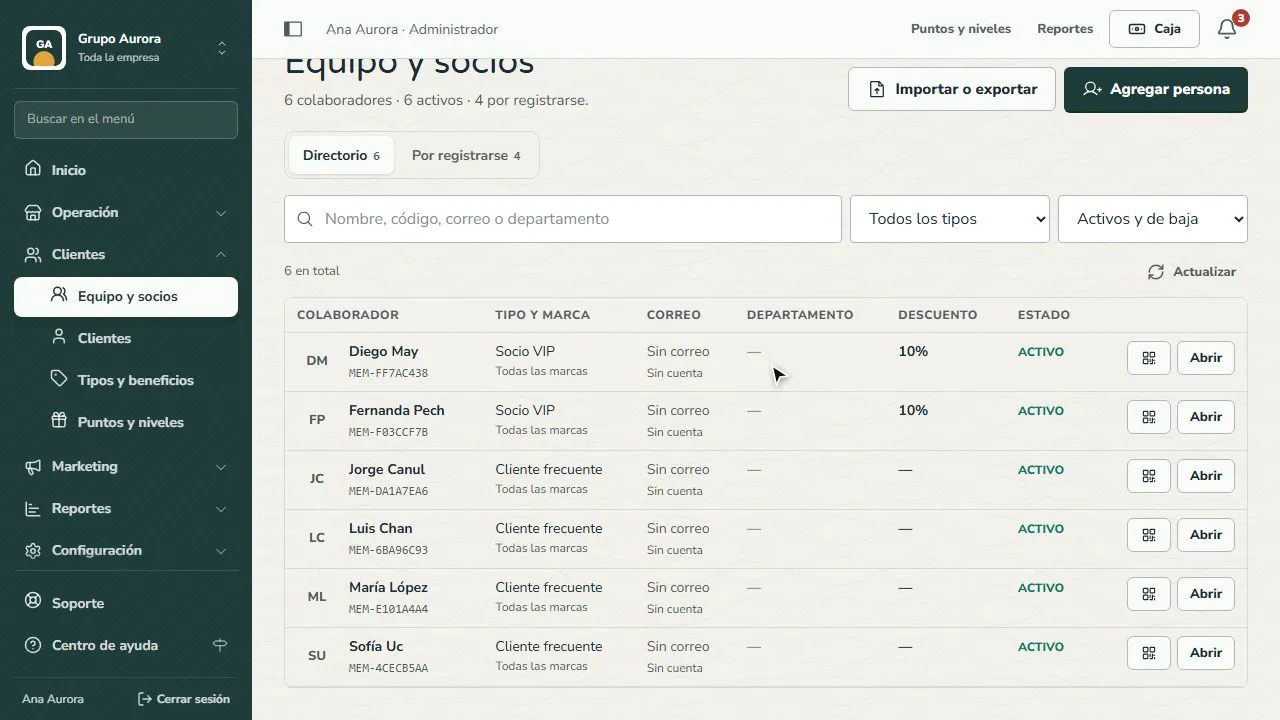
Customers › Team and partners lists the people with a special type: team members, partners, VIP customers… Each type has its own discount (you set it in Types and benefits), and the Register applies it automatically when the person identifies themselves.
To add someone, you use their email: with Add person you choose their type, their brands and, for team members, their department. They're pre-authorized: as soon as they sign up or sign in to the app with that email, they get their type and their discount. Until then they show up in Pending sign-up, where you can send them the invitation or create their account.
To add several people at once, in Import or export you download the template, fill it in (email, name, type and department) and upload it: you review each row before importing. You can also export the list from there.
Step by step
Open Team and partners
Customers › Team and partners lists the people with a special type: team members, partners, VIPs… with their discount.
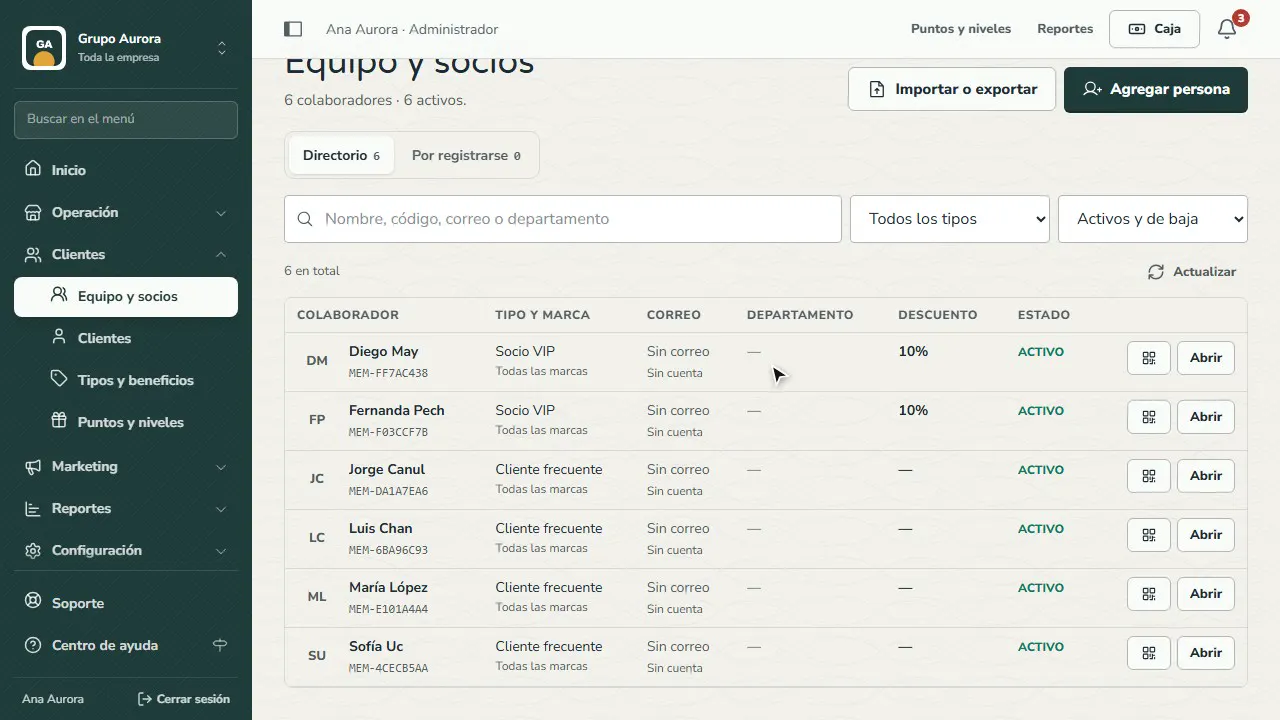
Add a person
Tap Add person: their email, their name, their type (here Team member, 20%) and their department.
Import several from a CSV
In Import or export, download the template, fill it in and upload it: you review each row before you tap Import.
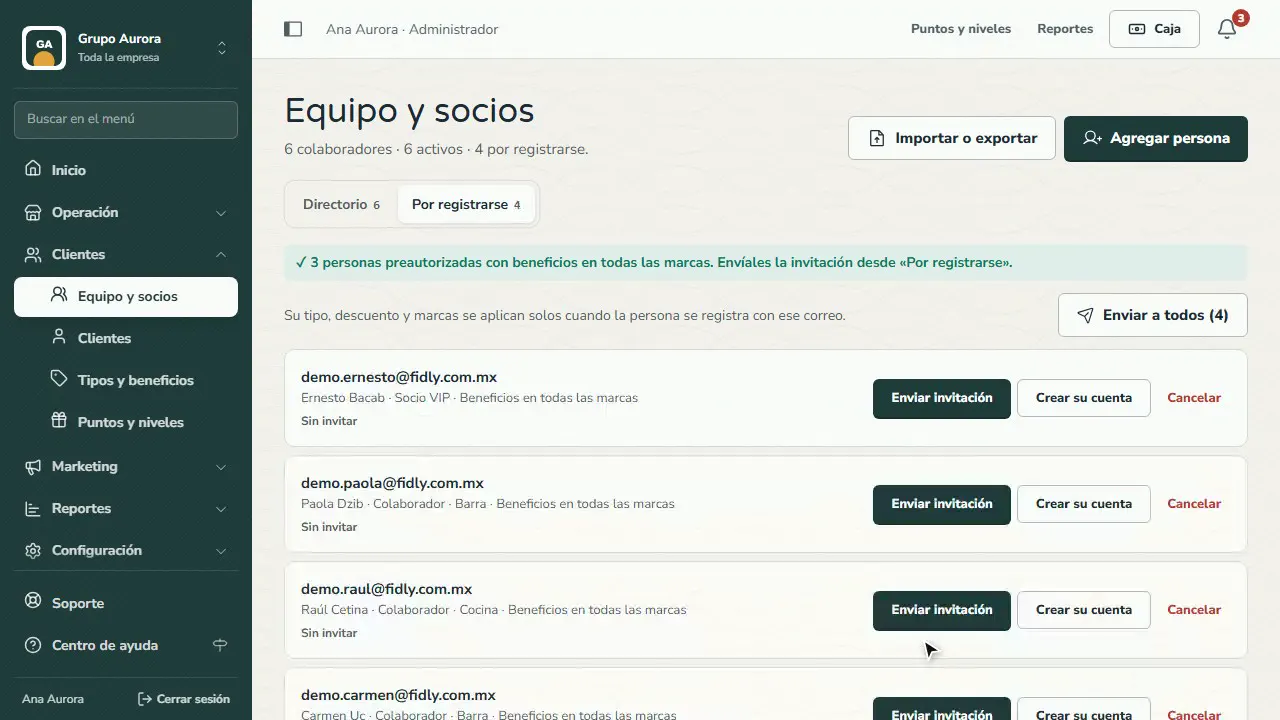
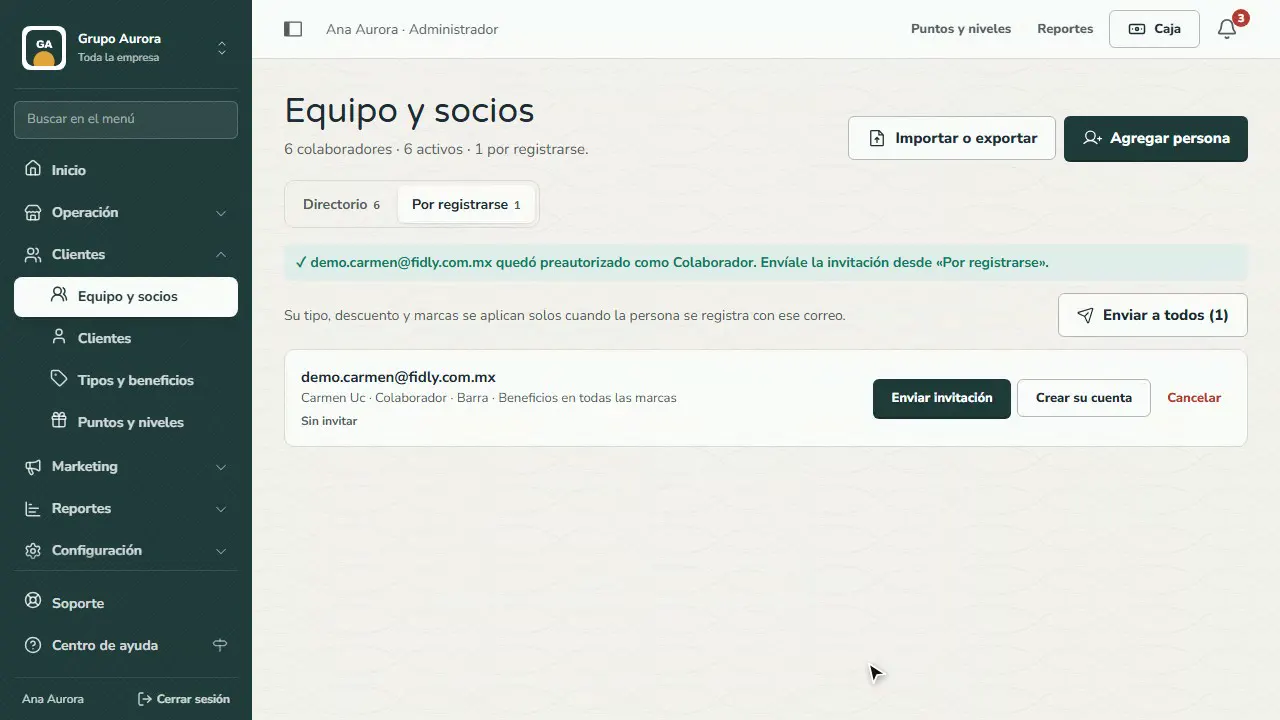
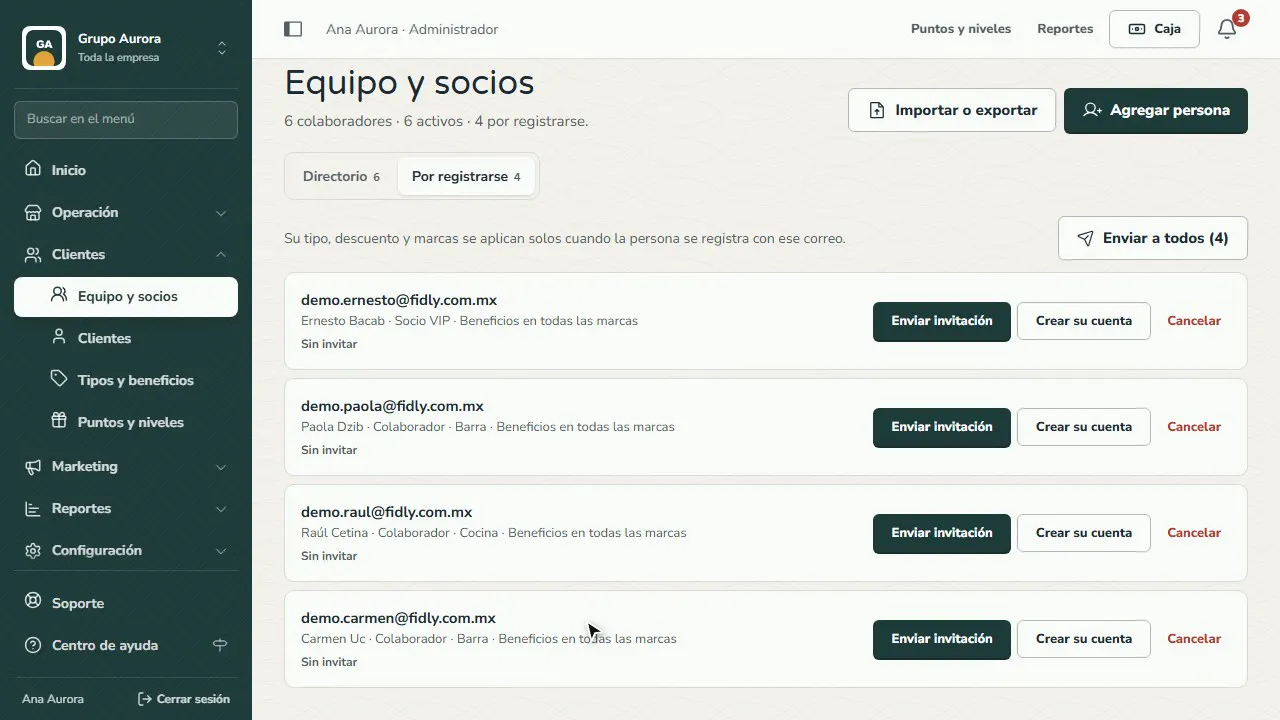
They're pending sign-up
In Pending sign-up you see who's left; you can send them the invitation or create their account from here.
Once they sign up, they have their discount
When they sign in to your app with that email, they move to the Directory with their type and discount: the Register applies it automatically.
Common mistakes
- Writing the type's name in the CSV. The “type” column takes the code (for example, collaborator or socio_vip).
- A team member with no department. It's required for the Team member type.
- Using a different email than the one they sign up with. The discount applies to the pre-authorized email.
Tips
- Create one type per group (team members, partners, family) so you can measure how much discount each one gets.
- If someone leaves the company, remove them from their profile: they stop getting the discount.