What it is
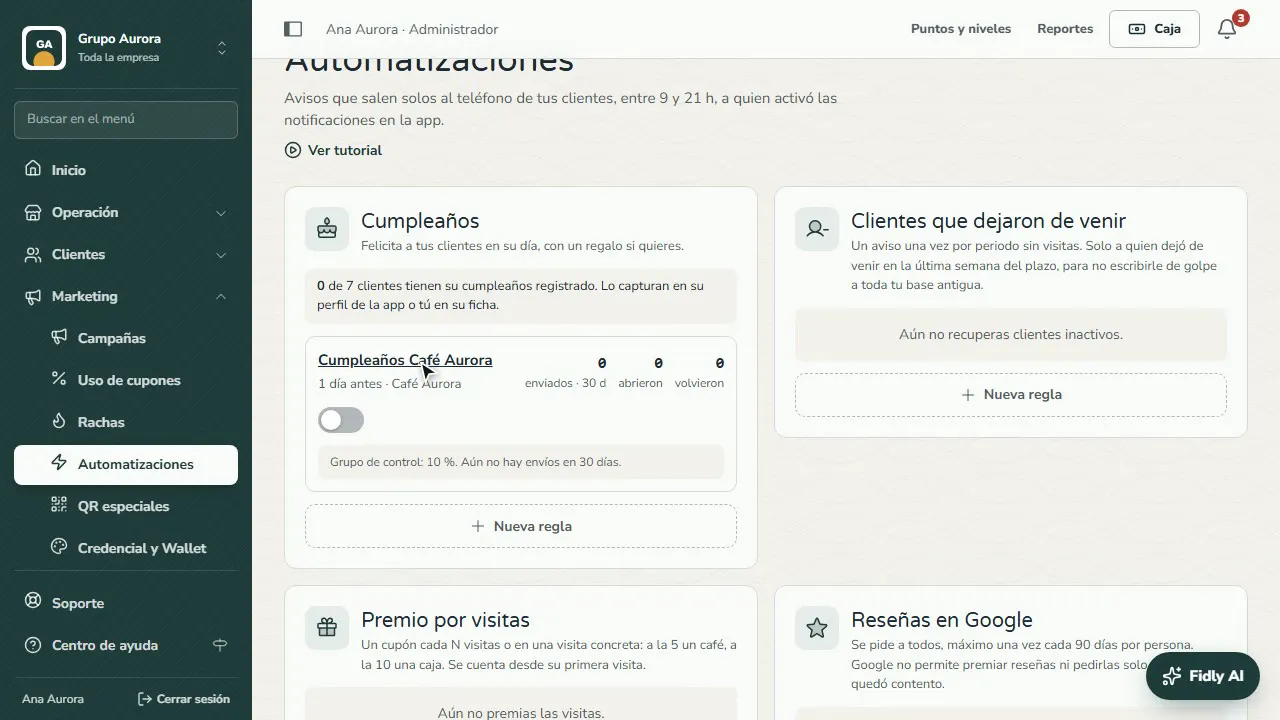
Fidly AI is the dashboard assistant: the Fidly AI button at the bottom right. It answers with your company's real data (campaigns, coupons, customers, sales, settings), explains how to set up each thing and suggests ideas. It only sees what your account can see.
It can also suggest simple changes: turning an automation, a streak, a cashier, a customer type or a branch on or off, your colors, or what customers see in the app. Nothing is applied automatically: you review the suggestion, tap Apply and confirm. The change is logged in the Audit log under your name.
Fidly AI is turned on per company; if you don't see the button, ask Fidly.
Step by step
Open Fidly AI
Tap the Fidly AI button at the bottom right of any dashboard screen. It can make mistakes: confirm the numbers before you decide.
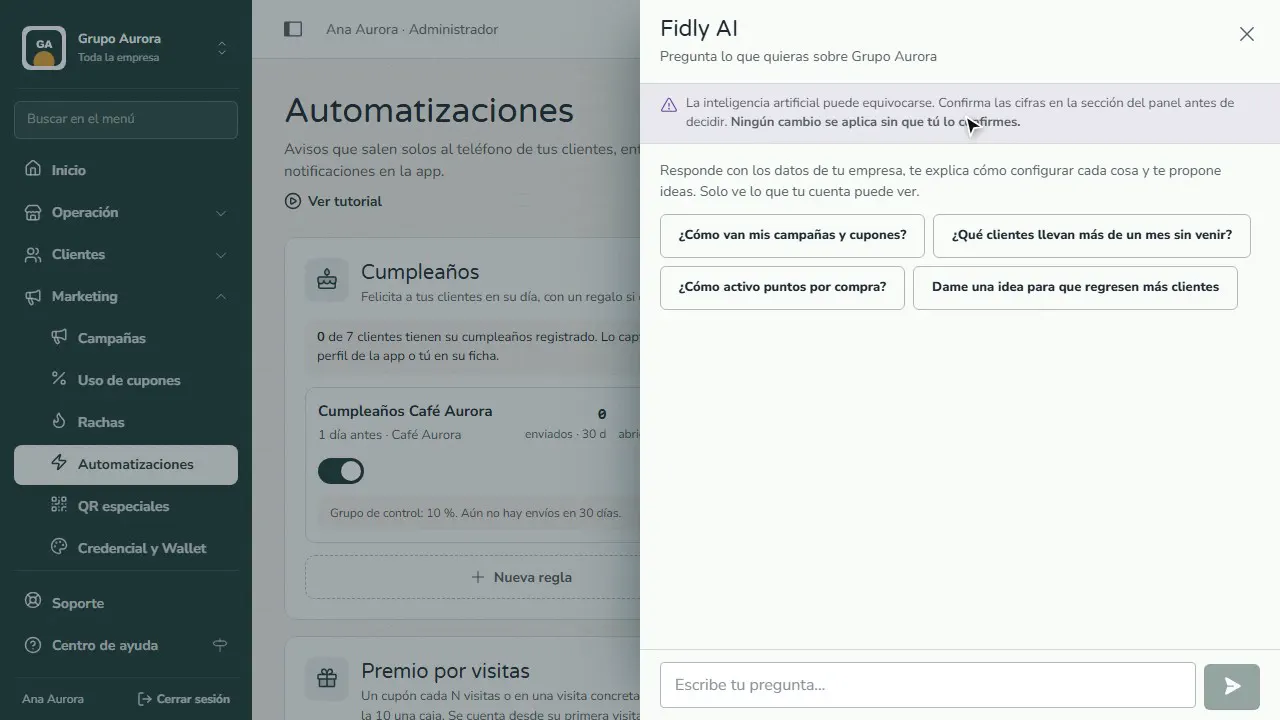
Ask about your business
It answers with your company's real data: campaigns, coupons, customers, sales… It only sees what your account can see.
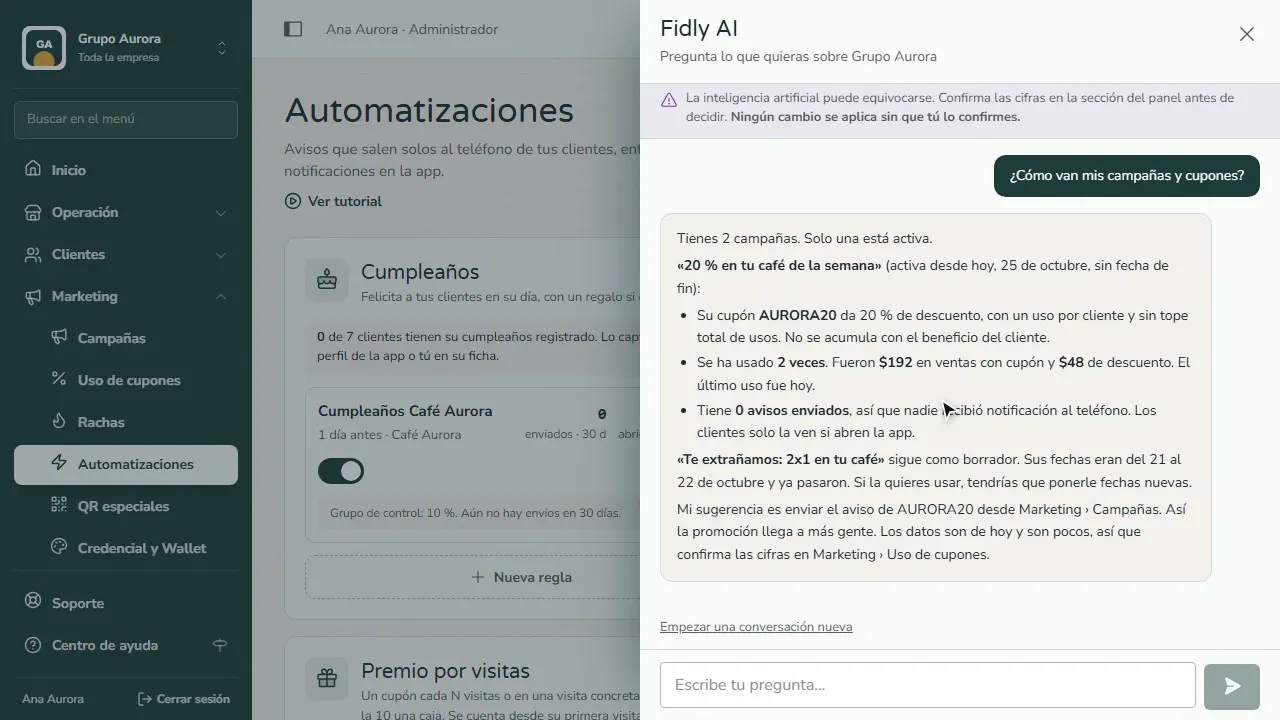
Ask it for a change
It also suggests simple changes: turning an automation, a streak, a cashier or your colors on or off.
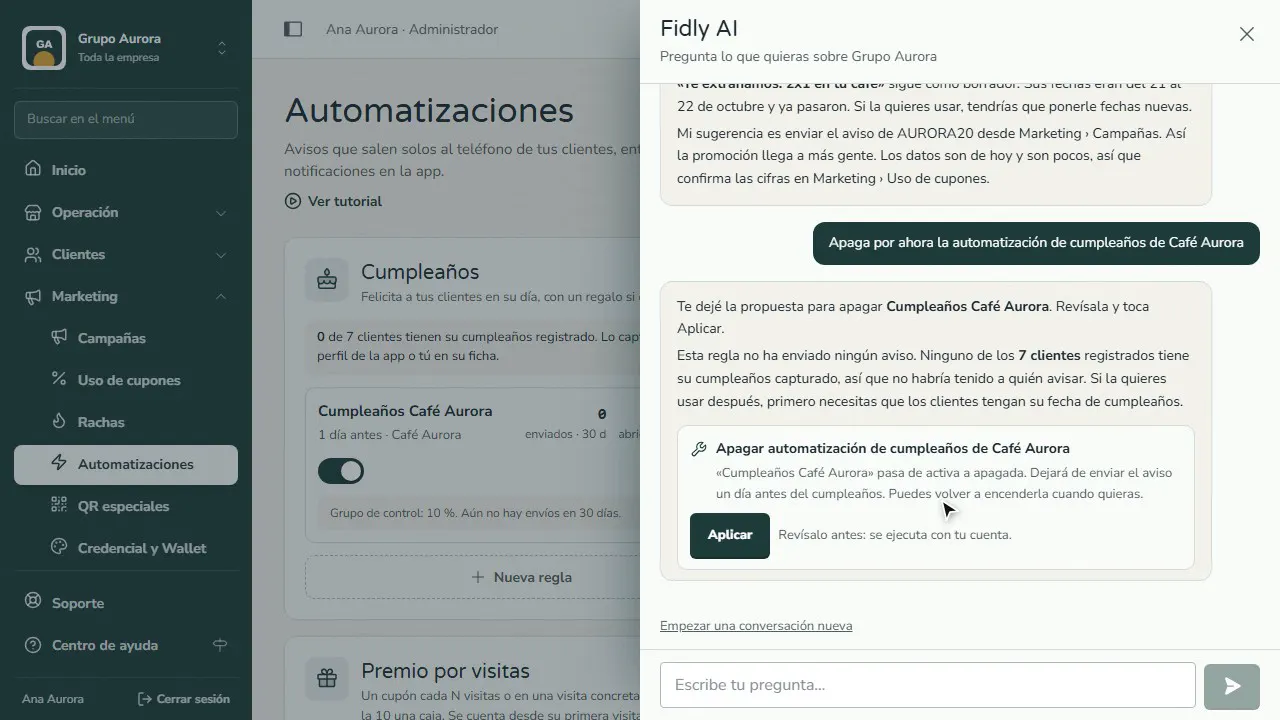
Review it and apply it
Nothing is applied automatically: review the suggestion, tap Apply and confirm. It's logged in the Audit log under your name.
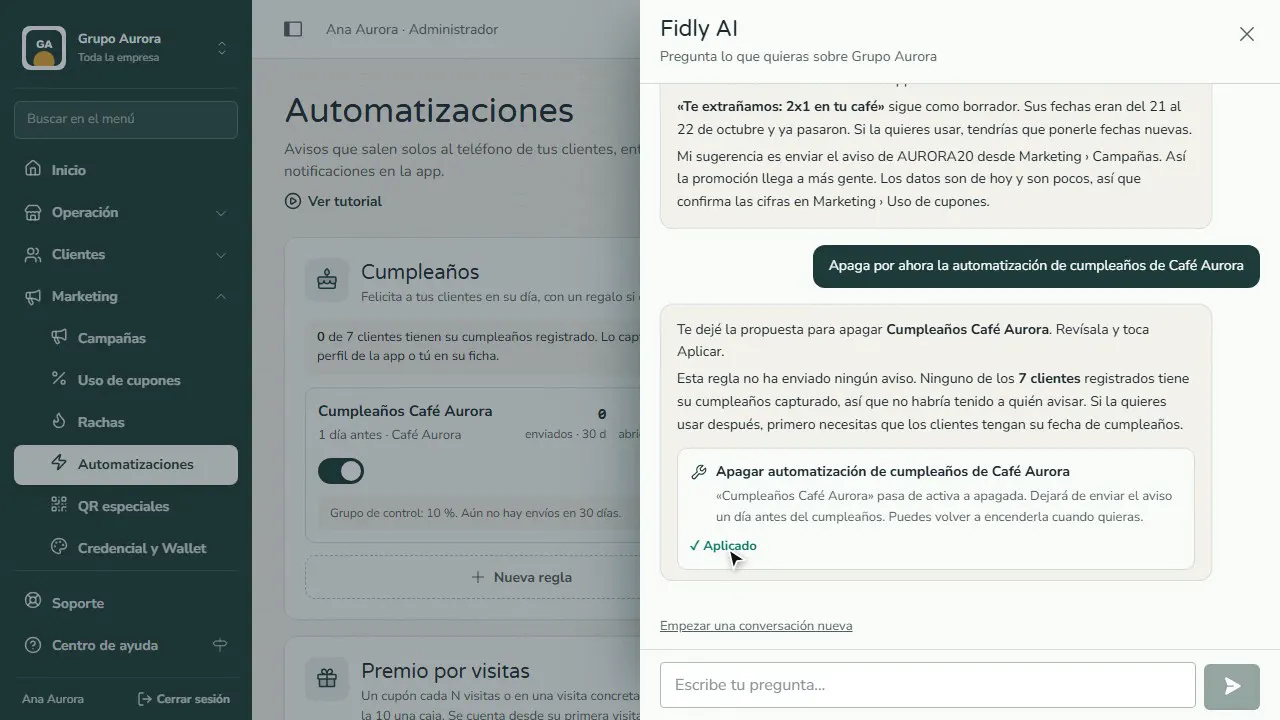
Check it in the dashboard
The change now shows on its screen; if you change your mind, change it right there or ask Fidly AI.
Common mistakes
- Taking a number without checking it. AI can make mistakes: confirm the numbers on their own screen before you decide.
- Asking it for something it can't do. If it can't apply a change (for example, creating a campaign), it tells you step by step where to do it.
Tips
- Ask specific questions: “how many times was the AURORA20 coupon used?” works better than “how am I doing?”.
- To start fresh, tap “Start a new conversation”.