What it is
Reports tells you how much you sold, to whom and with what discount, by branch, cashier and brand. It combines what was charged at the Register and the orders from the app, and shows how you got paid (cash, card, transfer, online or points) and what you keep after your terminal fees.
Step by step
Open Analytics
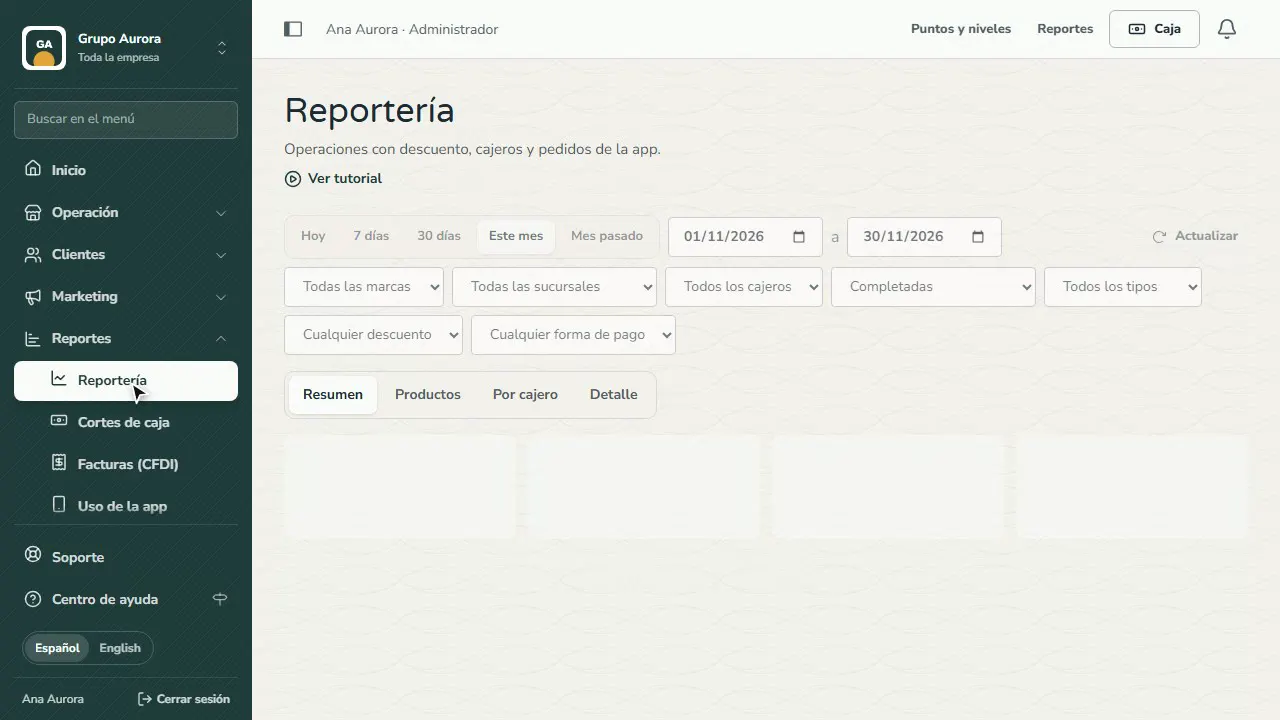
In Reports › Analytics you see every sale charged at the Register and in the app.
Choose the period and filters
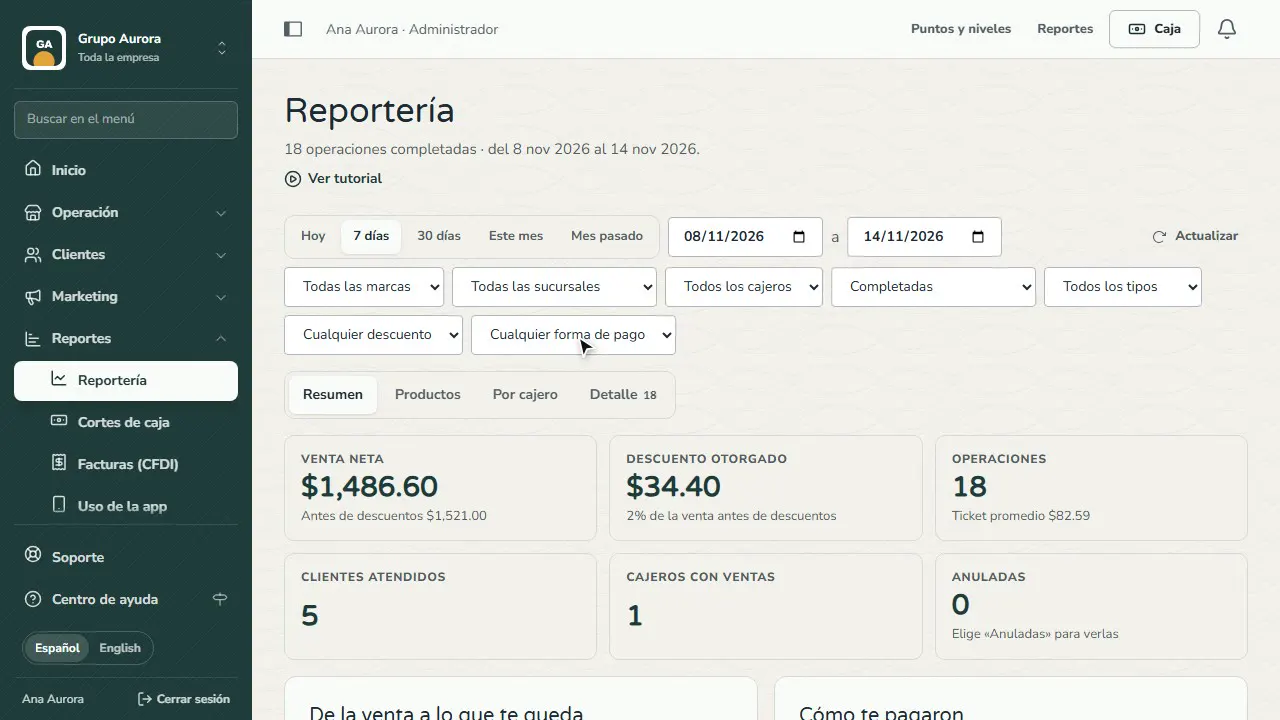
Choose Today, 7 or 30 days, or exact dates, and filter by brand, branch, cashier, customer type or payment method. At the top you see net sales against the previous period.
From sales to what you keep
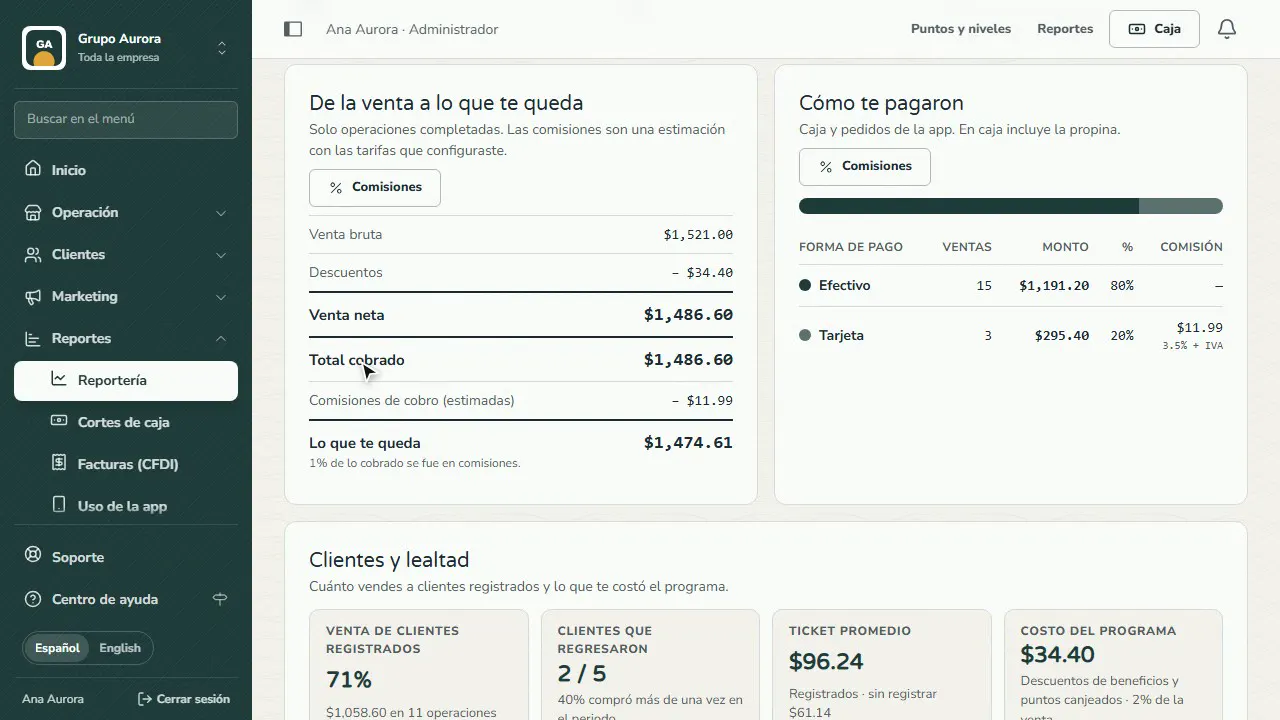
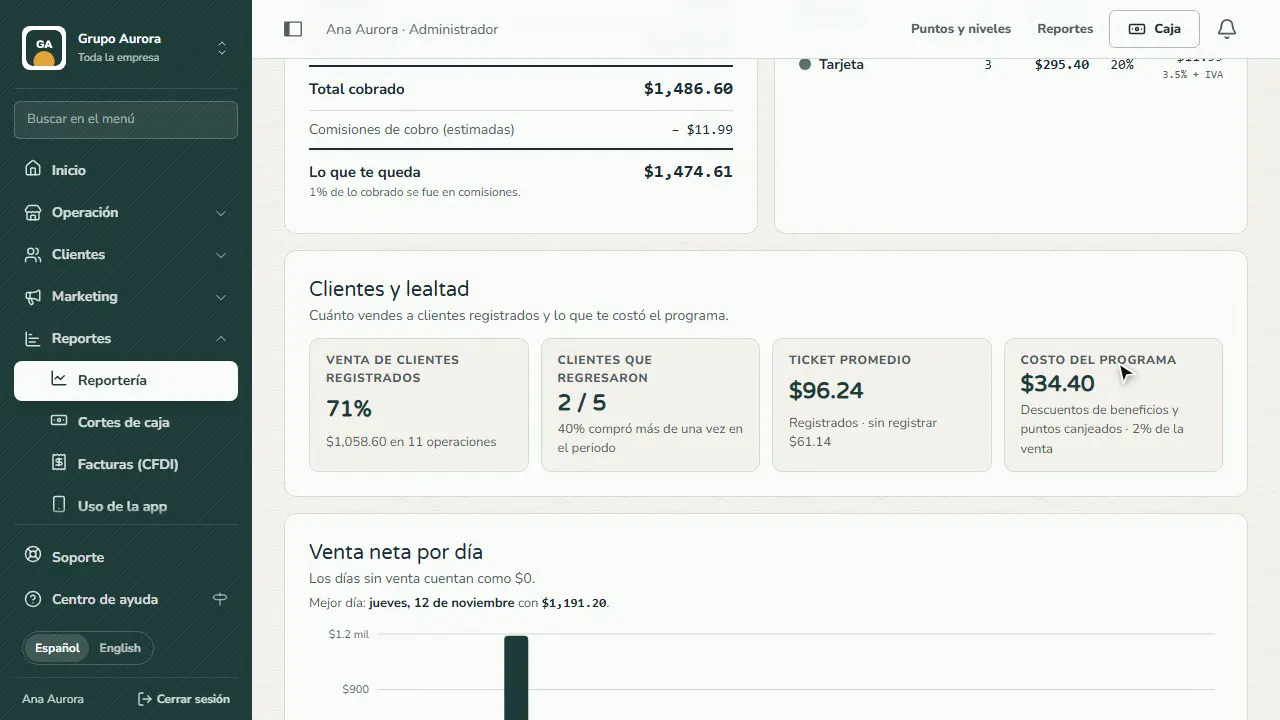
The waterfall goes from gross sales to net sales, takes out points, refunds and test charges, and lands on the total collected.
Set your terminal fee
Tap Fees and enter your card terminal rate (percentage and fixed per charge) and whether you add VAT. Analytics then estimates fees and what you keep.
How you got paid
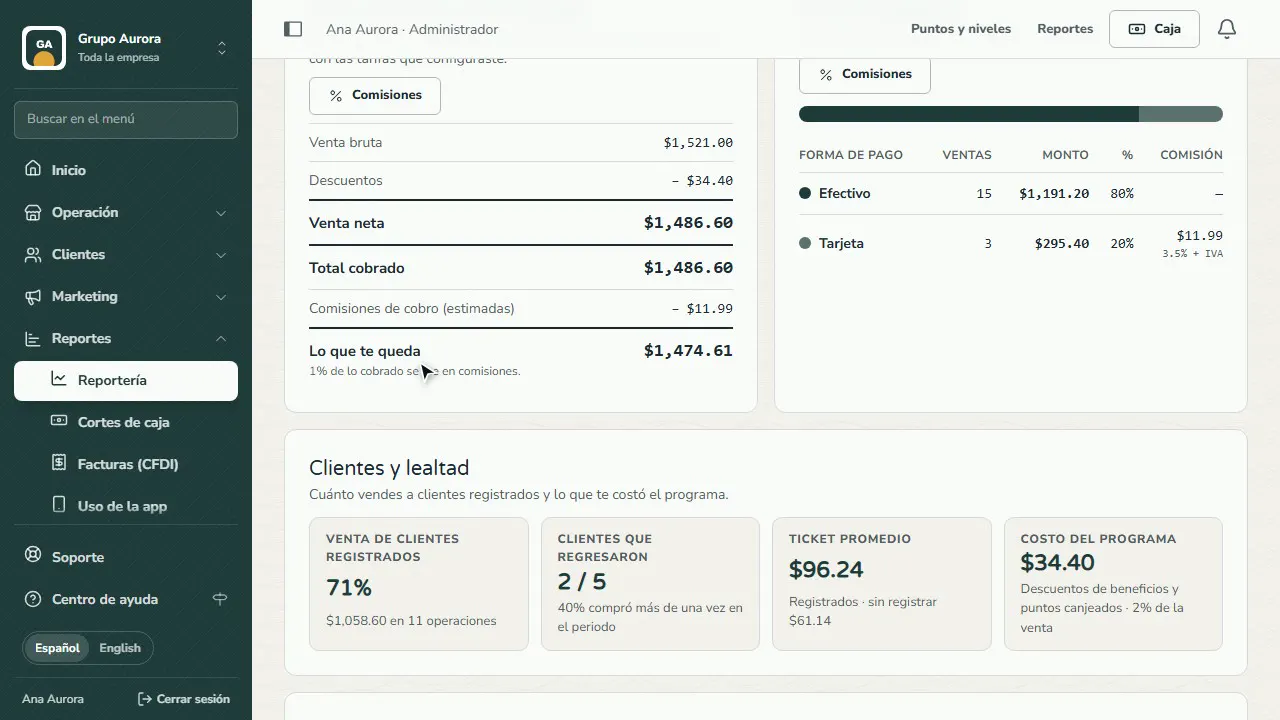
How much came in cash, card, transfer, online or points, with its fee. In Customers and loyalty you see how much you sell to registered customers and what the program cost you.
By cashier and details
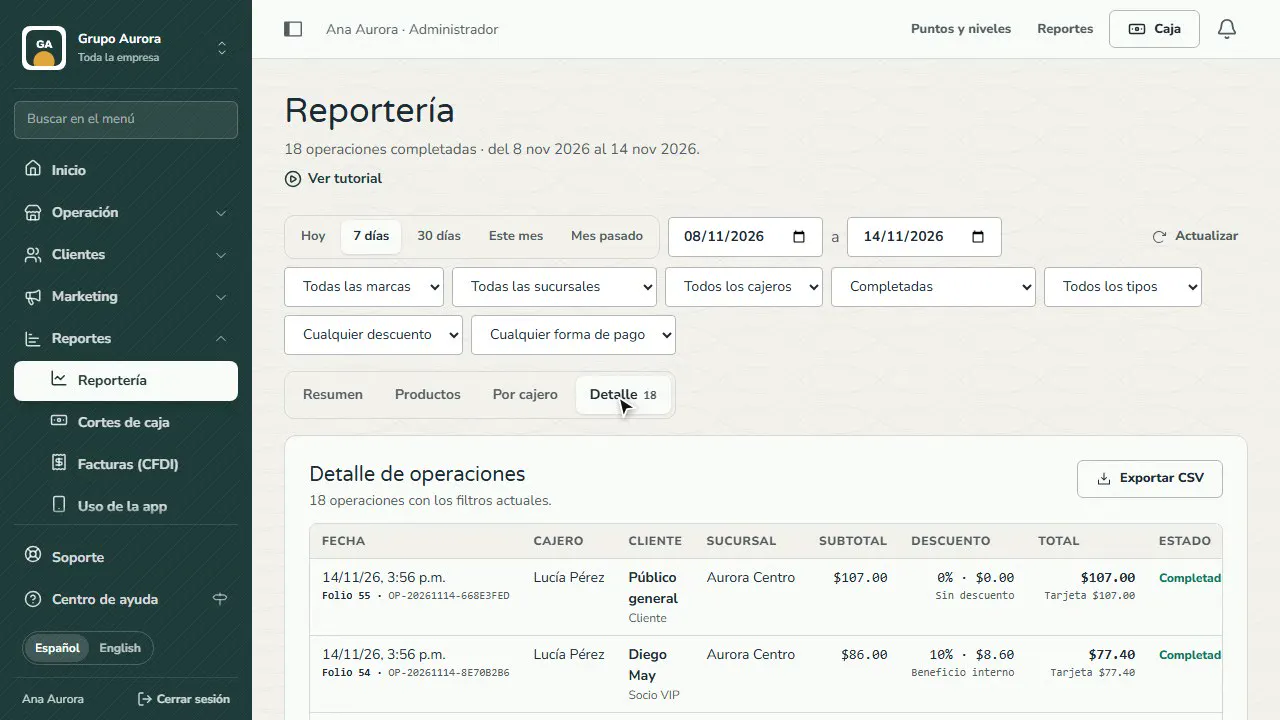
In By cashier you compare your team; Details lists every sale with its number, customer, cashier and payment method, and you can download it as CSV.
Common mistakes
- Always looking at the same period. Switch between Today, 7 days, 30 days or a custom range to compare.
- Ignoring the discount given. If it grows faster than sales, review your customer types and your coupons.
- Not setting your terminal fee. Without it, “What you keep” doesn't subtract what the bank takes from card sales. Tap Fees and enter your rate.
- Delivering orders without saying how they paid. Those sales show as “Not recorded” and you can't reconcile your cash.
- Not filtering by brand. With several brands, pick one above the menu or in the filter so you don't mix numbers.
Tips
- Check your numbers every week: your top customers are the first ones to reward.
- Compare your team in By cashier and review each sale in Details.
- Export to CSV when you need to work with the data in Excel.