What it is
Your customers can get alerts two ways: the app notification and the message on their Google Wallet pass. Anyone with both would get every campaign and every visit reward twice on the same phone.
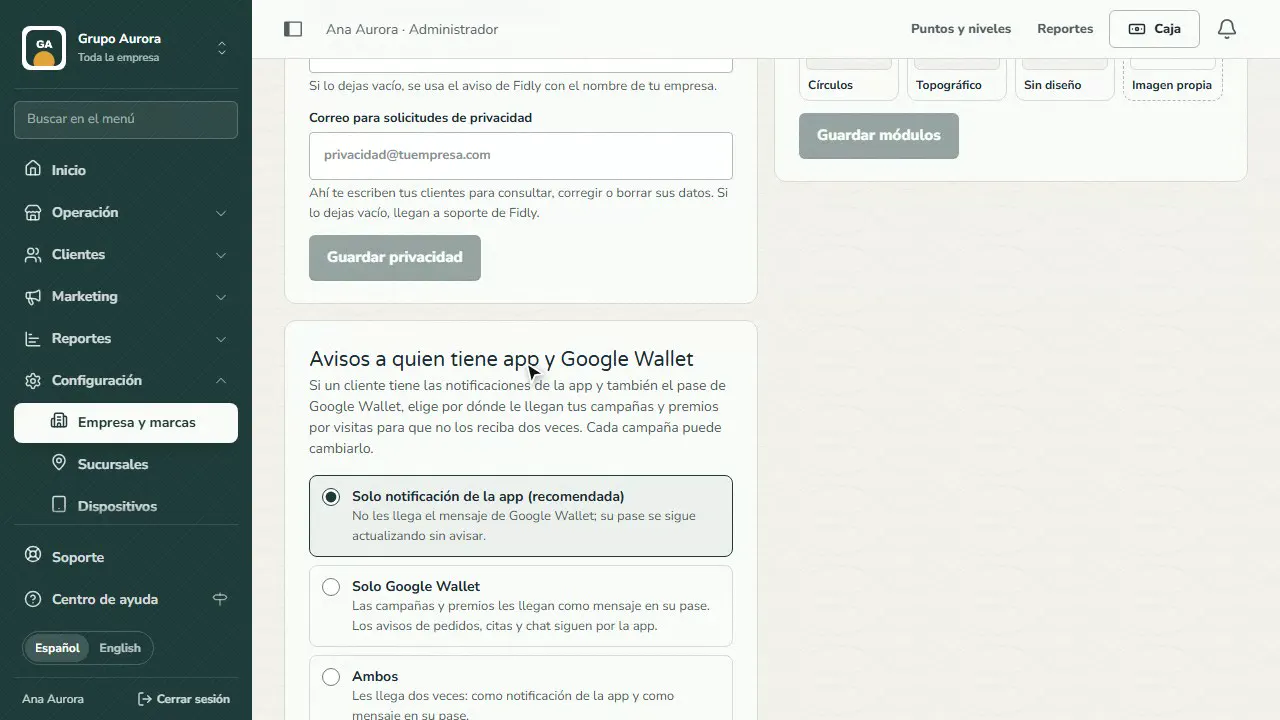
In Settings › Company & brands › Company details, the Alerts for people with the app and Google Wallet card decides what those people get:
- App notification only (recommended and the default): they don't get the message on the pass; their pass keeps updating silently.
- Google Wallet only: it reaches them as a message on their pass. Order, appointment and chat alerts still come through the app.
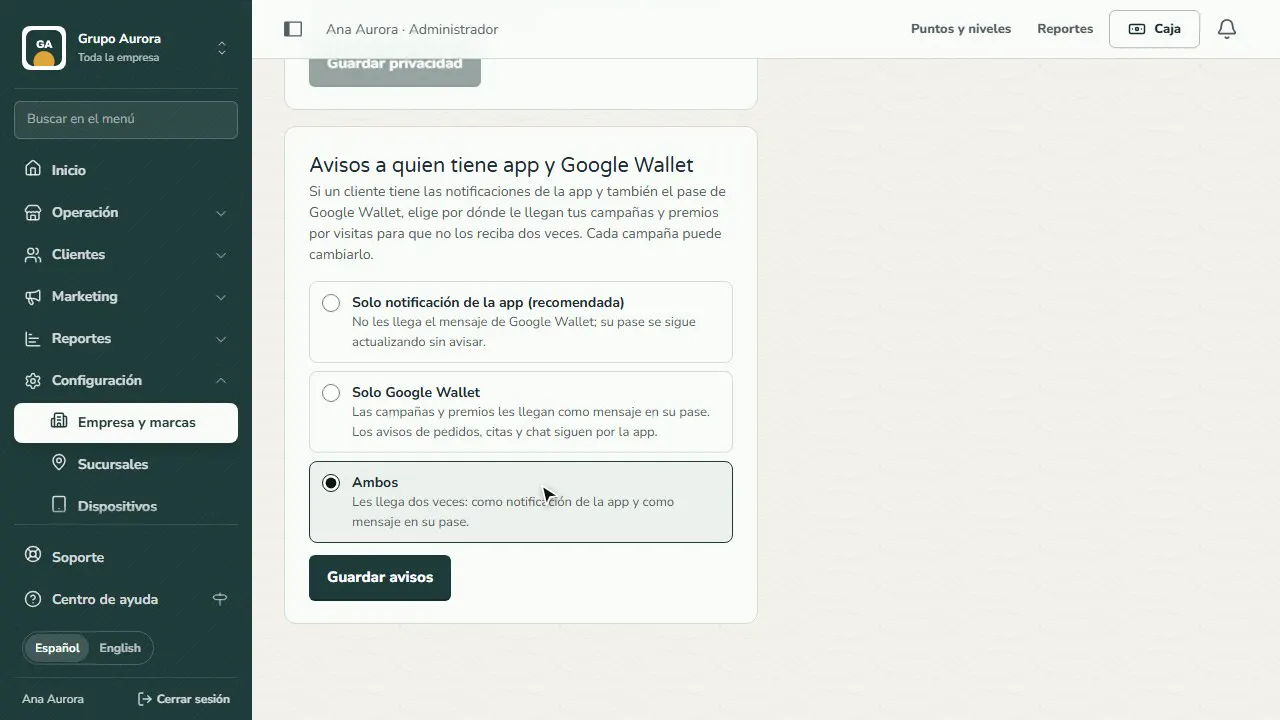
- Both: it reaches them both ways.
Anyone with only one of the two still gets it there.
Step by step
Open Company details
In Settings › Company & brands choose Company details and find the Alerts for people with the app and Google Wallet card.
Pick the channel
App notification only (recommended), Google Wallet only or Both. It only changes people who have both; order, appointment and chat alerts still come through the app.
Save
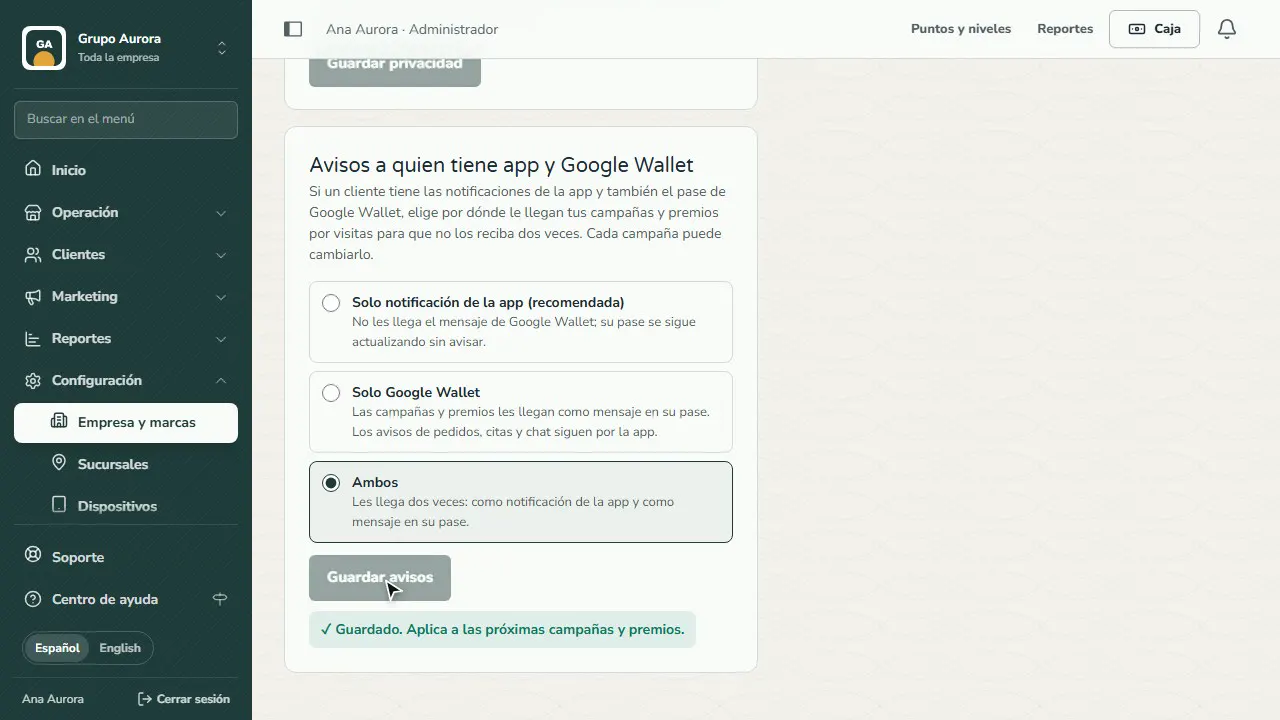
Tap Save alerts. It applies to upcoming campaigns and visit rewards.
Change it for one campaign
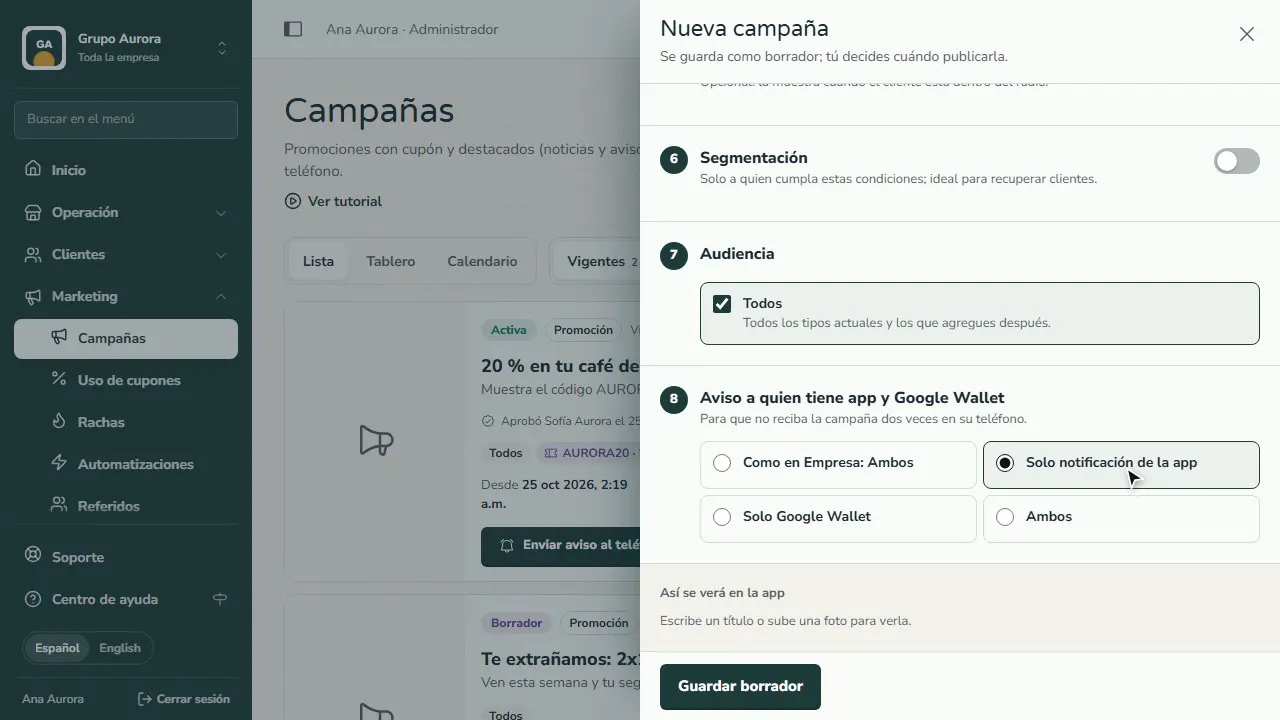
When you create a campaign, the Alert for people with the app and Google Wallet step keeps "Same as in Company" or changes it for that campaign only.
How to change it
1. Go to Company & brands and choose Company details.
2. In Alerts for people with the app and Google Wallet, pick an option and tap Save alerts.
3. For a specific campaign, use the Alert for people with the app and Google Wallet step when you create it: "Same as in Company" keeps your setting; the other options change it for that campaign only.
In Customers, the Notifications + Google Wallet filter tells you how many people have both, and their profile explains what they get with your setting.
Common mistakes
- Choosing "Google Wallet only" thinking it turns off the app. It only changes campaigns and visit rewards; order, appointment and chat alerts still come through the app.
- Expecting the alert on Apple Wallet. The Apple pass updates on its own and doesn't show campaign text; this setting doesn't change it.
- Looking for the setting without being a company-wide administrator. Only a company-wide administrator sees and changes it.
Tips
- Keep App notification only: the notification opens straight into your app and you can measure who opened it.
- Use Both only for a very important campaign (for example, a closure for maintenance) and then go back to your usual setting.