What it is
A page with your business's brand, logo and colors where the customer enters their first name, last name, phone, email and date of birth, accepts your privacy notice and saves their card to Apple Wallet (iPhone) or Google Wallet (Android). Nothing to install.
You share it with a QR code you download in Marketing › Wallet card, on the Your Wallet card page card. It shows up if your plan includes the Wallet card; on the Starter plan it is how your customers sign up.
Step by step
Open the Wallet card
In Marketing › Wallet card, Your Wallet card page is at the top.
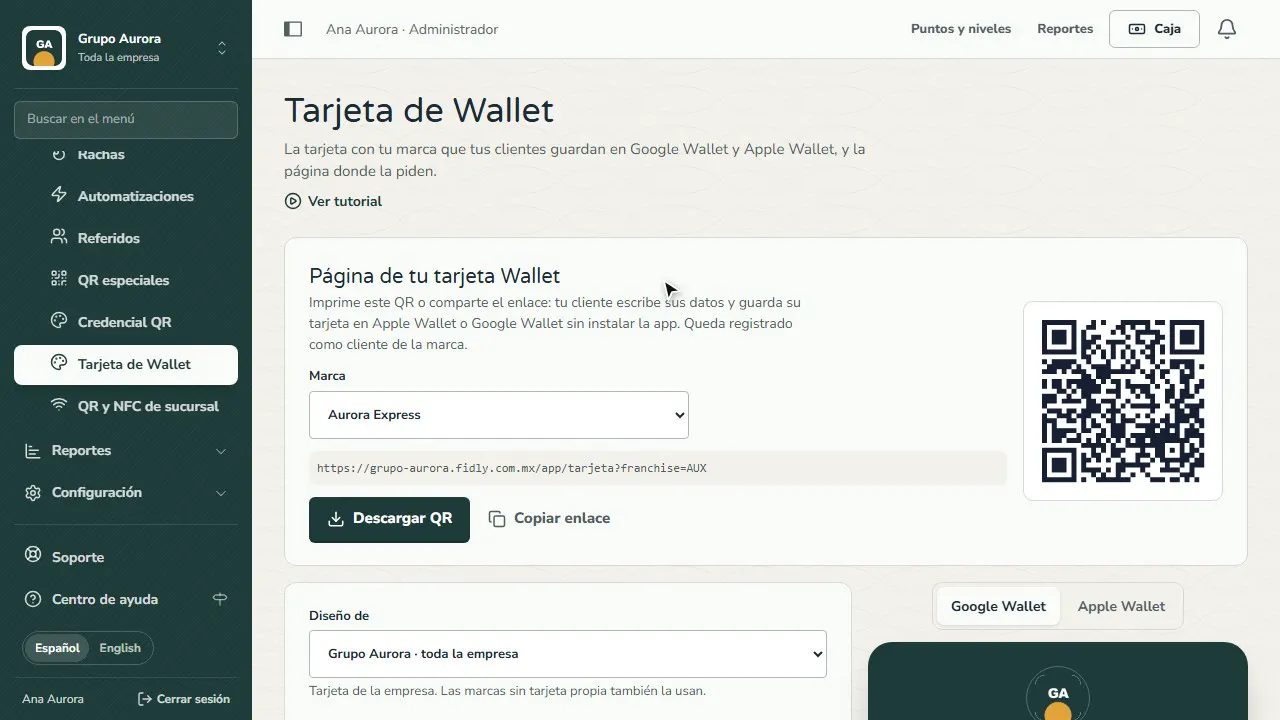
Pick the brand
If you have several brands, pick one: the QR code signs the customer up with that brand, with its logo and colors.
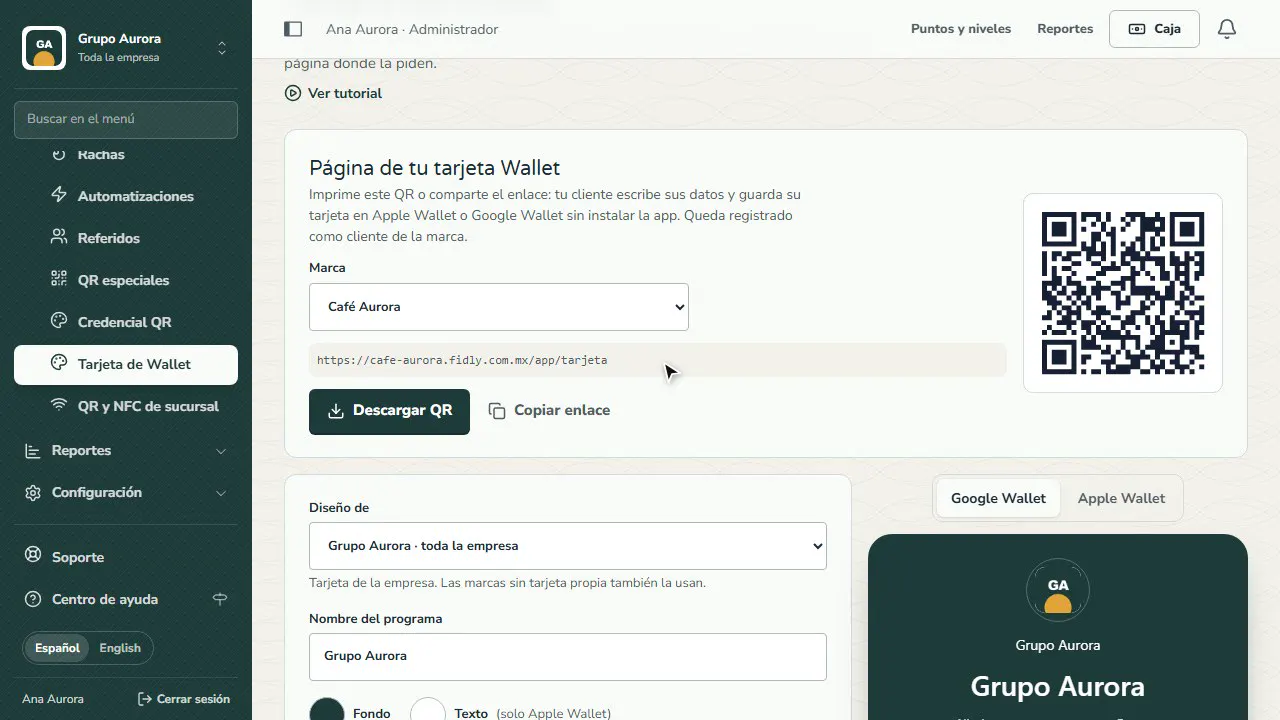
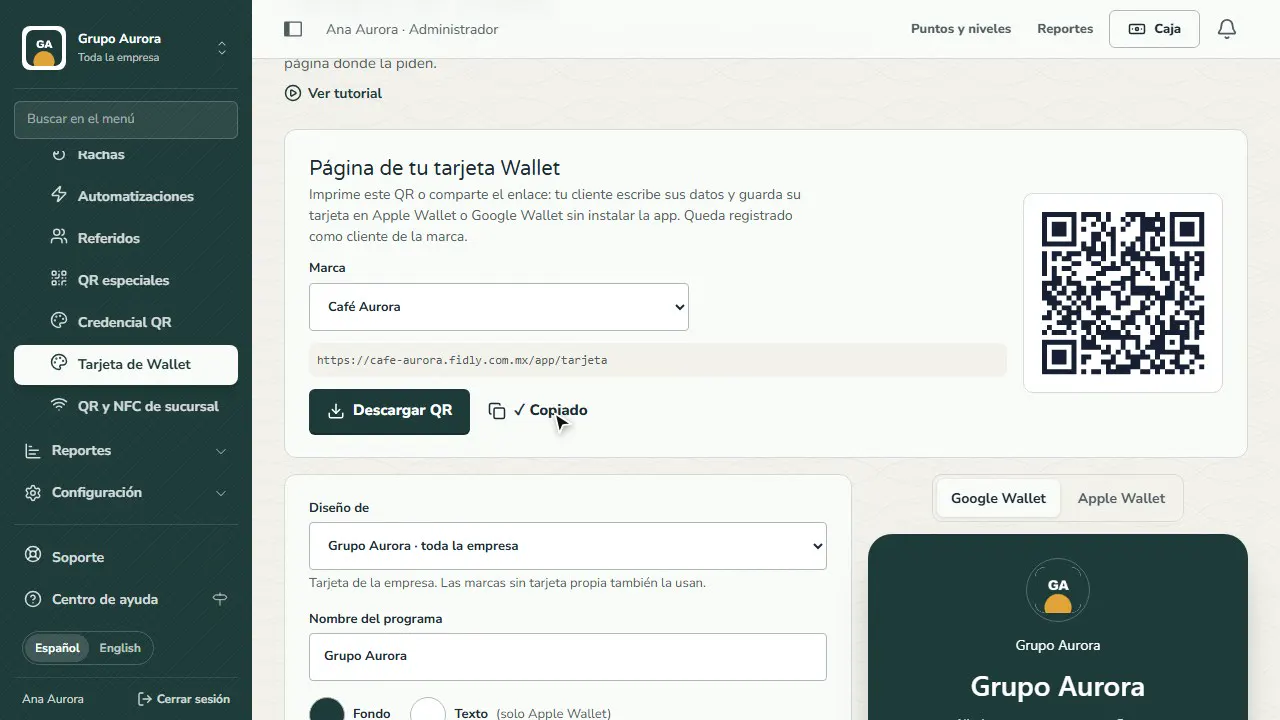
Download or copy
Tap Download QR to print it or Copy link to send it on WhatsApp or social media.
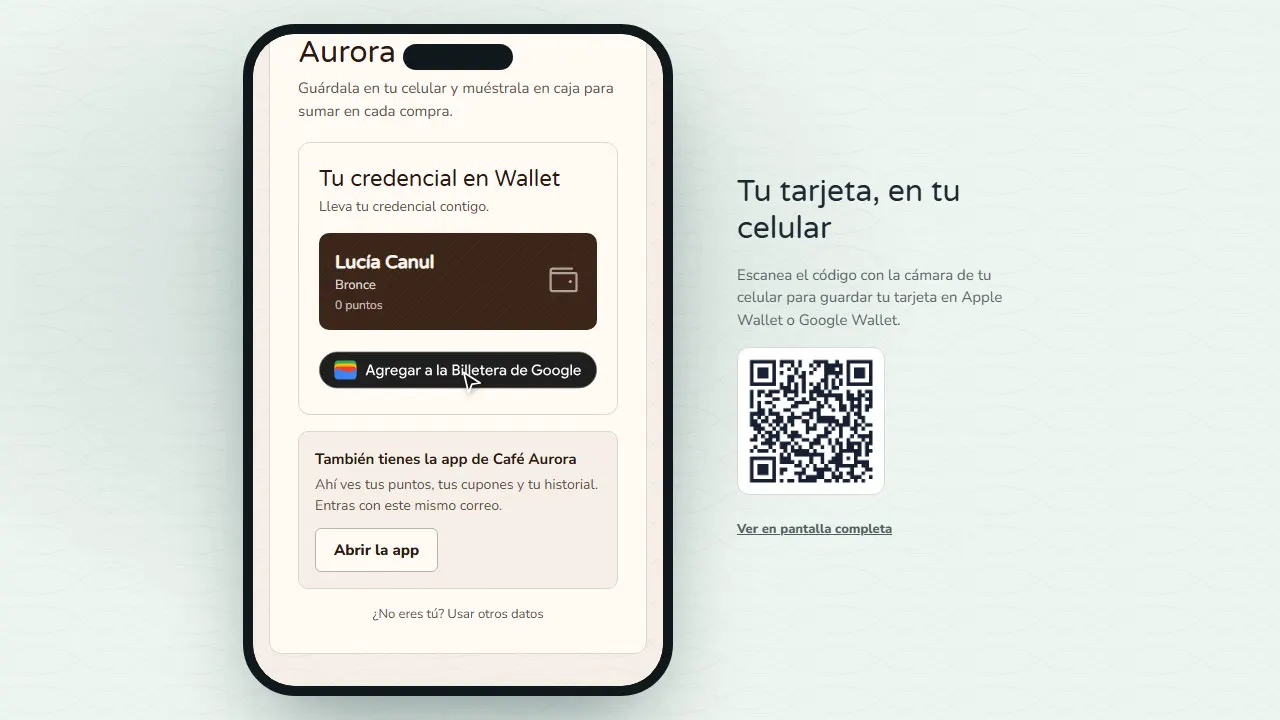
Your customer saves their card
They enter their details, accept your notice and tap Get my card: on iPhone they get the Apple Wallet button and on Android the Google Wallet one. If they already had an account, they confirm with a code sent to their email.
What happens with the data
- New customer: their customer account with your brand is created and they see their Wallet buttons right away.
- Already has an account (their email already exists in Fidly or their phone is already your customer): we send a 6-digit code to that account's email. Once they enter it, they see their card. The page shows no account data, only the masked email (a***@gmail.com).
- It is the same customer as in the app: if you turn the app on later, they sign in with the same email and keep their points and card. If your app is already on, the page offers to open it at the end.
Common mistakes
- Sharing another brand's QR code. If you have several brands, pick the brand before downloading: each QR code signs the customer up with that brand.
- Expecting the page without Wallet turned on. If you turn off the Wallet card for a brand, the page says it is not available.
- Thinking the customer must install the app. No need: the card is saved straight to the phone.
Tips
- Place the QR code by the register and on tables: "Save your card on your phone".
- Design your card first (colors, logo and stamps) on this same screen.
- For the header image, use a photo of at least 1032 × 812 px (up to 10 MB). Once uploaded you see three frames with the same photo (Google Wallet, Apple Wallet and Apple Wallet iOS 27): in each one drag it with your mouse or finger, zoom with the slider, the wheel or a pinch, and use Center or Reset. If that much zoom would make it blurry, the panel warns you. When you save, Fidly prepares each Wallet’s image at its exact size and keeps your original photo so you can reframe it later.
- Apple Wallet on iOS 27 has a portrait style: the photo is the 4:5 background and Wallet places the logo, points or stamps, the QR code, the customer’s name and their details (tier, discount and streak) on top, with two buttons below (benefits and directions). Fit the photo in its portrait frame; for a sharp result use one at least 1344 px tall, with no text. Check it in the Apple Wallet (iOS 27) preview. iPhones on iOS 26 or earlier show the card as usual.
- In Information on the back of the card, add what your customers need at hand: hours, how to earn stamps, the reward, terms, your WhatsApp and social media. You can also show their points or stamps, how much is left for the next reward and the link to invite friends. “Create your loyalty card with Fidly” always goes at the end.
- Ask the cashier to scan the card at every purchase so it adds points and visits.