What it is
The card is what your customer shows at the register from the app: their QR, their name, their customer number, their type and their discount. Until you upload a design, they see the standard Fidly card in your brand's colors.
In Marketing › Card and Wallet › QR card you download the Customers template (or the team members one, which includes a department), edit it in Illustrator, Figma or Inkscape, and upload it. You can change colors, logo, backgrounds and text; the app fills in the QR, name, code, type and discount areas on its own.
Every design goes through approval: whoever uploads it submits it, and a Marketing lead (or another admin with that permission) approves and publishes it. If you're the only person who can approve, you publish it yourself. Use for everyone makes it the card for all your customers.
Step by step
Open QR card
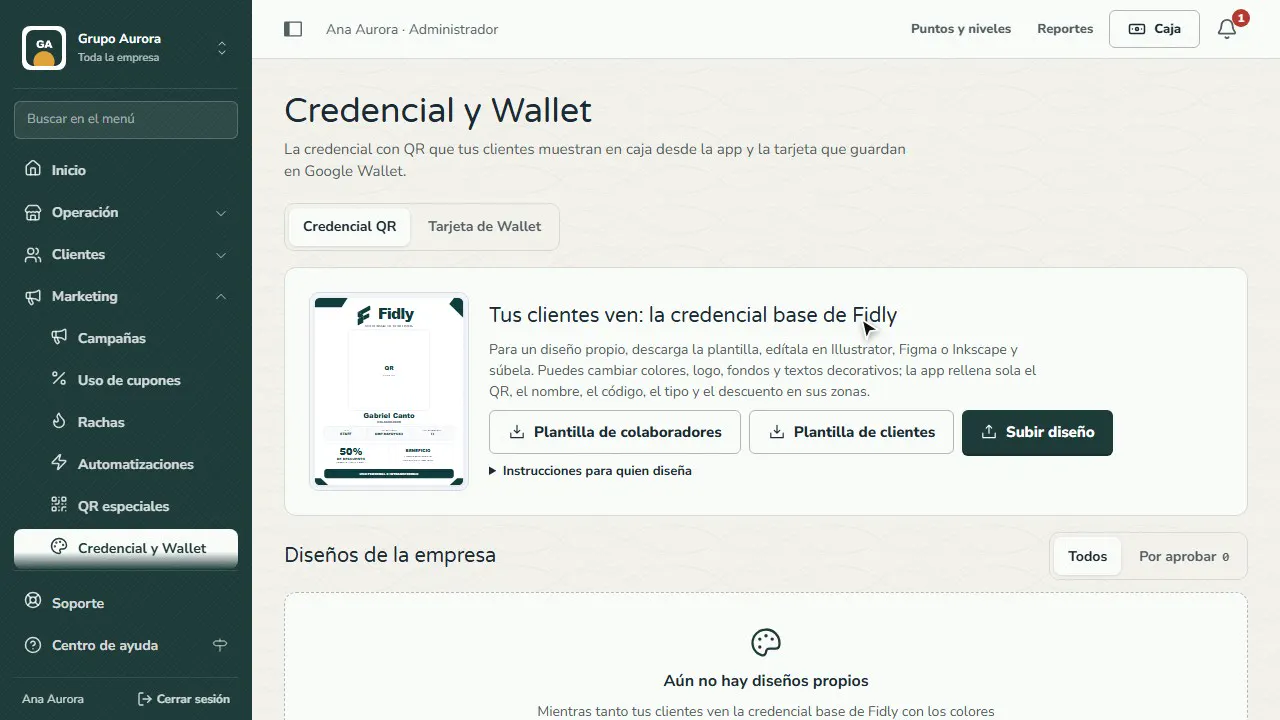
In Marketing › Card and Wallet, on the QR card tab, you see the card your customers currently show at the register from the app.
Download the template
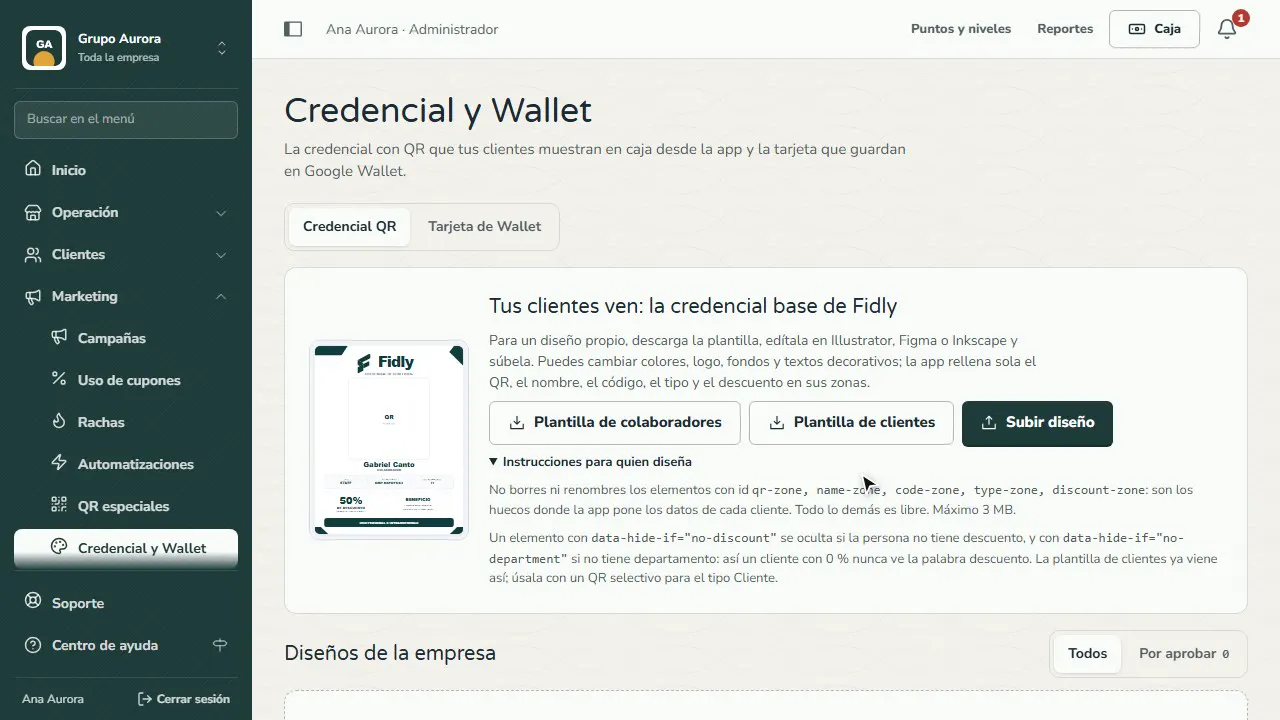
Download the Customers template (SVG) and edit it in Illustrator, Figma or Inkscape: colors, logo and text. Don't delete the QR, name, code, type and discount zones.
Upload your design
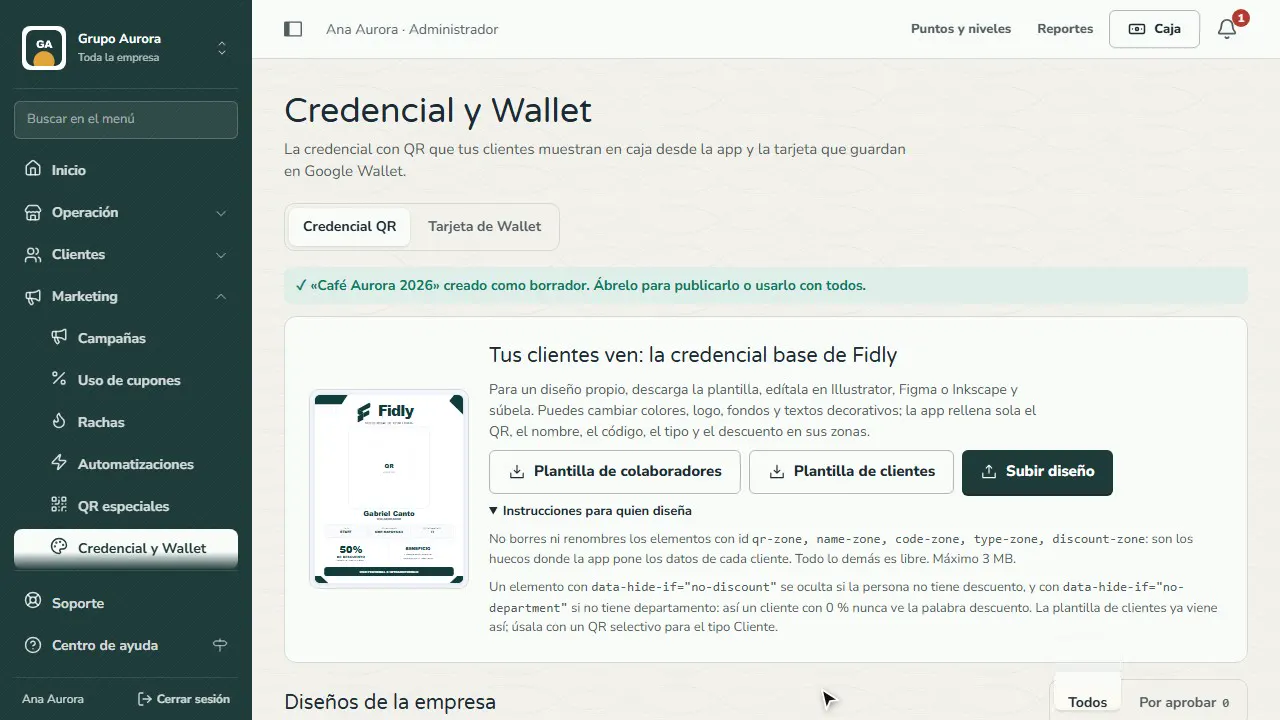
Tap Upload design, choose your SVG, check the preview, give it a name and tap Create design: it's saved as a draft.
Send it for approval
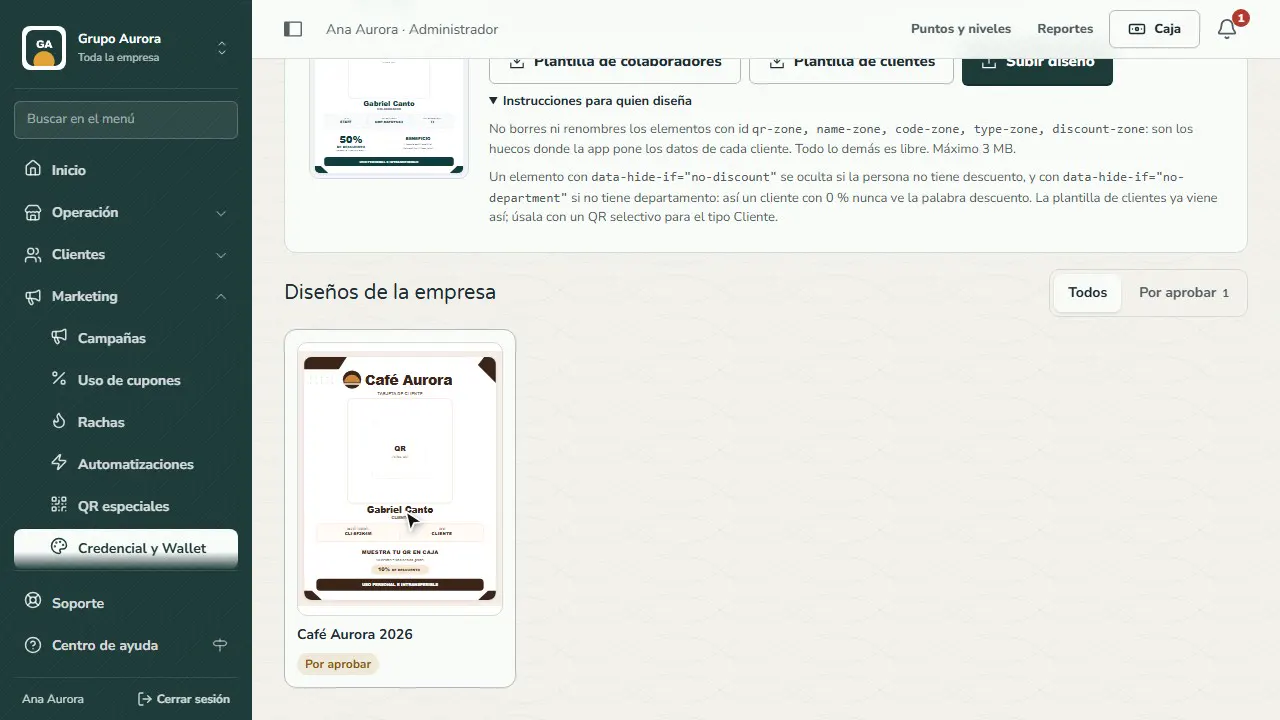
Open it and tap Send for approval: that way nobody publishes a design without someone else reviewing it.
Someone else approves it
A Marketing lead finds it under Pending approval, reviews it and taps Approve and publish (or sends it back with comments).
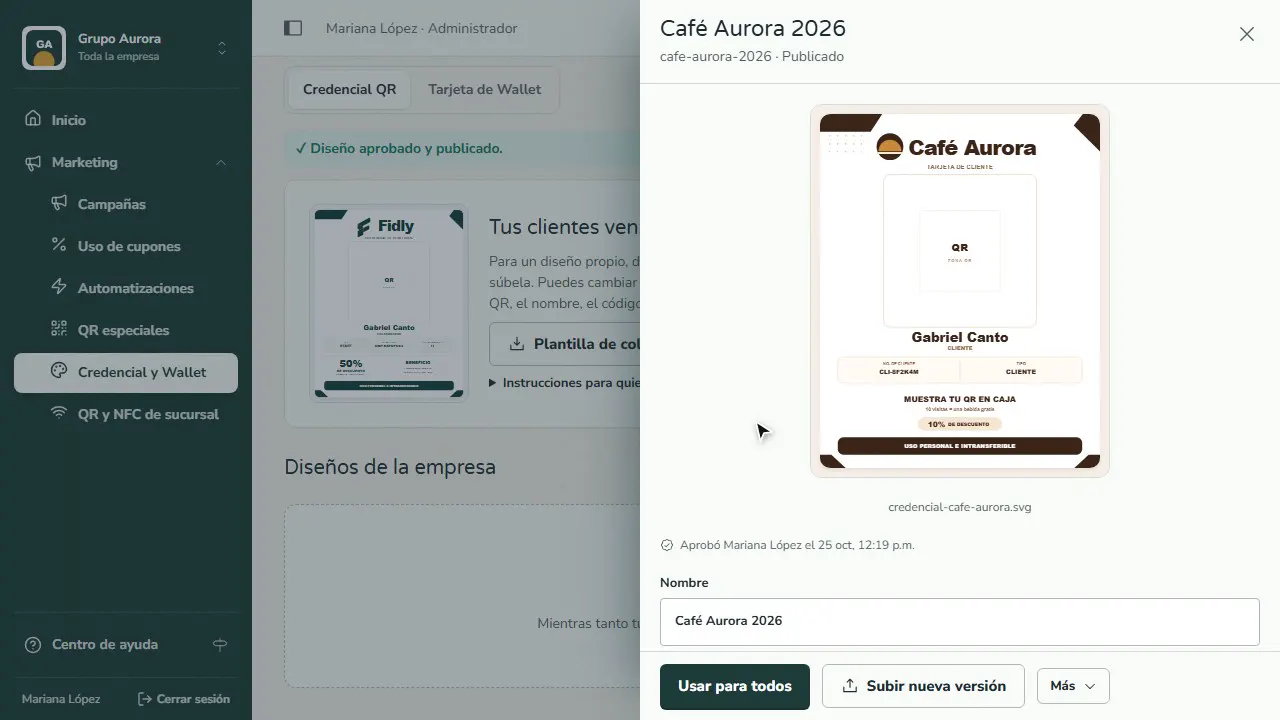
Use it for everyone
Once the design is published, Use for everyone makes it the card for all your customers.
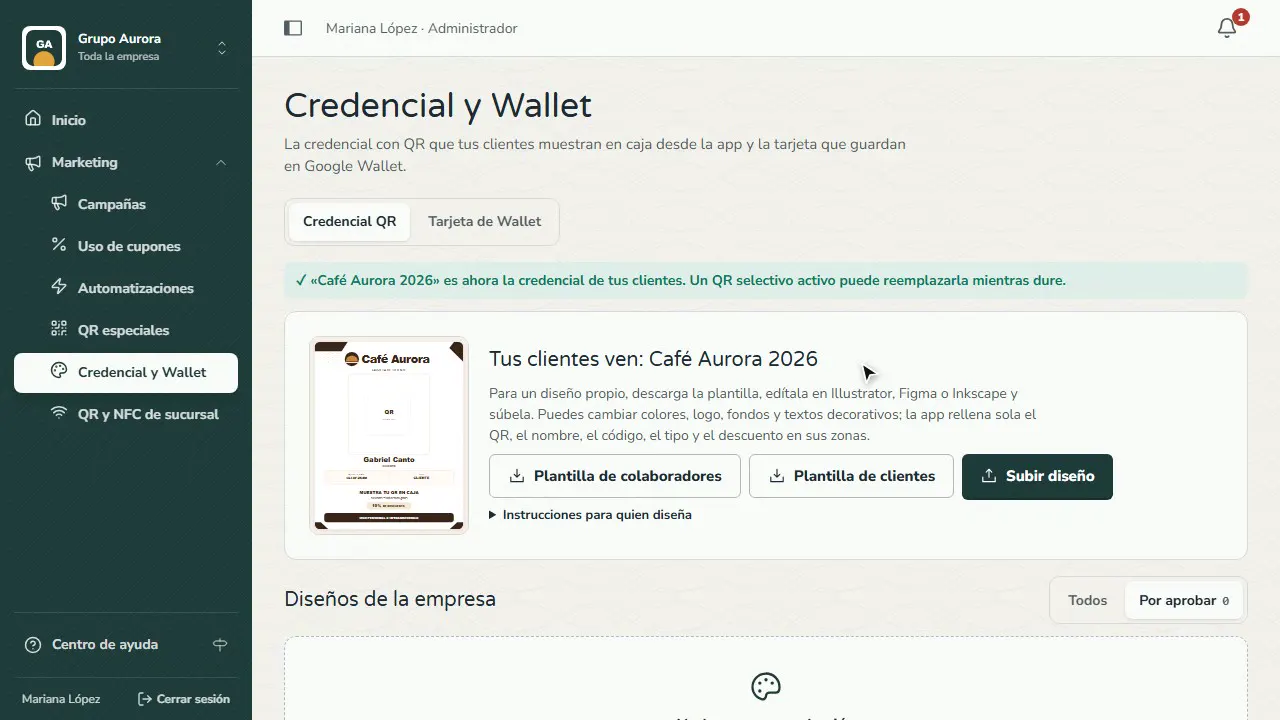
How your customer sees it
In the app, their QR now appears inside your card, with their name, their number and their customer type.
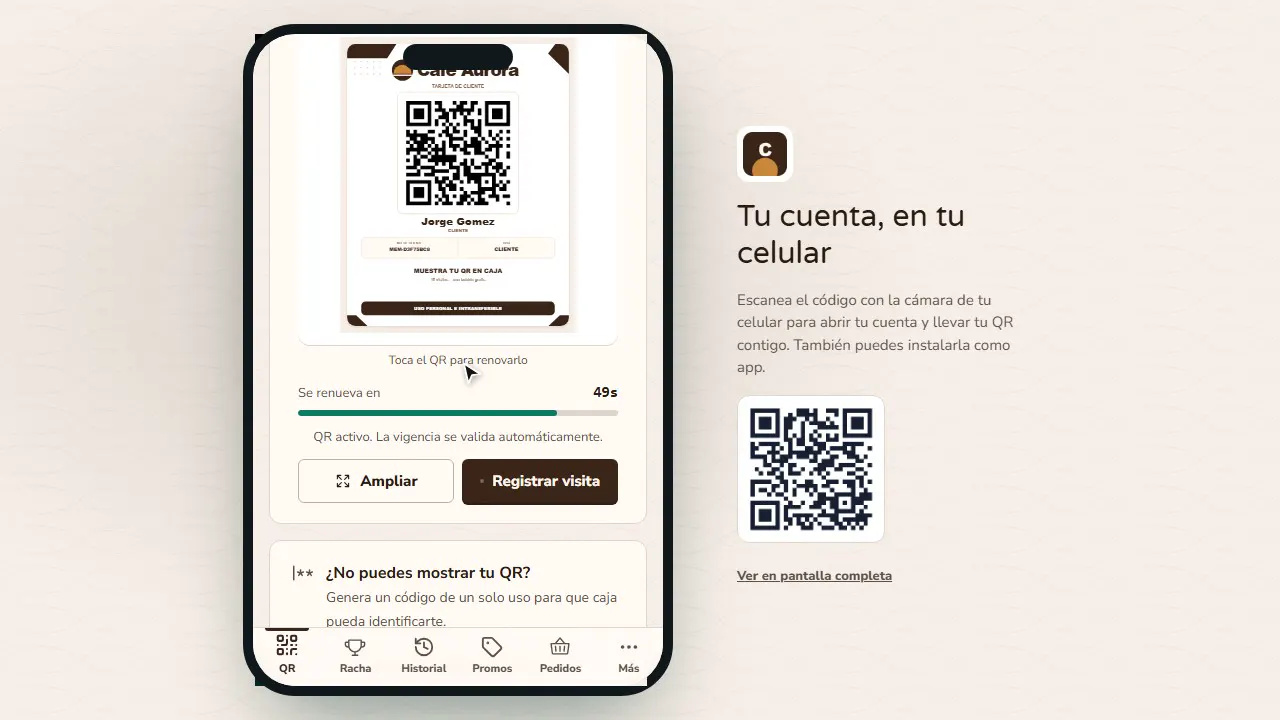
Common mistakes
- Deleting or renaming the template's zones. Without `qr-zone`, `name-zone`, `code-zone`, `type-zone` and `discount-zone`, the file isn't accepted.
- Exporting the design as an image. It must be an SVG, 3 MB at most.
- Publishing without checking on a phone. Open the app with a test customer and make sure the QR scans well.
Tips
- Keep the QR on a white background with a good margin: that way any camera can read it.
- To change the published design, use Upload new version: the current one stays live until the new one is approved.
- For special dates or VIP customers, use Special QR codes instead of changing everyone's card.