What it is
A special QR code changes the design of the card certain customers see, without them doing anything. There are four types:
- Default: the usual design for everyone (it's created when you use a design “for everyone”).
- Seasonal: a design for a date range (Christmas, an anniversary, Day of the Dead).
- Selective: only for certain customer types, brands or branches.
- Unlockable: the customer earns it after reaching a number of purchases or an amount spent, and keeps it for the days you choose.
It's created as a draft and nobody sees it until you turn it on. If several apply to a customer, they see the one with the highest priority. The designs come from your published cards (see Your customers' card).
Step by step
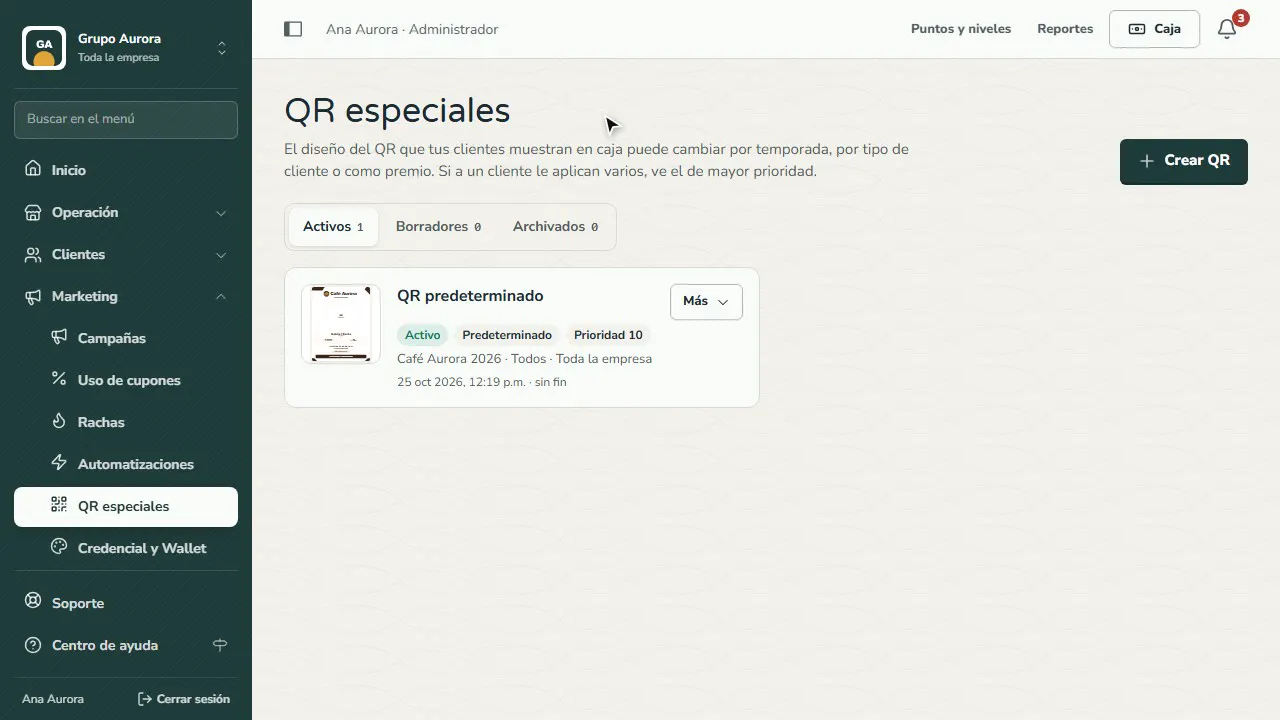
Open Special QR codes
In Marketing › Special QR codes you decide which card each customer sees: by season, by customer type or as a reward.
Create the QR
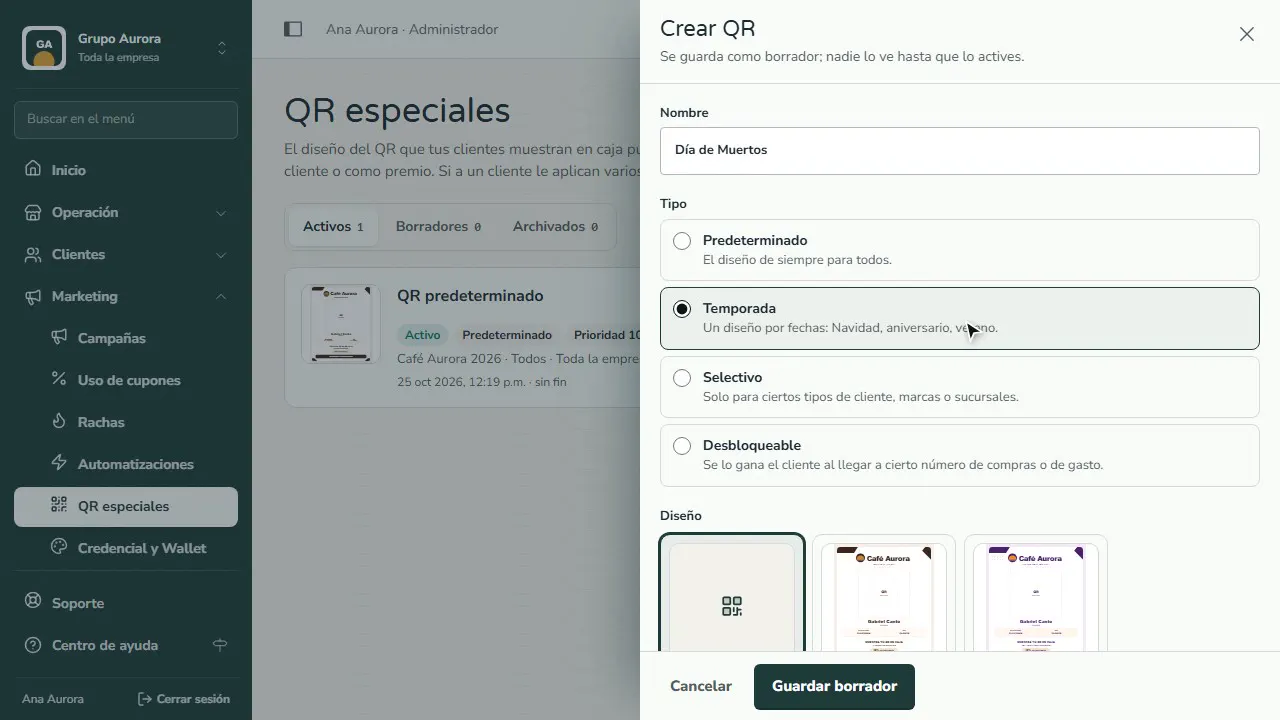
Tap Create QR, give it a name and choose the type: Seasonal (by dates), Selective (certain customers or branches) or Unlockable (earned with purchases).
Choose the design
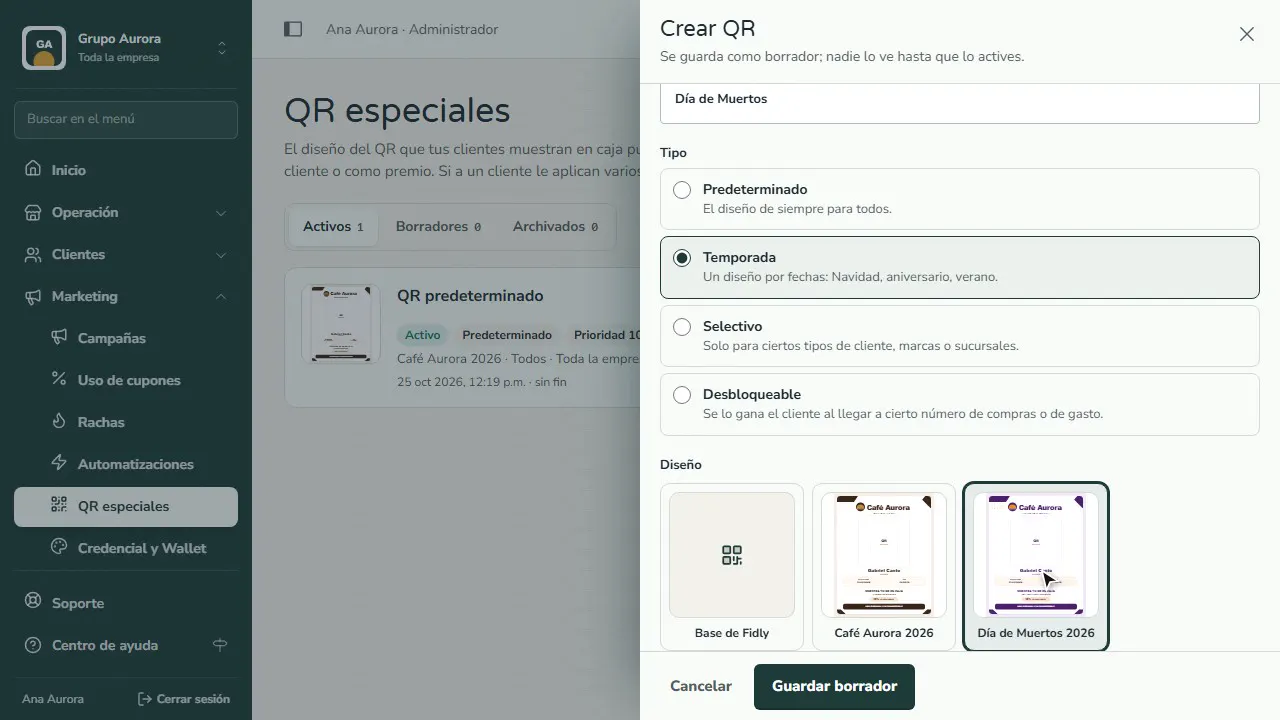
Pick one of your published designs in QR card; here, the Day of the Dead edition.
Dates
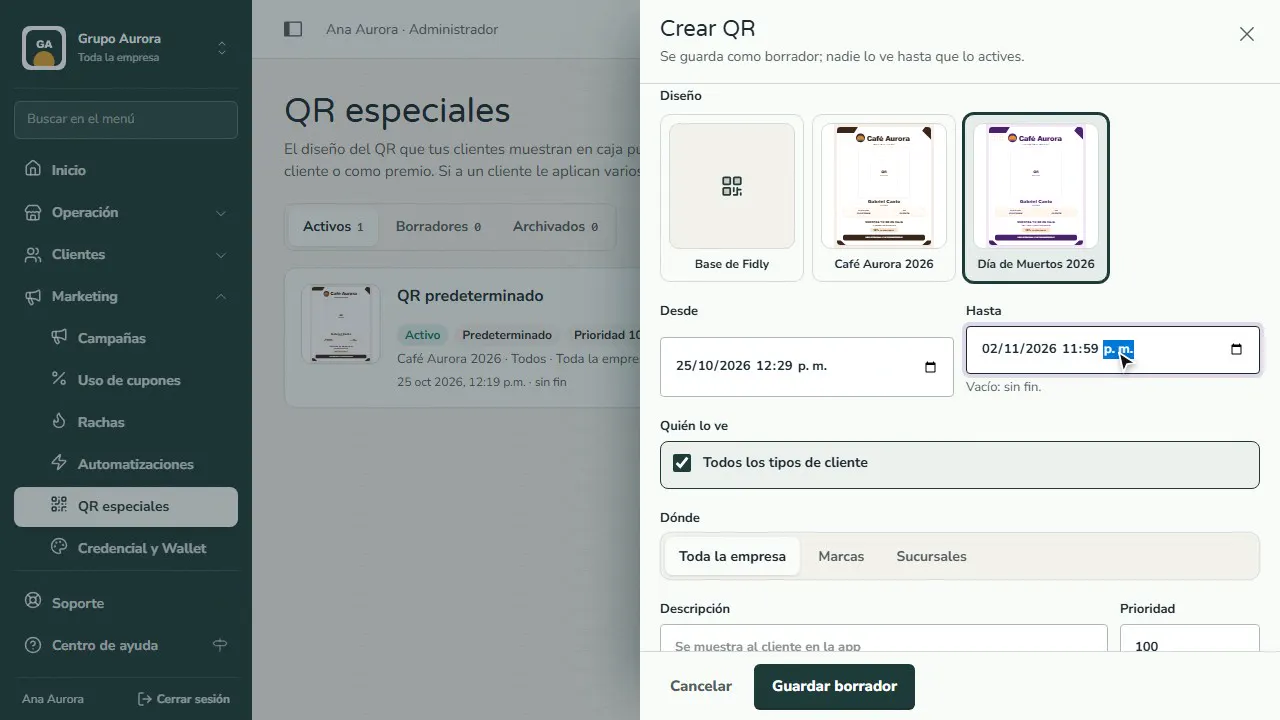
From and To set when it shows; when it ends, your usual card comes back on its own.
Who sees it and where
Choose which customer types and which brands or branches, add a description and tap Save draft.
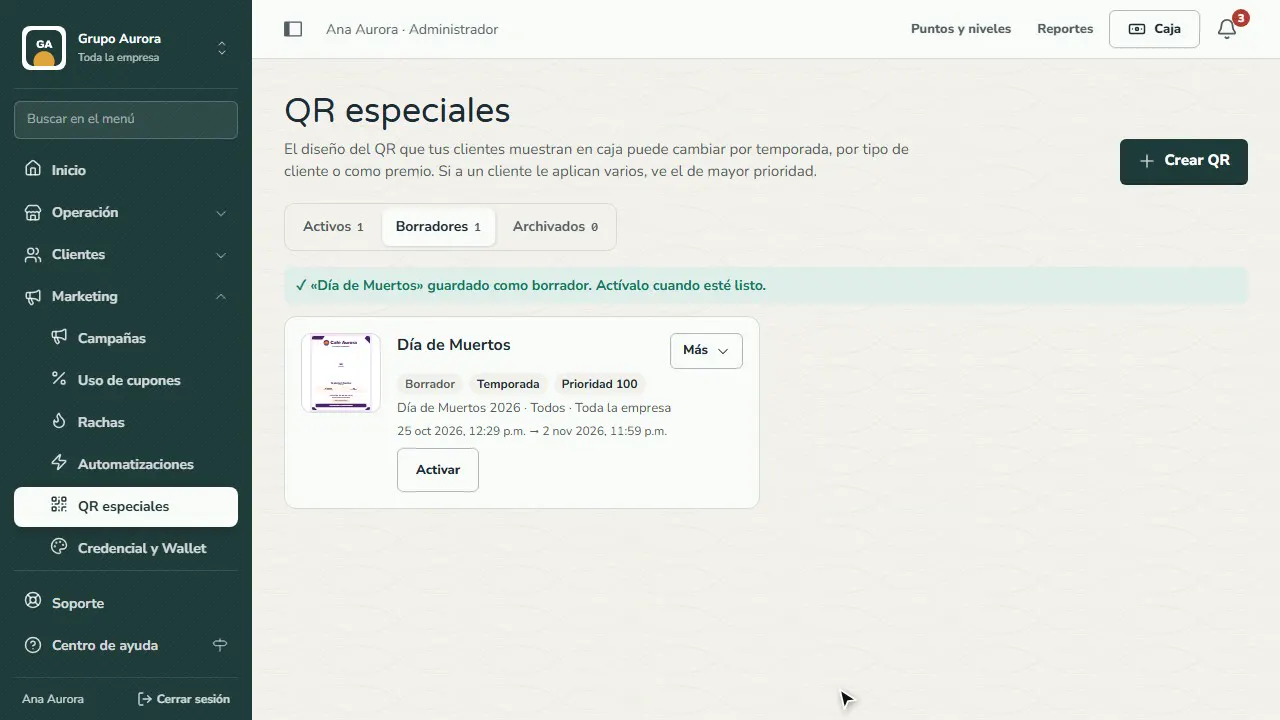
Turn it on
In Drafts, tap Turn on. If several QR codes apply to a customer, they see the one with the highest priority.
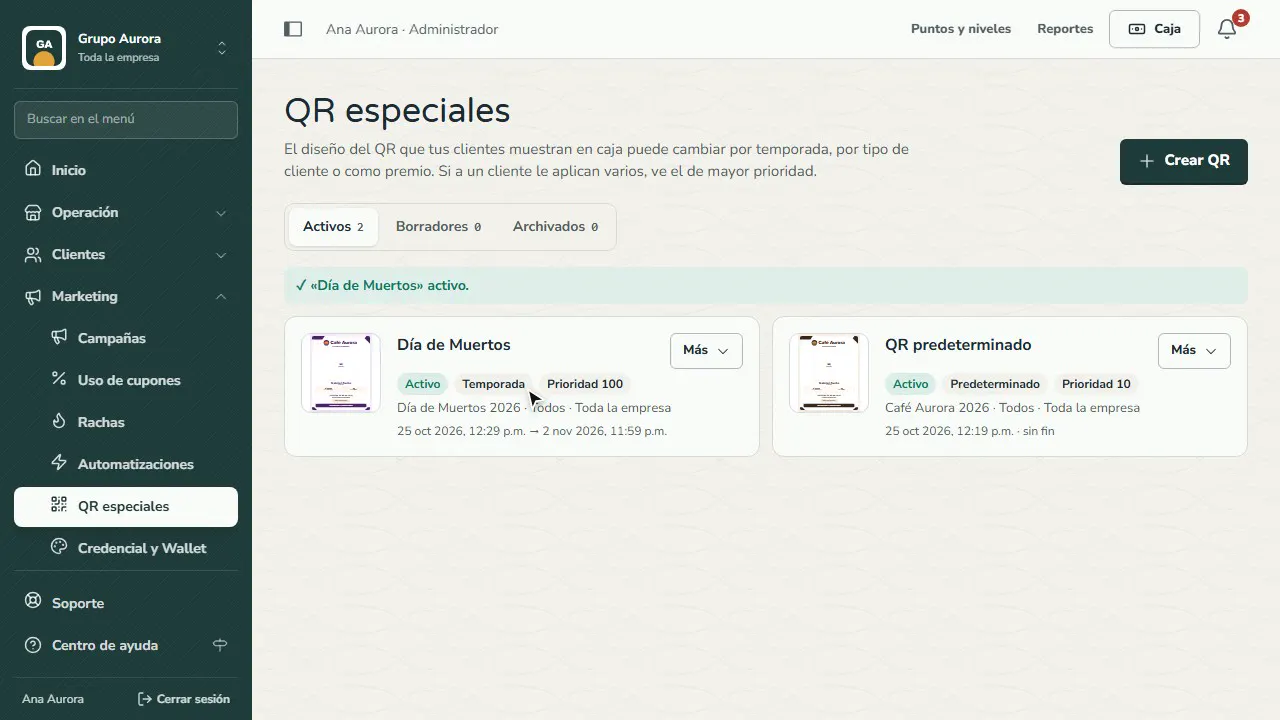
What your customer sees
In the app, their QR now shows the seasonal design until the end date.
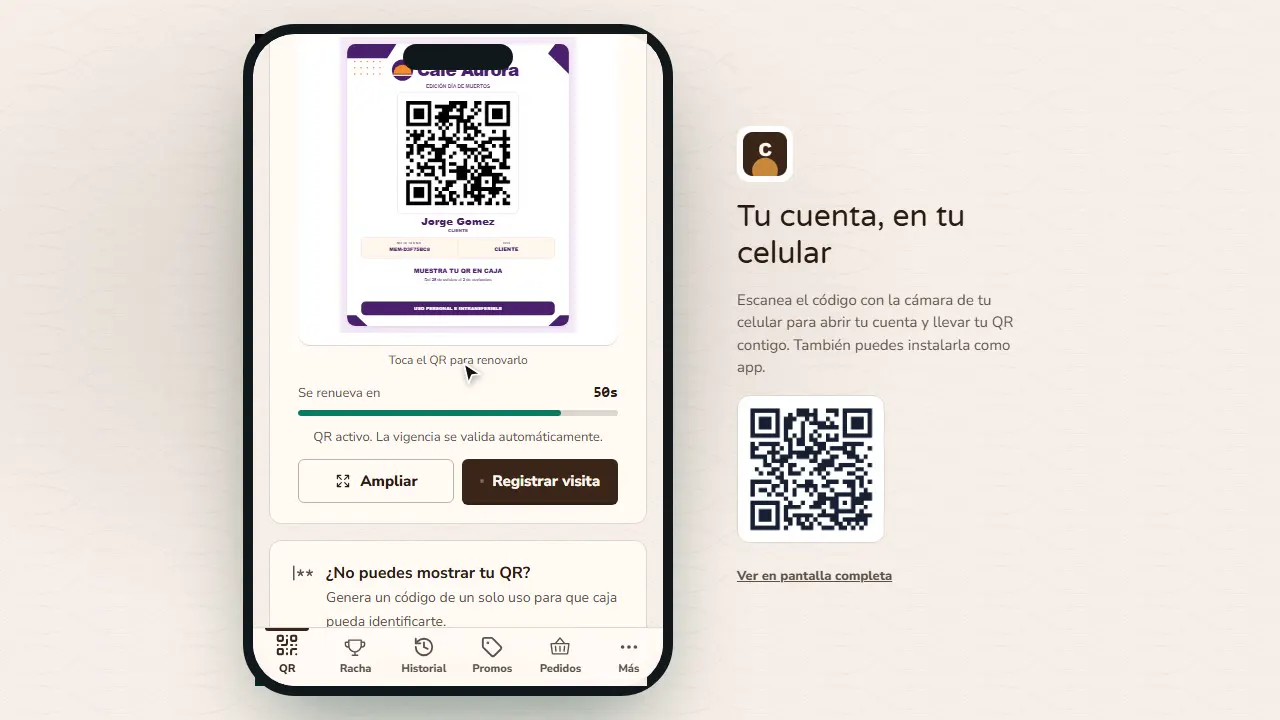
Common mistakes
- Having no published designs. Without an approved design you can only choose the base design.
- Forgetting the end date. A seasonal QR with no end date stays forever.
- Two QR codes with the same priority for the same customer. Raise the priority of the one that should win.
Tips
- Prepare the seasonal design ahead of time: it needs approval before you can use it.
- Use an Unlockable QR as a reward for your best customers; it's an incentive people notice at the register.
- Let them know with a campaign that their card changed.