What it is
A QR poster or an NFC tag at your branch: the customer scans it or taps their phone, and their visit is recorded even if they don't buy anything. If they don't have an account, they sign up linked to that branch.
One visit per customer per day is counted.
Step by step
Open Branch QR and NFC
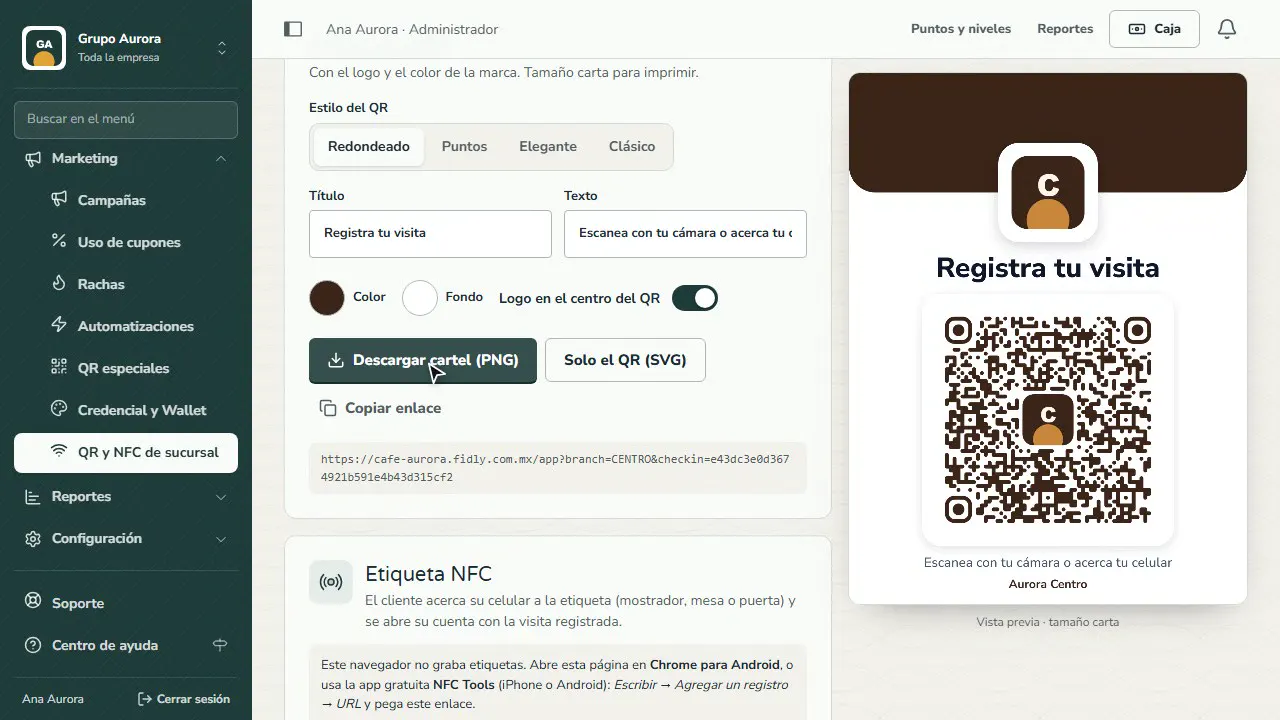
In Marketing › Branch QR and NFC you'll find the counter QR: the customer scans it and their visit is recorded; if they don't have an account, they sign up right there.
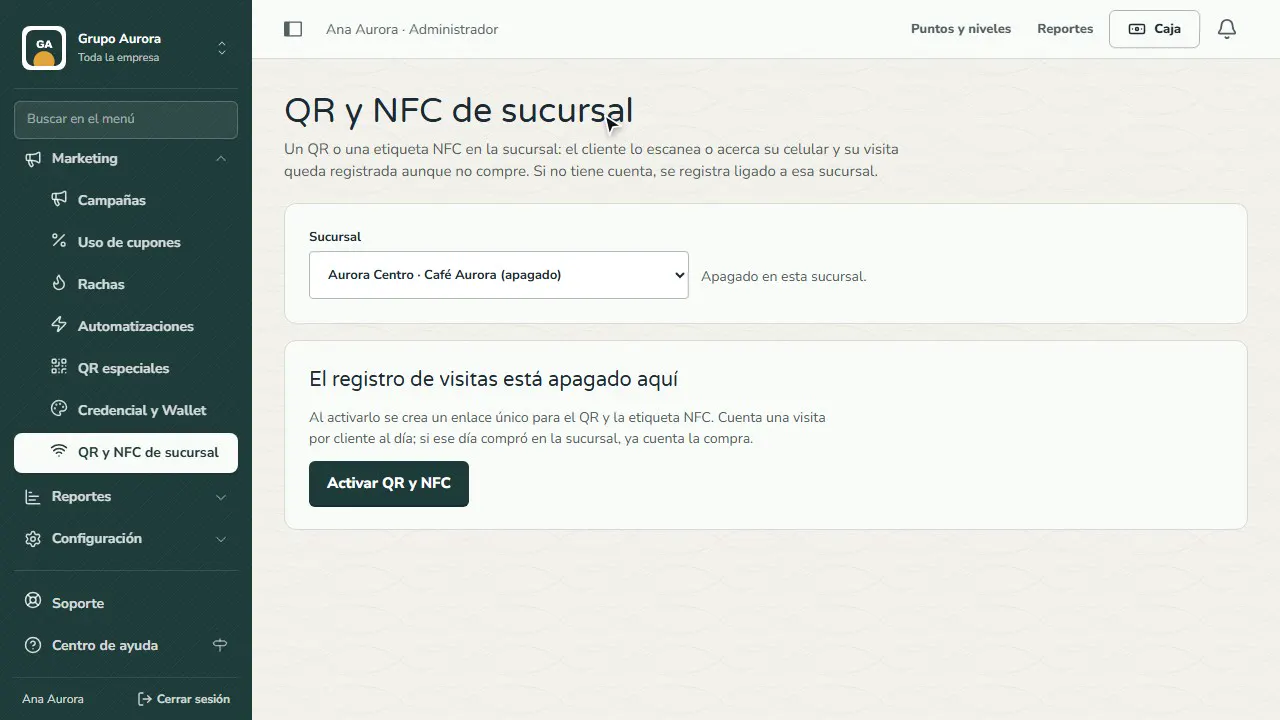
Choose the branch
Each branch has its own QR. Choose the one where you'll put it.
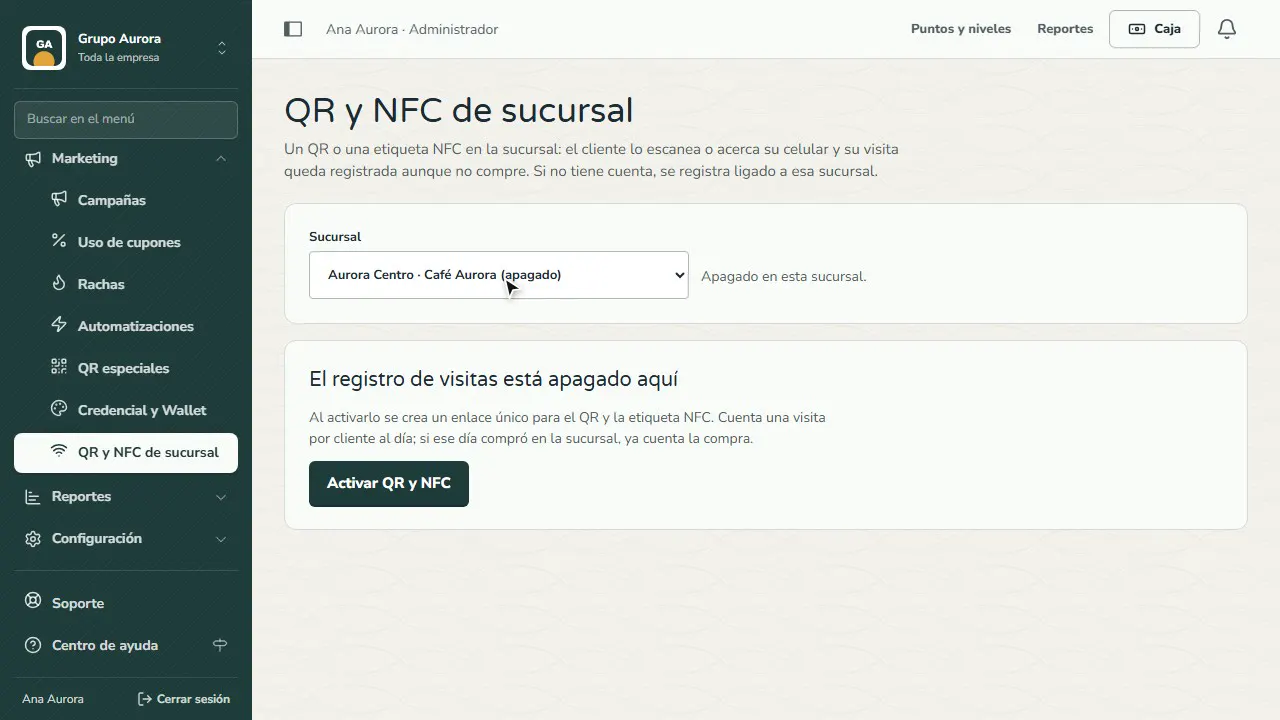
Turn it on
Tap Turn on QR and NFC: a unique link is created for that branch. It counts one visit per customer per day.
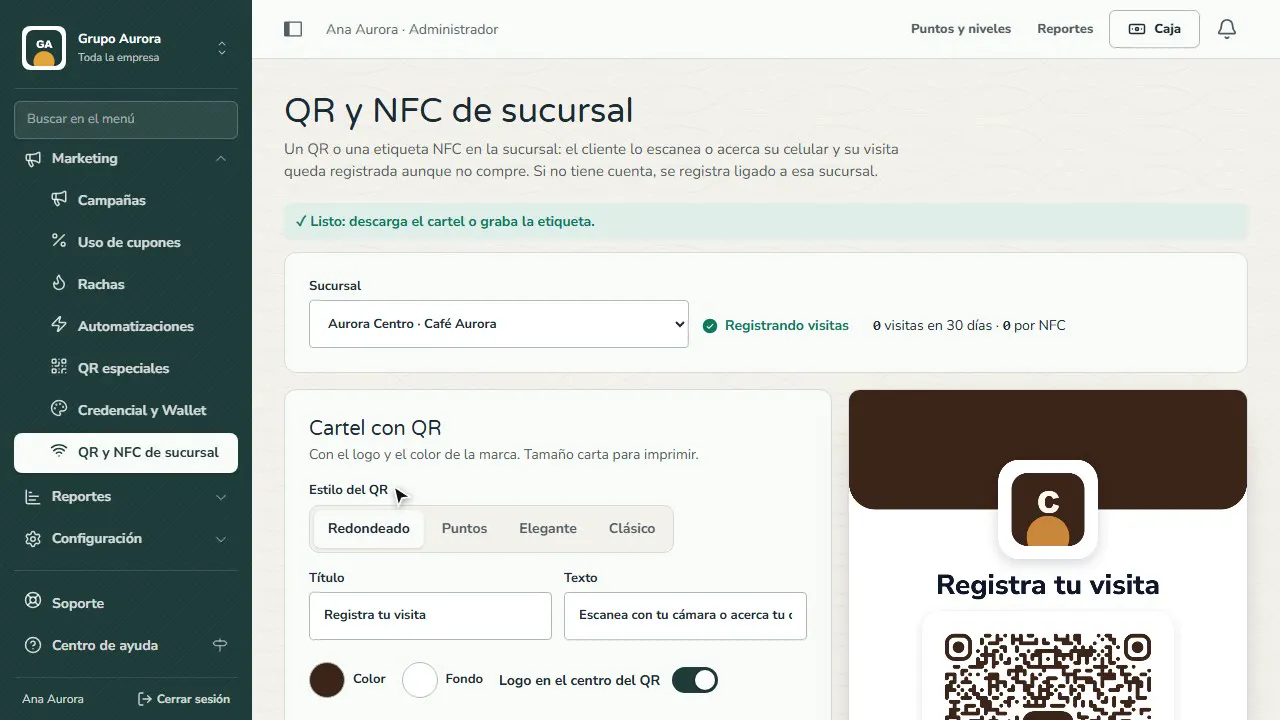
Your poster
Fidly builds the poster with your brand's logo and color, in letter size.
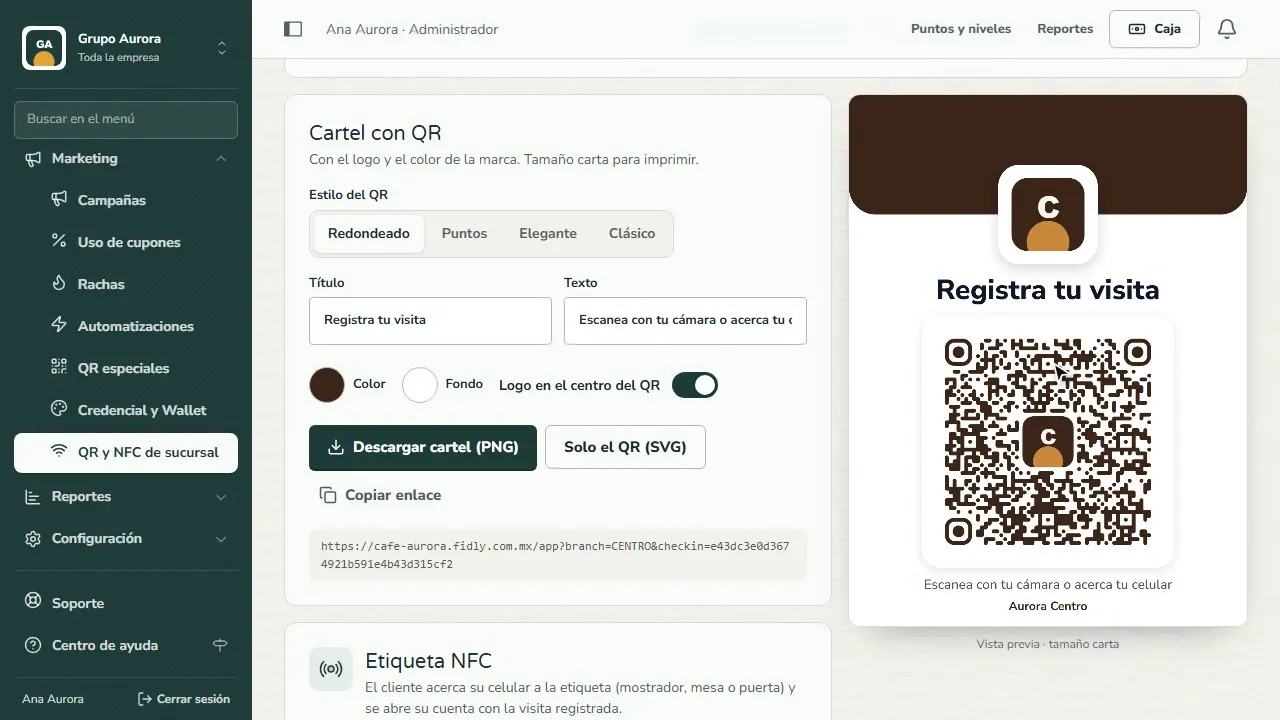
Download and print it
Tap Download poster (PNG) and print it for your counter. With an Android phone you can also write an NFC tag.
Common mistakes
- Forgetting to turn on visit check-in. Choose the branch and tap Turn on QR and NFC.
- Putting the poster where no one sees it. Next to the register, at eye level, works better than on the door.
- Letting a shared QR circulate. If someone posts it outside the store, use Regenerate link: the old ones stop working.
Tips
- Download the poster as a letter-size PNG with your logo and colors.
- Ask your cashiers to invite customers to scan at every payment during the first week.
- Check on Home how many people arrive through each branch's QR.