What it is
With Orders, your customers order from your brand's app: they pick the branch, the products and whether they want it as soon as possible or at a set time. Depending on how you set it up in Inventory and orders › Times and delivery, they pick up at the branch, get it delivered or book an appointment, and pay at the branch when they pick up.
The Order board opens on the branch's register device (Operation › Order board) and sorts orders into three columns: Incoming, Being prepared or in service and Ready and on the way. Each new order arrives with an alert; from its card you send it to prep, mark it ready and hand it over, charging whatever is still due. The customer sees every change in their app.
Step by step
The customer opens Orders
In your brand's app, the customer opens Orders: they see your branch, whether it's open, how long it takes and that they pay at pickup.
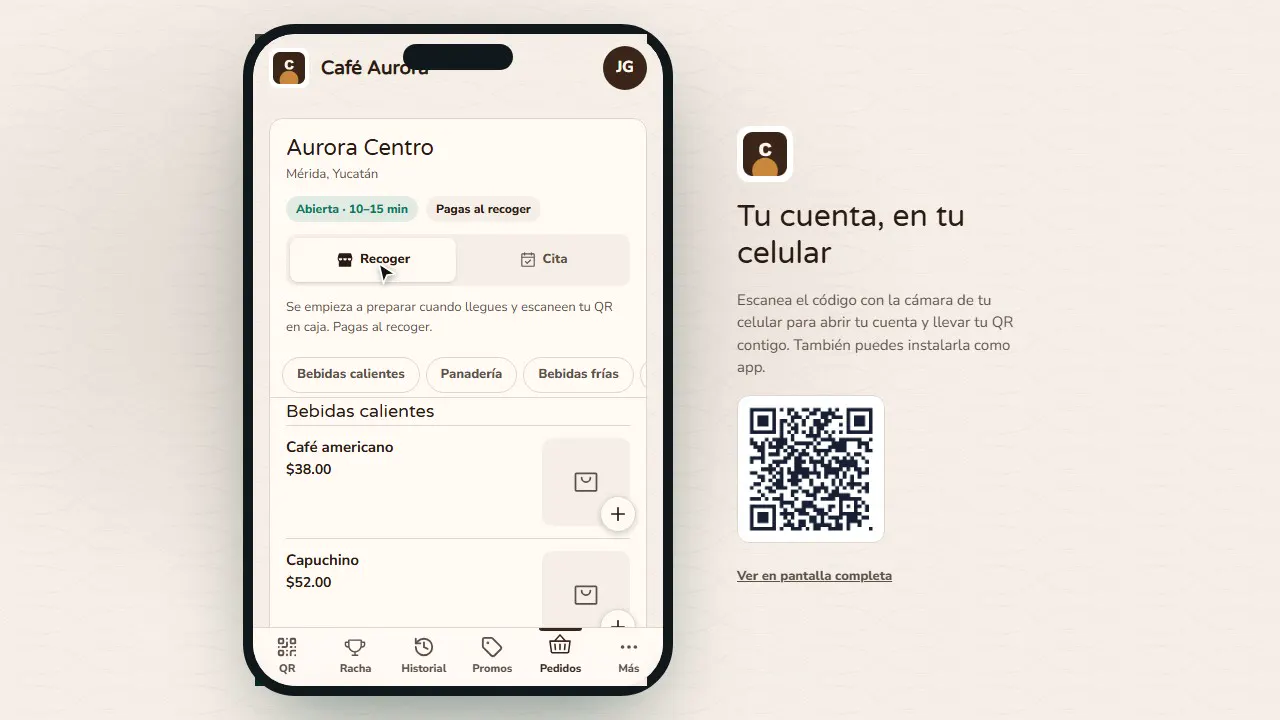
They choose what they want
They tap + on each product and then View order: they can pick a time or “As soon as possible” and leave a note.
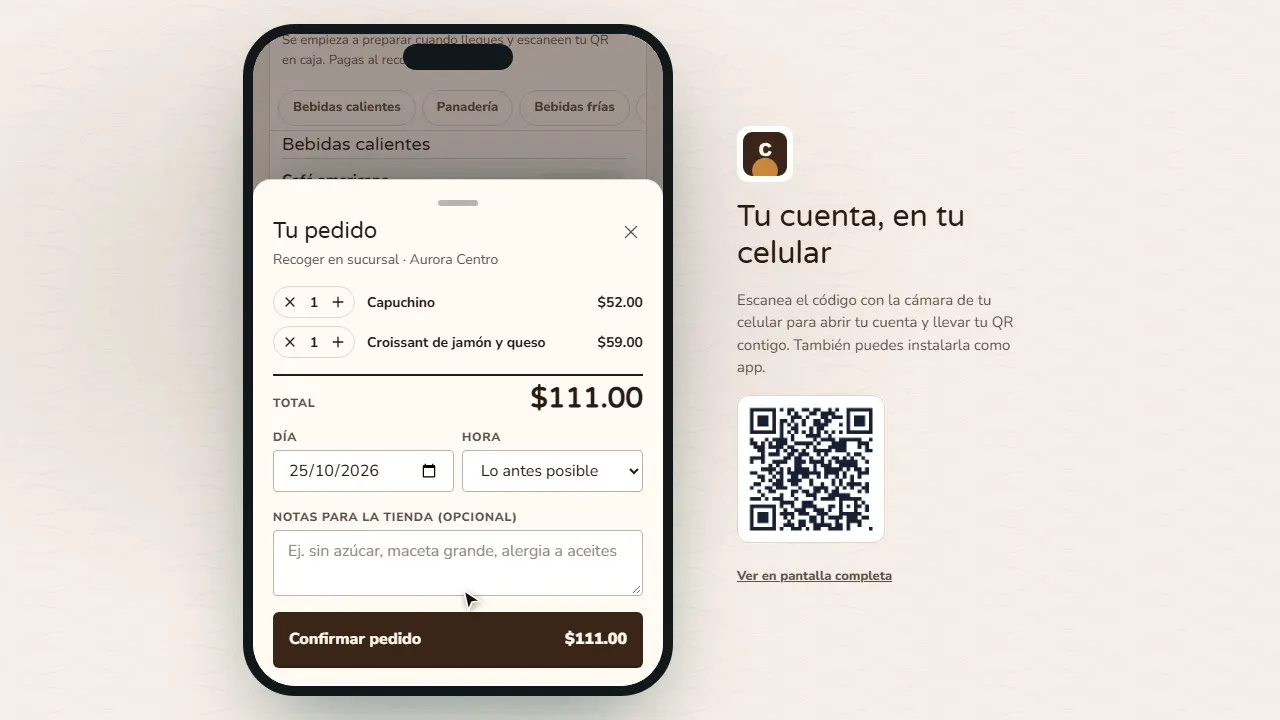
They confirm the order
They tap Confirm order: their app shows the order number and how it's going.
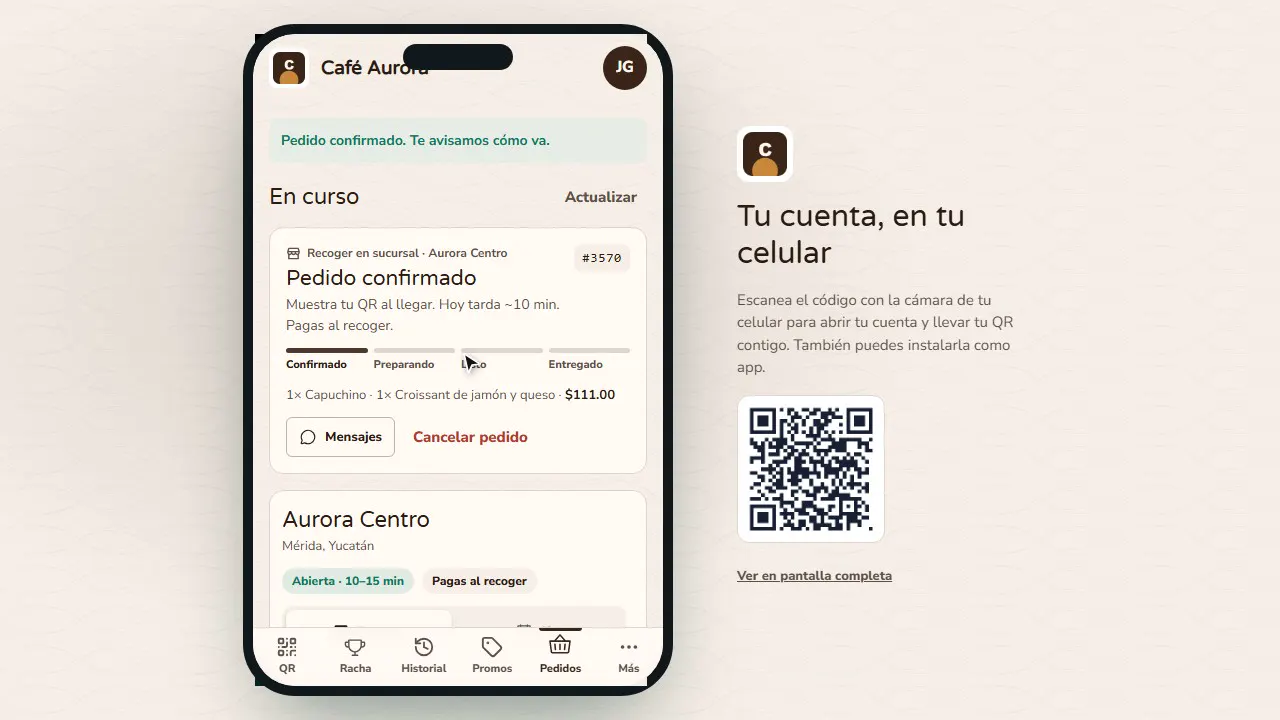
It reaches the Order board
On the register device, the order shows up in Incoming with an alert: who ordered, what's in it and how much to charge at the branch.
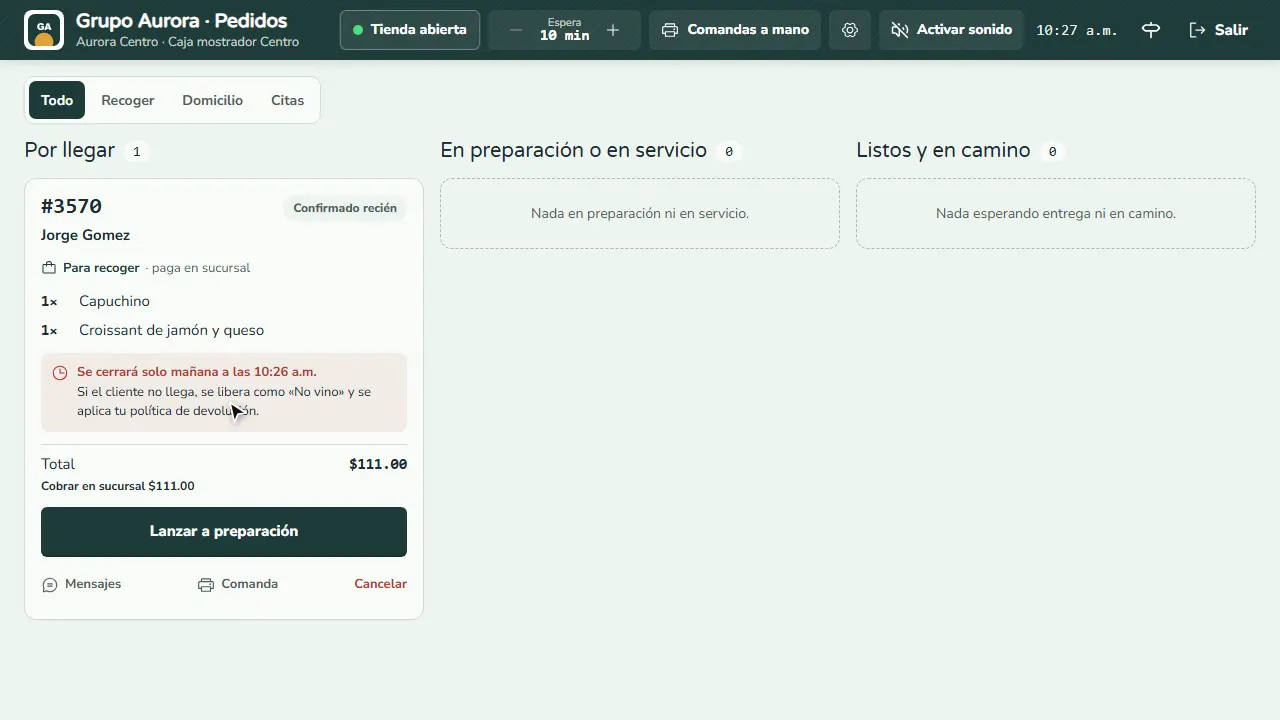
Prepare it
Tap Send to prep (or it's sent automatically when the customer arrives and their QR is scanned at the register).
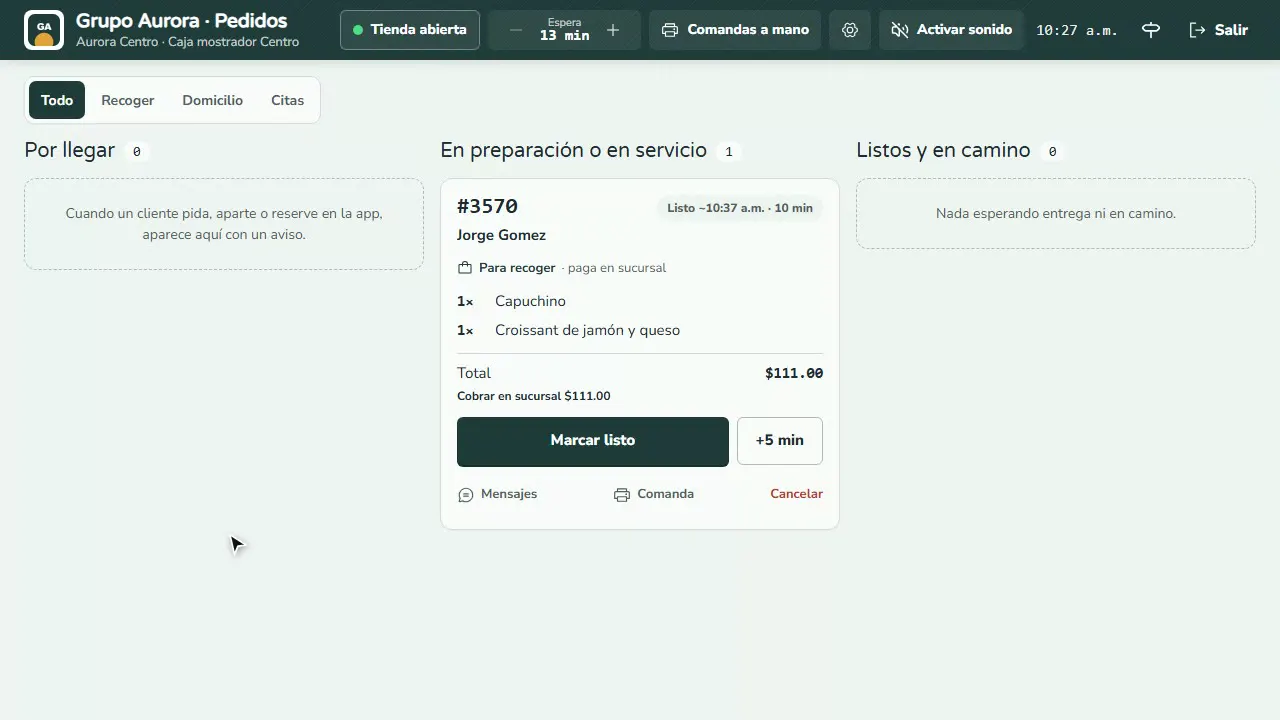
Mark it ready
When it's ready, tap Mark ready: it moves to Ready and on the way.
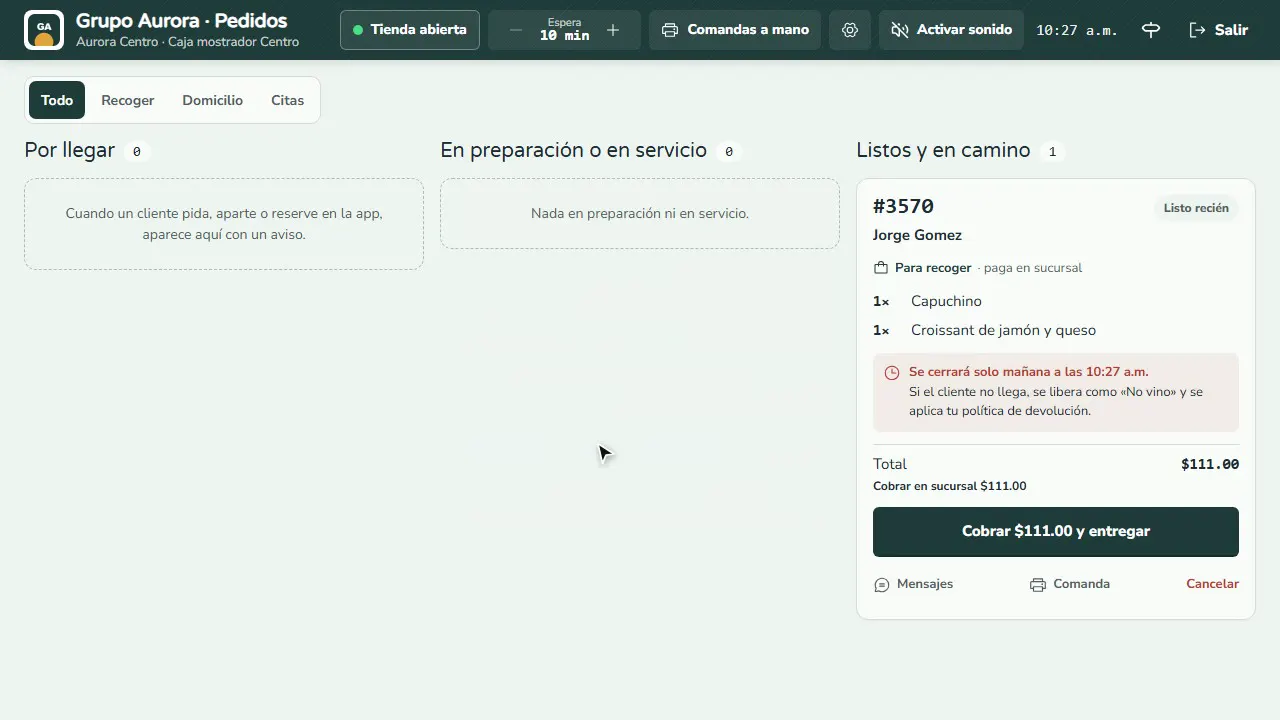
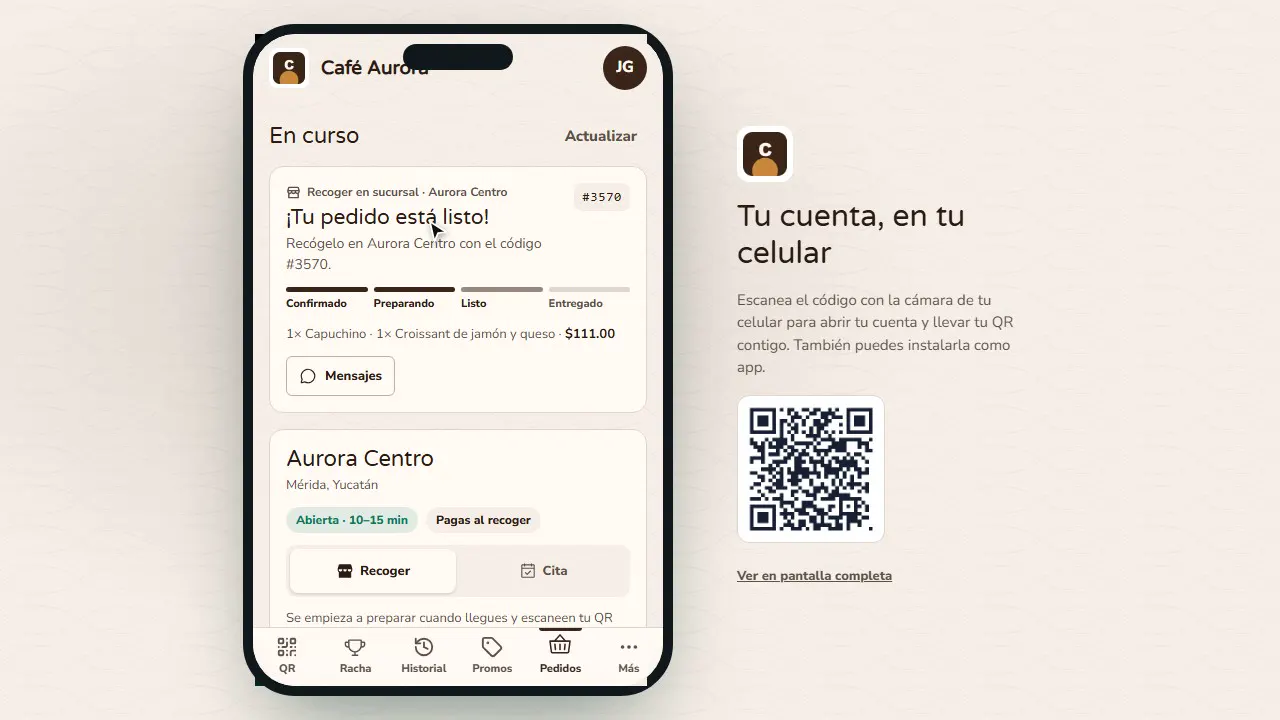
The customer sees it's ready
Their app shows Your order is ready! with the branch and the pickup code.
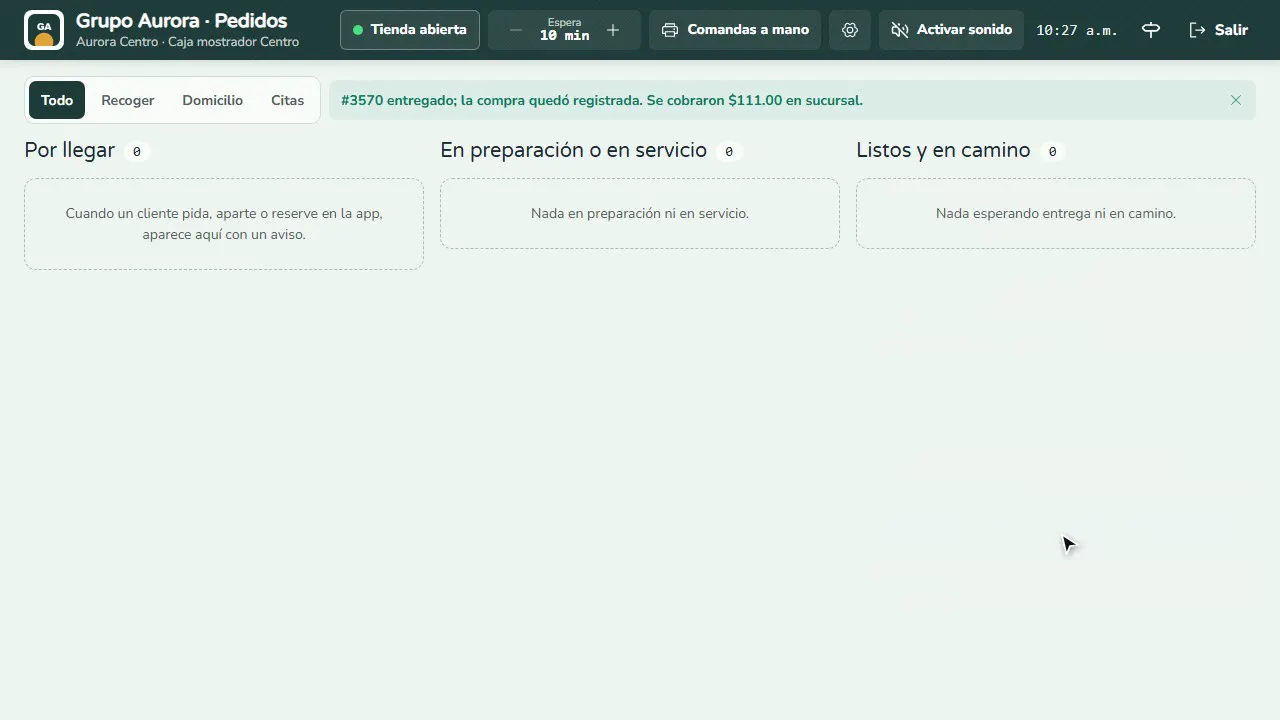
Hand it over and charge
When you hand it over, tap Charge and hand over: the purchase is recorded under their name.
Common mistakes
- No products for sale at the branch. If the branch has no products available, the Orders tab doesn't show up in the app.
- Leaving the store closed. With Store open off or outside business hours, the app doesn't take orders for right now (only reservations).
- Forgetting the sound. Tap Turn on sound on the board to hear every new order.
Tips
- Adjust the Wait time during rush hours: the customer sees how long it takes.
- Use Messages on the card to let the customer know if something is missing.
- Print the Kitchen ticket for the bar or the kitchen.