What it is
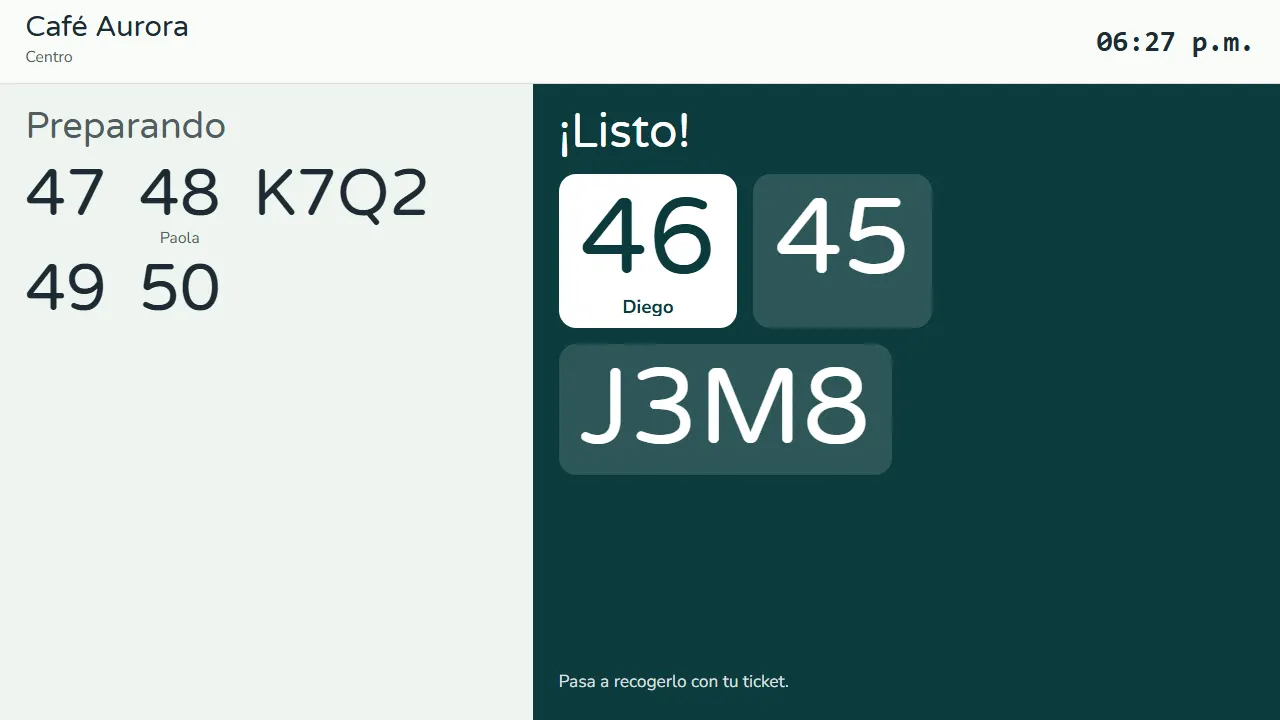
For businesses where customers pay at the counter and wait for their order: fast food, coffee shops, ice cream. When charging, Register gives the sale an order number from 1 to 999 per branch, printed large on the receipt and the kitchen ticket. A screen in your store, on a TV or monitor, shows the numbers under Preparing and Ready!.
It's a module you turn on, and it comes with Fidly POS. When it's off, Register works as always.
Step by step
Turn on order numbers
In Operation › Order numbers & screen switch on Issue order numbers at the counter. Every counter sale with products gets a number from 1 to 999 per branch, restarting every day. Then reload Register on each register device.
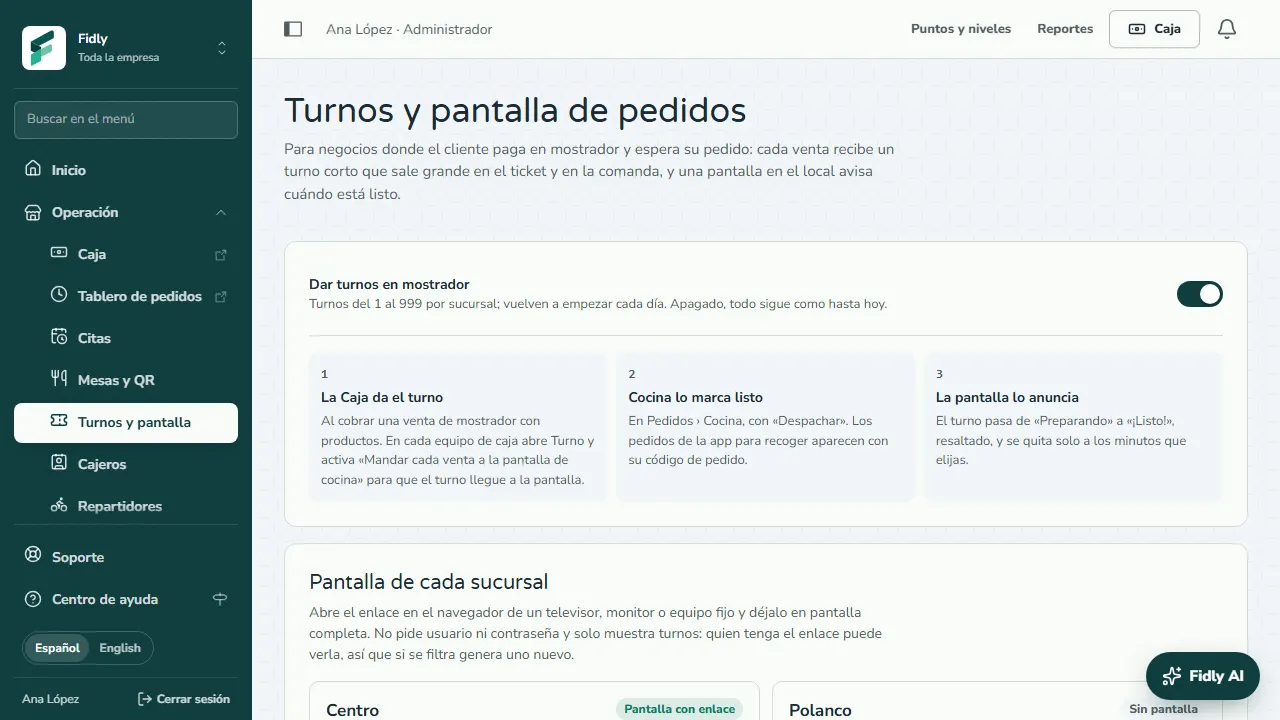
Generate the screen link
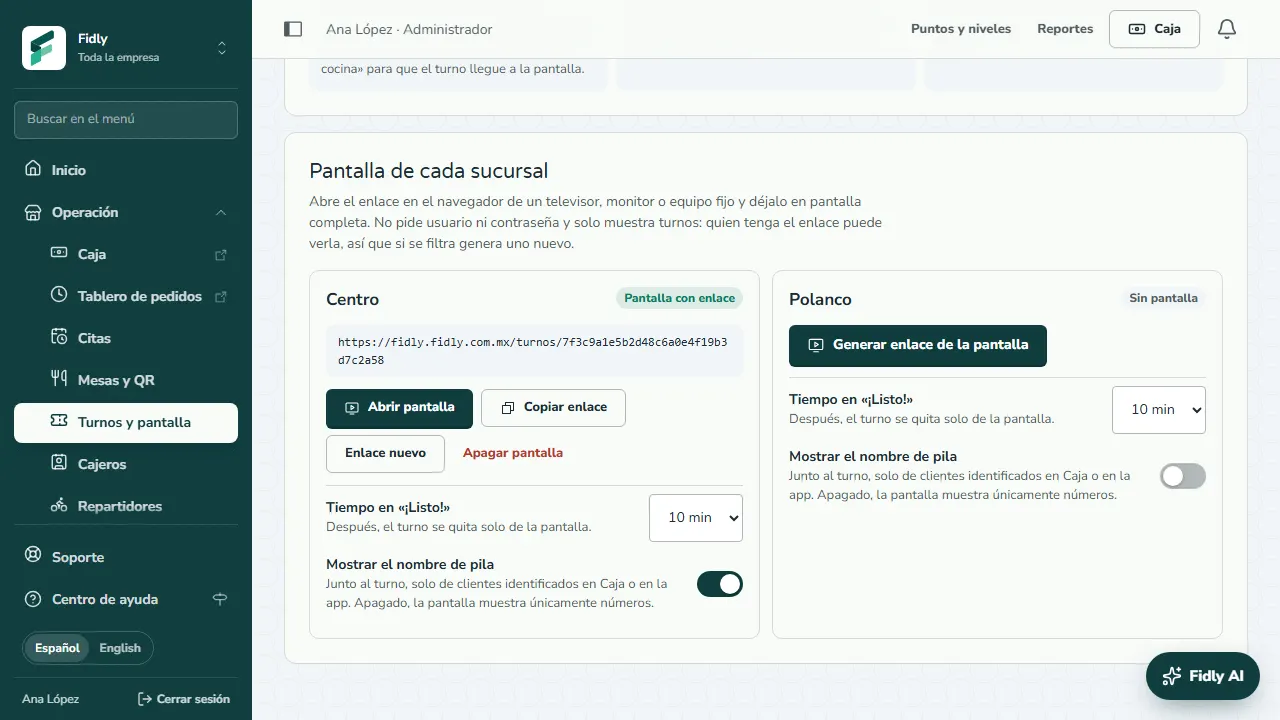
Under Screen for each branch tap Generate screen link and open it on a TV or monitor. Choose the Time under “Ready!” and whether to Show the first name. If the link leaks, use New link.
Set up each register device
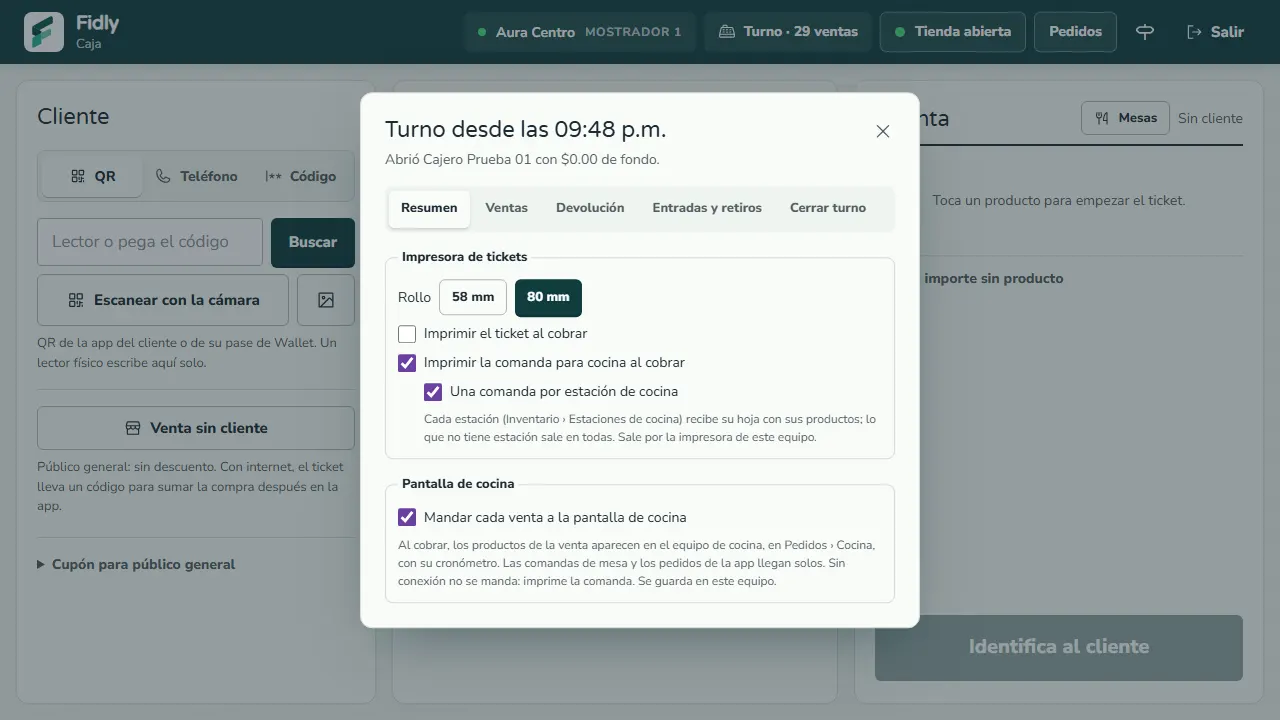
In Register open Shift › Summary. Check Send every sale to the kitchen screen so the number reaches the screen and, if you have stations, One kitchen ticket per station: each one gets its own ticket headed by the order number.
The screen calls it out
The number shows under Preparing; when the kitchen taps Bump in Orders › Kitchen, it moves to Ready!, highlighted. Pickup orders from the app show their order code.
How a number reaches the screen
- Register gives the number when charging a counter sale with products. Table checks and sales charged offline get no number.
- The register device sends the sale to the kitchen (option Send every sale to the kitchen screen).
- The kitchen taps Bump in Orders › Kitchen and the number moves to Ready!; it clears itself after the minutes you choose.
- Pickup orders from the app show their order code, the same one the customer sees in the app.
Common mistakes
- Not reloading Register. After turning order numbers on, reload Register on each register device.
- The sale never reaches the kitchen. If the register device doesn't have «Send every sale to the kitchen screen» checked, the number prints on the receipt but never shows on the screen.
- Expecting a sound. The screen is silent: put it where customers can see it.
Tips
- Open the link full screen on a fixed device; the screen refreshes itself and keeps the TV from going to sleep.
- Turn on Show the first name only if your customers usually identify themselves; the screen never shows last names, phone numbers, products or amounts.
- If the link gets shared by mistake, use New link: the previous one stops working.